USB 2.0, USB 3.0, or FireWire – What is the recommended solution for data storage?

1. What is USB 2.0?

USB 2.0, USB 3.0, Firewire USB 2.0 is the industry standard peripheral connection type for most x86 computers (Windows based). This specification is rated with maximum transfer rate of 480Mb/s (60MB/s). Sustained transfer rate of USB 2.0 depends on many factors including type of device in use, data being transferred, and speed of the computer system. A normal sustained data transfer rate for USB 2.0 ranges from 10-30 MB/s. Only burst data transfers can reach the 480Mb/s rate.

What are the benefits of USB 2.0?

  • USB 2.0 is “hot swappable,” eliminating the need to reboot or restart your computer when attaching a device.
  • There’s no need for terminators, memory addresses or ID numbers with USB devices.
  • Various sorts of devices can plug into a USB port: external hard drives, digital cameras, printers, Zip drives, SuperDisk drives, floppy drives, mice, keyboards, etc.

2. What is USB 3.0?

USB 3.0 is the replacement connection type for USB 2.0. This specification is rated with maximum transfer rate of 4Gb/s. Sustained transfer rate of USB 3.0 depends on many factors including type of device in use, data being transferred, and speed of the computer system. Sustained transfer rates can reach speeds of 3.2 Gbit/s.

What are the benefits of USB 3.0?

  • USB 3.0 is “hot swappable,” eliminating the need to reboot or restart your computer when attaching a device.
  • There’s no need for terminators, memory addresses or ID numbers with USB devices.
  • Various sorts of devices can plug into a USB port: external hard drives, digital cameras, printers, Zip drives, SuperDisk drives, floppy drives, mice, keyboards, etc.
  • USB 3.0 is backwards compatible with USB 2.0 ports, and USB 2.0 devices will work on a USB 3.0 port (both at USB 2.0 speeds)

3. What is FireWire?

FireWire is a high-performance connection standard for personal computers and consumer electronics. Originally developed for Apple computers, this connection has been implemented by x86 computers for some time now. FireWire can move large amounts of data between computers and peripheral devices at transfer rates of up to 400 Mb/s (50 MB/s). A new FireWire specification, FireWire 800 (or FireWire B) has entered the computer market with transfer rates of up to 800 Mb/s (100MB/s).

What are the benefits of FireWire?

  • FireWire is “hot swappable,” eliminating the need to reboot or restart your computer when attaching a device.
  • There is no need for terminators, memory addresses of ID numbers with FireWire devices.
  • Though USB 2.0 is rated at a higher throughput speed (480Mb/s related to FireWire’s 400Mb/s), FireWire delivers faster performance for sustained transfer rates on external hard drives. This is because FireWire has lower overhead (less instructions that the CPU has to interpret related to USB 2.0).

Which connection type is better? USB 2.0, USB 3.0 or FireWire?

  • If you plan on transferring large amounts of data often, then USB 3.0 would be the best connection type for you.
  • If you are doing Audio/Video or are on a Mac, than FireWire would be a good choice as many of these programs recommend FireWire over USB 2.0, and Apple currently does not support USB 3.0.
  • If you want the versatility of connecting the hard drive to many different computer systems quickly and easily, and transfer rates are not that important, then USB 2.0 would be the ideal because it is compatible with both PCs and Macs, and most computers today still have USB 2.0 ports.
Read More

2060-800066-006 WD PCB Circuit Board

HDD Printed circuit board (PCB) with board number 2060-800066-006 is usually used on these Western Digital hard disk drives: WD10SPZX-17Z10T1, DCM , Western Digital 1TB SATA 2.5″ Hard Drive; WD10SPZX-22Z10T1, DCM , Western Digital 1TB SATA 2.5″ Hard Drive; WD10SPZX-24Z10T1, DCM HANT2HNB, Western Digital 1TB SATA 2.5″ Hard Drive The 2060-800066-006 Western Digital PCB repair…

Read More

Ubuntu – Linux Group Permissions not being enforced correctly.

I am running Ubuntu 10.04 server and am having some very counter-intuitive experiences with users/groups. For example: sudo touch test_file                    # create empty filesudo groupadd test                      # create ‘test’ groupsudo chown root:test test_file          # change group of file to ‘test’sudo chmod g+rwx test_file              # give write permissions to groupsudo usermod -a -G test {my-user}       #…

Read More

RAID 1 Disadvantages

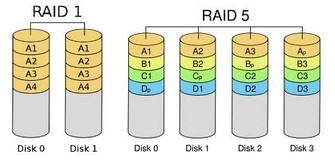
I am in the process of building a new PC and since my data is important. I am considering using RAID. I currently have an external HD which is being backed up using Norton Ghost, but I would feel much more comfortable with real-time protection I’ve read that with on-board RAID controllers, the performance hit for RAID 5 is enormous, so I’m leaning towards RAID 1. I will be using WD 750 Gb Black hard discs on a GIGABYTE GA-P55A-UD4P motherboard using Windows 7. Is the only disadvantage to RAID 1, the ‘loss’ of a hard disc and a slightly more complicated O/S install with the advantages of data protection and a potentially slightly better read performance?

RAID1_RAID5

The big advantage or RAID1 is “instant recovery” from HDD failure. That is, if a member of the array fails, the RAID system immediately should detect that situation and convert the operation to using only the remaining good drive so that you can keep on functioning normally right away. It should also immediately send out a warning message so that you know of the problem and can plan its repair as soon as possible. The “downside” of this is that it can work so smoothly that the warning message goes un-noticed or is ignored by untrained users and the tech guys are unaware a problem needs attention. That’s probably not your situation.

The RAID1 systems I have used have very good tools for fixing a drive failure. Basically they will pinpoint exactly which drive is faulty so you can replace it. Then they will allow you to control re-establishing the array by copying everything from the good drive to the replacement unit. There is no need to re-install an OS or restore data from a backup dataset. They even can do this while the system is in use, although my preference would be to do the re-establishment as a separate operation on a system that is NOT being used for anything at the time.

My wife runs a retail store with a POS software package on a dedicated computer. The data files for that operation are kept in one subdirectory and amount to about 60 to 70 MB of data that are updated with every sale. The files are generally in ASCII character strings with some numerical data, so they compress well to .zip files. I set up the machine with a pair of drives in RAID1 as the only drive system. I installed WnZip Pro and set up a scheduled task that runs every day at 10 minutes before midnight (store is closed). It zips all the files in the specific subdirectory into a daily .zip file named with a date string and puts them in a designated subdirectory. This guards against data file corruption by providing end-of-day archived versions. Once a month (probably should be more often) I simply copy the end-of-month .zip file to a USB drive and take it home where I put it on my home computer – thus an off-site backup monthly. Then I delete all the daily .zips at the store, except for that month-end one. (So the store computer has on its RAID1 array an end-of-month .zip file (for every month since its start), each containing a snapshot of all the data that changes over time.) Small important step: the POS computer normally runs 24/7, so when I do the monthly .zip file copy I also reboot the machine and watch the POST messages to be sure there are no errors in the RAID system that I have not heard about.

We had a failure, but not of a hard drive. The mobo failed and had to be replaced. That can be a big problem with any RAID array based on mobo built-in “controllers” because there is no real universal RAID standard. That means often a RAID array written in one system cannot be read by another. In choosing the original mobo (by Abit) I deliberately chose one that had an nVidia chipset because their website claimed that they guarantee that ALL of their mobo chipset RAID systems use the same RAID algorithms and would continue to do so, so that any yet-to-come nVidia chipset could handle any older RAID disks made with their chips. When the mobo failed I selected a Gigabyte replacement mobo with a similar (but not identical) nVidia mobo chipset. Swapped everything, plugged it all together, and booted expecting maybe I’d have to do a Repair Install at least. It just booted and ran perfectly first time – no trouble at all! WOOHOO! I never had to reconfigure or re-install anything, other than updating the mobo device drivers from the Gigabyte CD.

So if you plan for possible changes to the RAID controller system as well as for changes to a hard drive that fails, a RAID1 system can give you some data security and continued operation through disk failure. You just have to recognize the need for real data backups and do them (AND VERIFY, as you say), probably more often than I do it.

Read More

How to restore lost data from my Mirra to my newly rebuilt OS?

restore lost data My system has crashed. How do I restore lost data from my Mirra to my newly rebuilt Operating System?

Here’s the best way to restore your data after a system disk crash or the re-installation of your operating system onto your computer.

Note: In the context of these instructions, the term new computer can refer to a new computer that has replaced a failed or retired unit or to the same computer after you’ve replaced the disk drive or reinstalled an operating system. In both cases, Mirra will see it as a new and different computer.

Before you begin, consider how much data you intend to recover. If you’re planning to recover a significant amount of data (we consider more than 10GB or 20,000 files to be significant), remember that the Mirra has limits in terms of how many tasks it can perform can do at any one time. Therefore, since recovering your data is of highest importantance, you should temporarily disconnect any other computers from the Mirra so that it can devote its full resources to the restoration of your data.

  1. To temporarily disconnect a computer from the Mirra, turn it off, disconnect your Ethernet cable, or stop the Mirra service.To stop the Mirra service on a PC,
    • Go to Start > Run.
    • In the Run window, type net stop mirra.service.

    To stop the Mirra service on a Macintosh,

    • Go to Applications > Utilities > Activity Monitor.
    • In the pop-up menu at the top of the Activity Monitor window, select All Processes.
    • Select Mirra Service from the list of processes and click Quit Process in the menu bar.
    • In the Quit Process window, click Force Quit.
    • When prompted, enter your Administrator password.
  2. On the new computer, install the Mirra software but do not select any folders for backup. If you’re already backing up data from this computer, make sure all those backups have completed before you start to restore your data.
  3. Go to the Backup & Restorescreen. Listed are the computers previously backed up to the Mirra, each with the individual backups that came from that computer.
    • Select a backup from the old computer and click Save As… on the Restore Tasks menu.
    • In the Browse for Folder window, choose a location at which to save the selected backup.
      A new folder will be created at the selected destination with the same name as the original backup unless one already exists. If the destination folder already exists, any existing files with the same name will be overwritten with files restored from the backup. Wait for all the data for this backup to be copied to the computer before starting another operation.
    • When the selected backup has been copied to the new location, repeat the previous step until all your backups have been restored.
  4. Restored folders are not automatically backed up. After you’ve restored all your folders, select them for backup again from the new computer to the Mirra.
  5. If you’ve manually stopped the Mirra software on other computers connected to your Mirra, restart it by launching the Mirra application from either the desktop or the Start menu.
Read More

Computer Forensic Tool: EnCase Forensic

Computer Forensic Tool: EnCase ForensicEnCase Forensic is for forensic practitioners who need to conduct efficient, forensically sounds data collection and investigations using a repeatable and defensible process. EnCase Forensic lets examiners acquire data from a wide variety of devices, unearth potential evidence with disk level forensic analysis, and craft comprehensive reports on their findings, all while maintaining the integrity of their evidence.

How EnCase® Forensic Works:

1) Obtain Forensically Sound Acquisitions
EnCase® Forensic produces an exact binary duplicate of the original drive or media, then verifies it by generating MD5 hash values for related image files and assigning CRC values to the data. These checks and balances reveal when evidence has been tampered with or altered, helping to keep all digital evidence forensically sound for use in court proceedings.

2) Save Valuable Time with Advanced Productivity Features
Examiners can preview data while drives or other media are being acquired. Once the image files are created, examiners can search and analyze multiple drives or other media simultaneously. EnCase Forensic also features a case indexer. This powerful tool builds a complete index in multiple languages, allowing for fast and easy queries. Indices can also be chained together to find keywords common to other investigations. This Unicode-supported index contains personal documents, deleted files, file system artifacts, file slack, swap files, unallocated space, emails and web pages. In addition, EnCase has extensive file system support, giving organizations the ability to analyze all types of data.

3) Customize EnCase® Forensic with EnScript® Programming
EnCase forensic features EnScript® programming capabilities. EnScript, an object-oriented
programming language similar to Java or C++, allows users create to custom programs to help
them automate time-consuming investigative tasks, such as searching and analyzing specific
document types or other labor-intensive processes and procedures. This power can be harnessed by any level of investigator by using one of Forensics tools, such as the “Case Developer” or one of the numerous built-in filters and conditions.

4) Provide Actionable Data, Report on it, and Move on to the Next Case
Once investigators have bookmarked relevant data, they can create a report suitable for
presentation in court, to management or to another legal authority. Data can also be exported in multiple file formats for review.

EnCase Forensic is trusted by corporations, law enforcement, and government. EnCase Forensic is fast, powerful, forensically sound, and proven in courts worldwide.

EnCase Forensic Related Links:

Website: http://www.guidancesoftware.com/forensic.htm
Resource: EnCase® Forensic for Law Enforcement (PDF)

Read More

Free Remote File Storage/Sharing/Backup

The services listed in this section enable you to backup, store and/or share your files on the Internet for free.

4shared.com
1 Gigabyte of free space to share files.

DriveHQ
Free 1Gb of remote storage space including FTP access and file-sharing. The non-free plans range from 2 Gb for $ 2.99/month up to 20 Gigabytes for $19.99/Month

File Hamster
Free real-time backup and archiving of your files while you work, monitor specific files on your hard drive and automatically create incremental backups, etc.

FLASHspace
Remote storage space which presents itself as simply another disk-drive inside your Windows computer (no software needs to be installed).The 50 Mb package is free. The non-free packages start from $ 2 per month for 500 Mb.

Huddle
1GB of free file storage space.

I(2) Drive
500 Mb storage, 1 Gb transfer for $ 9.99 per month

Internet Virtual Storage
A list of sites providing internet based storage solutions, i.e. remote virtual hard drives or remote virtual storage space, both free and commercial.

myDataBus
5 Gigabytes of free file storage, maximum file size: 500 Mb.

Orbitfiles
6 Gigabytes of free online file storage, backup and file-sharing.

Sharemation
5 Mb of free file storage.

Webdrive.dk
100 MB free space, share folders with other users, access zip files online.

Xdrive
Non-free, 15 day free trial. Integrates with the Windows explorer as an extra drive. 5 Gb secure storage for $9.95 per month; 25 Gb Xdrive work-group storage for $ 99.95 per month.

Yahoo Briefcase
30 Mb of free files storage. Save Yahoo! Mail attachments directly to your Yahoo! Briefcase.

Read More