

U disk prompt format shows 0 bytes
Case:The U disk inserted into the computer can display the disk. Open the prompt “The disk is not formatted
Case:The U disk inserted into the computer can display the disk. Open the prompt “The disk is not formatted
I’d like to provide a guest OS with multiple CPUs in VirtualBox. My host machine is a quad core HP Compaq and uses the Intel Core 2 vPro hardware. However, when I try to enable the setting in vbox, I get an error that VT-x is not available. Is this something that I can enable…
Case:Wenzhou’s personal customer Dell laptop, it turned out to be Win7 system. Because it is not used to use, it is ready to change to XP system.When you select the partition during the installation of the XP system, you find that the button is wrong.Back again, some systems have been installed to C drive. At…
Case:The linux server suddenly crashed when it is high, and the system cannot enter the system after restarting Solution:The bottom layer of this Linux server is composed of two 73GB SCSI disks. It is made into RAID0. OS is RHEL 5.3, divided into two volumes, one/boot, one LVM, and LVM divided into two districts, one…
 EnCase Computer Forensics(includes DVD): The Official EnCE: EnCase Certified Examiner Study Guide by Steve Bunting.
Details:
 Description:
EnCE certification tells the world that you’ve not only mastered the use of EnCase Forensic Software, but also that you have acquired the in-depth forensics knowledge and techniques you need to conduct complex computer examinations. This official study guide, written by a law enforcement professional who is an expert in EnCE and computer forensics, provides the complete instruction, advanced testing software, and solid techniques you need to prepare for the exam.
Key topics include:
Price:
List Price: $69.99 Price: $35.28 You Save: $34.71
Case:According to the customer’s description, the computer F drive the “Learning”” folder was accidentally deleted. It was mainly document such as word and excel. After deleting
File and Directory management
apropos
Search the whatis database for files containing specific strings.
bdflush
Kernel daemon that saves dirty buffers in memory to the disk.
cd
Change the current directory. With no arguments “cd” changes to the users home directory.
chmod
chmod <specification> <filename> – Effect: Change the file permissions.
Ex: chmod 751 myfile Effect: change the file permission to rwx for owner, re for group
Ex: chmod go=+r myfile Effect: Add read permission for the owner and the group
character meanings u-user, g-group, o-other, + add permission, – remove, r-read, w-write,x-exe
Ex: chmod a +rwx myfile Effect: Allow all users to read, write or execute myfile
Ex: chmod go -r myfile Effect: Remove read permission from the group and others
chmod +s myfile – Setuid bit on the file which allows the program to run with user or group privileges of the file.
chmod {a,u,g,o}{+,-}{r,w,x} (filenames) – The syntax of the chmod command.
chown
chown <owner1> <filename> Effect: Change ownership of a file to owner1.
chgrp
chgrp <group1> <filename> Effect: Change group.
cksum
Perform a checksum and count bytes in a file.
cp
cp <source> <destination> Copy a file from one location to another.
dd
Convert and copy a file formatting according to the options. Disk or data duplication.
dir
List directory contents.
dircolors
Set colors up for ls.
file
Determines file type. Also can tell type of library (a.out or ELF).
find
Ex: find $Home –name readme Print search for readme starting at home and output full path.
How to find files quickly using the find command:
Ex: find ~ -name report3 –print
* “~” = Search starting at the home directory and proceed through all its subdirectories
* “-name report3” = Search for a file named report3
* “-print” = Output the full path to that file
install
Copy multiple files and set attributes.
ln
Make links between files.
locate
File locating program that uses the slocate database.
losetup
Loopback device setup.
ls
List files. Option -a, lists all, see man page “man ls”
Ex: “ls Docum Projects/Linux” – The contents of the directories Docum and Projects/Linux are listed.
To list the contents of every subdirectory using the ls command:
1. Change to your home directory.
2. Type: ls -R
mkdir
Make a directory.
mknod
Make a block or character special file.
mktemp
Make temporary filename.
mv
Move or rename a file. Syntax: mv <source> <destination> Ex: mv filename directoryname/newfilename
pathchk
Check whether filenames are valid or portable.
pwd
Print or list the working directory with full path (present working directory).
rm
Ex: “rm .*” – Effect: Delete system files (Remove files) –i is interactive option.
rmdir
rmdir <directory> – Remove a directory. The directory must be empty.
slocate
Provides a secure way to index files and search for them. It builds a database of files on the system.
stat(1u)
Used to print out inode information on a file.
sum
Checksum and count the blocks in a file.
test
Check file types and compare values.
touch
Change file timestamps to the current time. Make the file if it doesn’t exist.
update
Kernel daemon to flush dirty buffers back to disk.
vdir
List directory contents.
whatis
Search the whatis database for complete words.
wheris
Locate the binary, source and man page files for a command.
which
Show full path of commands where given commands reside.
File viewing and editing
ed
Editor
emacs
Full screen editor.
gitview
A hexadecimal or ASC file viewer.
head
head linuxdoc.txt – Look at the first 10 lines of linuxdoc.txt.
jed
Editor
joe
Editor
less
q-mandatory to exit, Used to view files.
more
b-back q-quit h-help, Used to view files.
pico
Simple text editor.
tail
tail linuxdoc.txt – Look at the last 10 lines of linuxdoc.txt.
vi
Editor with a command mode and text mode. Starts in command mode.
File compression, backing up and restoring
ar
Create modify and extract from archives.
bunzip2
Newer file decompression program.
bzcat
Decompress files to stdout.
bzip2
Newer file compression program.
bzip2recover
Recovers data from damaged bzip2 files.
compress
Compress data.
cpio
Can store files on tapes. to/from archives.
dump
Reads the filesystem directly.
gunzip
unzip <file> – unzip a gz file.
gzexe
Compress executable files in place.
gzip
gzip <file> – zip a file to a gz file.
mt
Control magnetic tape drive operation.
tar
Can store files on tapes.
Usage: tar cvf <destination> <files/directories> – Archive copy groups of files
Ex: tar /dev/fdo temp Effect: Copy temp to drive A:
uncompress
Expand data.
unzip
unzip <file> – unzip a zip file. Files ending in “.gz” or “.zip” are compressed.
zcat
Used to restore compressed files.
zcmp
Compare compressed files.
zdiff
Compare compressed files.
zforce
Force a .gz extension on all gzip files.
zgrep
Search possibly compressed files for a regular expression.
zmore
File filter for crt viewing of compressed text.
znew
Recompress .z files to .gz files.
zip
zip <file> – make a zip file.
Extra control and piping for files and other outputs
basename
Strip directory and suffix information from filenames.
cat
Ex: cat < filename — Effect: put keyboard input into the file. CTRL-D to exit (end).
cmp
Compare two files.
colrm
Remove columns from a file.
column
Columnate lists.
comm
Ex: comm file1 file2 — Effect compare the contents of file1 and file2 produces 3 columns of output. Lines in the first file, lines in second file, lines in both files.
csplit
Split a file into sections determined by context lines.
cut
Remove sections from each line of files.
diff
Show the differences between files. Ex: diff file1 file2
diff3
Find differences between 3 files.
dirname
Strip the non-directory suffix from a filename.
echo
Display a line of text.
egrep
Similar to grep -E, compatible with UNIX egrep.
expand
Convert tabs to spaces.
expr
Evaluate expressions.
false
Do nothing. Exit with a status indicating failure.
fgrep
Same as grep -F.
fold
Wrap each input line to fit in specified width.
join
Join lines of two files in a common field.
grep
grep pattern filename.
Ex: grep ” R ” — Effect: Search for R with a space on each side
Ex: ls –a |grep R — Effect: List all files with an R in them or their info listing.
hexdump
asc, decimal, hex, octal dump.
logname
Print user’s login name.
look
Display lines beginning with a given string.
mkfifo
Create named pipes with the given names.
nl
Write each file to standard output with line numbers added.
od
Dump files in octal and other formats.
patch
Apply a diff file to an original.
paste
Combines from 2 or more files. Ex: paste file1 file 2
printf
Print and format data.
rev
Reverses lines in a file.
script
Make a typescript of a terminal session.
sdiff
Find differences between 2 files and merge interactively.
sed
A stream editor. Used to perform transformations on an input stream.
sleep
Delay for a specified amount ot time.
sort
Sort a file alphabetically.
split
Split a file into pieces.
strings
Print the strings of printable characters in files.
tac
Concatenate and print files in reverse.
tee
Read from standard input and write to standard output and files.
tr
Translate or delete characters.
true
Do nothing. Exit with a status indicating success.
tsort
Perform topological sort.
ul
Do underlining.
unexpand
Convert tabs to spaces.
uniq
Remove duplicate lines from a sorted file.
uudecode
Used to transform files encoded by uuencode into their original form.
uuencode
Encode a binary file to be sent over a medium that doesn’t support non-ASC data.
wc
Count lines, words, characters in a file. Ex: wc filename.
xargs
Build and execute command lines from standard input.
yes
Output the string “y” until killed.
Each track is further broken down into sectors. A sector is normally the smallest individually-addressable unit of information stored on a hard disk. Each sector of data on the hard disk contains 512 bytes, or 4,096 bits, of user data (1 byte=8 bits it is octal). In modern drives the larger outer tracks hold more sectors than the smaller inner ones. All information stored on a hard disk is recorded in tracks. The tracks are marked by number, starting from zero, starting at the outside of the platter and increasing in number as you go in.
The first PC hard disks typically held 16 sectors per track. Details as below from Seagate
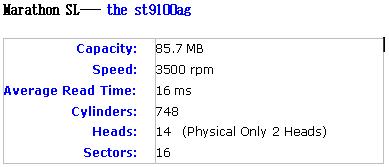
Capacity:Speed:Average Read Time: Cylinders:Heads:Sectors: 85.7 MB3500 rpm16 ms74814 (Physical Only 2 Heads)16
Resource: Examples: 16 (e.g. the st9100ag), 17 (e.g. the st325ax), 24 (e.g. the st9190ag), 27 (e.g. the st280a), 28 (e.g. the Maxtor 8051A), 29 (e.g. the st1162a), 32 (e.g. the st9051a), 34 (e.g. the st3195a), 35 (e.g. the st3283a), 36 (e.g. the st1239a), 38 (e.g. the st3211a), 47 (e.g. the st9150ag), 50 (e.g. the st3291a), 51 (e.g. the st9385ag), 52 (e.g. the st9240ag), 53 (e.g. the st3271a), 55 (e.g. the st2274a), 56 (e.g. the st2383a), 59 (e.g. the st9550ag), 60 (e.g. the st9300ag), 61 (e.g. the st1401a), 62 (e.g. the st3385a), 63 (e.g. the st3270a).
(Please go to Seagate website to get the details of above HDD.)
A sector includes only 512 Bytes?
In addition to these bits (512 Bytes of user data), an additional number of bits are added to each sector for the implementation of error correcting code or ECC (sometimes also called error correction code or error correcting circuits). These bits do not contain user data; rather, they contain information about the data that can be used to correct any problems encountered trying to access the real data bits.
Block Mode: More than one sector can be transferred on each interrupt notification. Newer drives allow you to transfer as many as 16 or 32 sectors at a time. These sectors are known as Clusters. On some systems you will find an option in the system BIOS called block mode. You may set it on BIOS.
Block mode is a performance enhancement that allows the grouping of multiple read or write commands over the IDE/ATA interface so that they can be handled on a single interrupt.
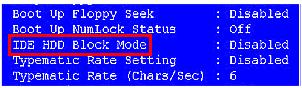
Example of a BIOS option for the IDE Block Mode feature (boxed in red)
Case:Samsung 500G hard disk magnetic head damage to the opening data recovery-Data recovery center receives a Samsung 500G magnetic head damage to a graduate student in the city. Data recovery needs to be opened.In desperation, it was recommended by friends to find a data recovery company. Solution:Data recovery engineers replace the same type of magnetic…
I have a bunch of machines on an IP address range which I want to ping simultaneously as a quick and dirty way of telling which ones are switched on. What (free) software can I use to do this? I’m using Windows Vista. Solution: The quickest way is to use Angry IP Scanner I use it…