the advantages and disadvantages of RAID 5E

RAID 5E with an E that stands for Enhanced, RAID 5E is a RAID 5 array with a hot spare drive that is actively used in the array operations. In a traditional RAID 5 configuration with a hot spare, the hot spare drive sits next to the array waiting for a drive to fail, at which point the hot spare is made available and the array rebuilds the data set with the new hardware. There are some advantages to this operational method:

  • You know for a fact that the drive that would have been used as a hot spare is in working order.
  • There is an additional drive included in the array, thus further distributing the array’s I/O load. More spindles equals better performance in most cases. RAID 5E can perform better than typical RAID 5.

There are a few disadvantages associated with RAID 5E as well:

  • There is not wide controller support for RAID 5E.
  • A hot spare drive cannot be shared between arrays.
  • Rebuilds can be slow.

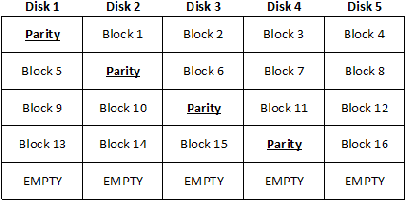
The capacity of a RAID 5E array is exactly the same as the capacity of a RAID 5 array that contains a hot spare. In such a scenario, you would “lose” two disks’ worth of capacity — one disk’s worth for parity and another for the hot spare. Due to this fact, RAID 5E requires that you use a minimum of four drives, and up to eight or 16 drives can be supported in a single array, depending on the controller. The main difference between RAID 5 and RAID 5E is that the drive that would have been used as a hot spare in RAID 5 cannot be shared with another RAID 5 array; so that could affect the total amount of storage overhead if you have multiple RAID 5 arrays on your system. Figure A gives you a look at a RAID 5E array consisting of five drives. Take note that the “Empty” space in this figure is shown at the end of the array.

A RAID 5E array with five drives

A RAID 5E array with five drives

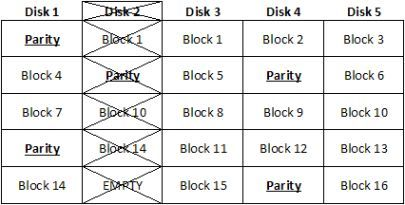
When a drive in a RAID 5E array fails, the data that was on the failed drive is rebuilt into the empty space at the end of the array, as shown in Figure B. When the failed drive is replaced, the array is once again expanded to return the array to the original state.


Fig_B_Lowe052307

A RAID 5E array that has been rebuilt into the hot spare space

Read More

Seagate Barracuda 7200.9 PCB Buying Guide

As we know:  Seagate Barracuda 7200.9 HDD can’t spin; board/chip be burnt; interface broken; etc. These problems are caused by PCB malfunction. Swap PCB of your Seagate Barracuda 7200.9 hard drives can resolve the problems.

1. Seagate Barracuda 7200.9 Hard Drives PCB Buying Guide:

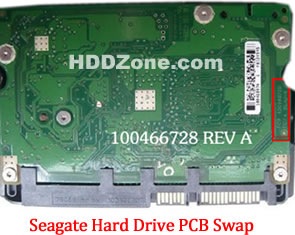
For Seagate HDD, just need the donor PCB has the same board number as yours.

seagate-hard-drive-pcb-swap

* Seagate Hard Drive PCB Swap

2. Before Seagate Barracuda 7200.9 HDD PCB Swap you should know:

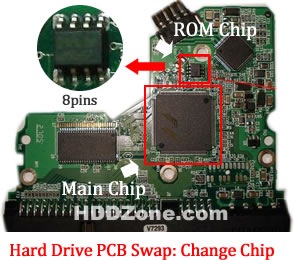
1. Most PCB’s BIOS chip(ROM Chip) store the unique information. We need change the BIOS form original PCB to replacement PCB, in order to make the replacement PCB compatible with the HDD.  The 8pins (4 pins on each sides) with 25P05VP、25P10VP、25F512、25F1024、25F1024AN、SST25VF512、SST25VF010, etc. are the BIOS Chip.

Tips: Most of the TV/Phone Repair Shop can offer these services for just $5-%20

hard-drive-pcb-swap-change-chip

* Hard Drive PCB Swap: Change BIOS Chip, Main Chip

2. Some PCB don’t have separate BIOS. The BIOS be integrated on the Main Controller IC(The biggest chip on the board, also named Main Chip). We should exchange the Main Controller IC to let the HDD be recognized.

3. Where to buy Seagate Barracuda 7200.9 PCB Circuit Boards?

Seagate 100383767 PCB
Seagate 100389148 PCB
Seagate 100387575 PCB
Seagate 100406937 REV B PCB
Seagate 100387574 PCB
Seagate 100368182 PCB
Seagate 100389148 PCB
Seagate 100355589 PCB
Seagate 100367025 PCB
Seagate 100367026 ST3200827AS PCB
Seagate 100367028 PCB
Seagate 100404226 PCB

Note: Seagate Barracuda 7200.9 PCB sells on HDDZone.com are fully tested before shipment(worldwide free shipping now!); These are just PCB (Printed Circuit Boards), not the whole HDD (Hard Disk Drive).

More other pcb swap guide please refer to this post: hard Drive PCB Swap

Read More

What Do the Mac System Beep Code Mean?

If a fault is detected during the test, you will not hear a normal startup chime. Instead, the system will beep as explained below. If you experience one of these beeps, you should call your Apple-authorized service provider for additional troubleshooting assistance.

1 beep = No RAM installed/detected
2 beeps = Incompatible RAM type installed (for example, EDO)
3 beeps = No RAM banks passed memory testing
4 beeps = Bad checksum for the remainder of the boot ROM
5 beeps = Bad checksum for the ROM boot block

Read More

The data recovery of the second opening of the Western Digital old hard drive was successful

Case:Customer hard disk is an old hard disk of WD160GB. The computer crashes normally. If you restart, you cannot recognize the hard disk, and there is a sound of knocking on the disk. Solution:Customers have previously found a data recovery center to open the market, but did not recover successfully.After receiving the hard disk, the…

Read More

Download Music to an Ipod?

Because of the popularity of the iPod there are so many softwares that can be downloaded for free that allow you to download music to an ipod.

There are also so many websites offering not just software but audio and video for ipods. But of course the easiest way to download music to an iPod is still to use the iTunes that is bundled with the gadget.

You can either install the iTunes that come with your iPod or you can download a free version of the itunes software from their website. Using the iTunes, you can either purchase content from the iTunes store or you can import your music library from your CD collection to your iPod.

To transfer your music collection from CD to your iPod you just need to insert your CD to your optical media drive. The songs from the CD will then appear on the iTunes window.

Click on the import button after choosing all the songs you want to be imported from the CD. After the songs you have been chosen have been imported from the CD simply click on the eject button to eject the CD. You can sync your iPod to your iTunes and load songs from your CD collection to your iPod.

To purchase songs from the iTunes store, click on the iTunes store in the iTunes window. Search for the song or video you want to buy.

You can then click on the “buy” button if you are using 1-click shopping or you can click on add. You can then check your shopping cart to see if you have all the music and videos you want to purchase and then proceed with the check-out by clicking on “Buy Now”. Aside from music, you can also buy video, audiobooks and other content for your iPod.

After you have purchased content or transferred content from your CDs, you can download the audio or video into your ipod by syncing your ipod with the iTunes.

To sync your iPod, simply connect your iPod to your computer using

Read More