6 Reasons BIOS will not detect or recognize your drive (3)

Drive is not spinning up Reason 3: Drive is not spinning up

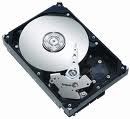
If the drive is not receiving power or receiving an incorrect level of power, it will not spin up. To check to see if this is the cause of the BIOS not detecting the hard drive, follow these steps:

  1. Power off the computer.
  2. Open the computer case and remove the data cable from the hard drive. This will stop any power saving commands from being sent.
  3. Turn on the system. Check to see if the hard drive is spinning. If you touch the side of the drive you should feel a slight vibration. If you do nothear or feel the hard drive spinning, the drive did not start.If you cannot determine whether the drive is spinning:
    1. Boot the computer and listen carefully.
    2. Shut the computer down.
    3. Disconnect the power cord from the computer itself.
    4. Disconnect the power cable from the hard drive in question.
    5. Reconnect the power cord to the computer itself.
    6. Boot the computer up to see if the drive sound was audible before. And,
    7. Then repeat, only reconnect the hard drive and listen for it to spin up.
  4. Switch power cables with a device like a CDROM or DVDROM drive, so that you are using a known-good power cable.
  5. Check the power supply on your computer to determine whether it is providing sufficient electrical power to operate the drives and devices you have in your computer.
  6. If the drive is still not spinning, connect it in another computer if possible.
  7. Connect the drive in a SATA-USB enclosure or something similar if possible.
  8. If the drive does not spin up after all of these steps, please visit the Warranty page to begin a warranty replacement order.
Read More

Why does virtualbox only have 32-bit option, no 64-bit option on Windows 7?

I have downloaded and installed the newest virtualbox 4.3.20 for my Windows 7 (64-bit OS), but when I want to install 64-bit Linux, the New->Create Virtual Machine only displays 32-bit option, no 64-bit option. Could anyone give any clues about this issue? Thanks very much in advance! Solution: Take a look: http://www.fixedbyvonnie.com/2014/11/virtualbox-showing-32-bit-guest-versions-64-bit-host-os/ If VirtualBox is…

Read More

the advantages and disadvantages of RAID 5E

RAID 5E with an E that stands for Enhanced, RAID 5E is a RAID 5 array with a hot spare drive that is actively used in the array operations. In a traditional RAID 5 configuration with a hot spare, the hot spare drive sits next to the array waiting for a drive to fail, at which point the hot spare is made available and the array rebuilds the data set with the new hardware. There are some advantages to this operational method:

  • You know for a fact that the drive that would have been used as a hot spare is in working order.
  • There is an additional drive included in the array, thus further distributing the array’s I/O load. More spindles equals better performance in most cases. RAID 5E can perform better than typical RAID 5.

There are a few disadvantages associated with RAID 5E as well:

  • There is not wide controller support for RAID 5E.
  • A hot spare drive cannot be shared between arrays.
  • Rebuilds can be slow.

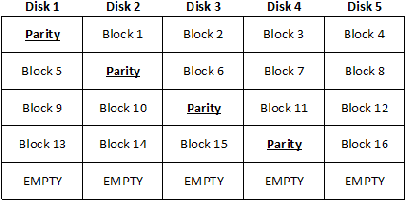
The capacity of a RAID 5E array is exactly the same as the capacity of a RAID 5 array that contains a hot spare. In such a scenario, you would “lose” two disks’ worth of capacity — one disk’s worth for parity and another for the hot spare. Due to this fact, RAID 5E requires that you use a minimum of four drives, and up to eight or 16 drives can be supported in a single array, depending on the controller. The main difference between RAID 5 and RAID 5E is that the drive that would have been used as a hot spare in RAID 5 cannot be shared with another RAID 5 array; so that could affect the total amount of storage overhead if you have multiple RAID 5 arrays on your system. Figure A gives you a look at a RAID 5E array consisting of five drives. Take note that the “Empty” space in this figure is shown at the end of the array.

A RAID 5E array with five drives

A RAID 5E array with five drives

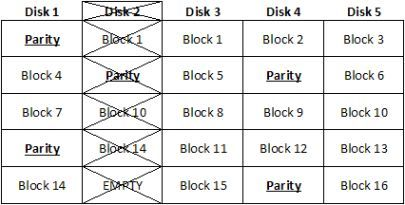
When a drive in a RAID 5E array fails, the data that was on the failed drive is rebuilt into the empty space at the end of the array, as shown in Figure B. When the failed drive is replaced, the array is once again expanded to return the array to the original state.


Fig_B_Lowe052307

A RAID 5E array that has been rebuilt into the hot spare space

Read More

Hard Drive Compatible

I’m reinstating a very old computer I once used back in the days as use for a spare computer and I’m in need of a new hard drive.

I was wondering if all SATA hard drives are compatible with my computer since I consider myself barely computer savvy.

MB: GIGABYTE GA-M61PME-S2P AM2+/AM2 NVIDIA GeForce 6100 Micro ATX AMD Motherboard

PSU: APEVIA WIN-500XSPX 500W ATX12V / EPS12V Power Supply

I’m also wondering if my Nvidia Geforce GT 220 would work on this too since I just upgrade to another GPU on my main computer.

I don’t need those 250+ GB hard drives, just wondering if I can just go around and buy a cheap one just to make this computer functional.

I also have the OS CD available,both xp,visa and 7.(not pirated,they’re legal versions)

If I get a answer soon, I’m looking to buy this:

NIB HP 80GB SATA HDD Seagate Barracuda 7200 rpm
Brand new in factory wrap HP Seagate Barracuda 80GB SATA HDD. These drives are compatible with many HP servers including the Proliant ML110. This item is guaranteed not DOA and has never been installed in a server. These were spare drives and would be perfect for increasing the storage capacity in your HP server.

Any advice, or recommendations are welcomed. Have a nice day.

Your motherboard has SATA 3GB and PCIe X16 slot so any SATA HDD should work and your GT220 should work just as well. Your PSU although not the best will drive this fine.

Read More

Recommended 1TB Network Attached Storage (NAS)

Network-attached storage (NAS) is data storage or perhaps a data storage device, like a hard disk or RAID array, attached to some type of computer network, supplying data use of different network clients.

NAS systems contain a number of hard drives, frequently arranged into logical, redundant canisters or RAID arrays (redundant arrays of affordable/independent disks). NAS products remove down to file serving using their company servers on the network.

Bestselling 1TB Network Attached Storage (NAS) on Amazon.com:

Seagate BlackArmor NAS 110 1TB Network Attached Storage
(MPN: ST310005MNA10G-RK, Price: $199.99, Amazon.com Price: $149.99)

Seagate BlackArmor NAS 110 1TB Network Attached StorageReview: “A little slower than I hoped. ~40MBps read and ~22MBps write – Sequential. Since the 1Gb ethernet spec can go up to 125MBps theoretical I was hoping it would be in the 80-100MBps range. Encryption requires a USB drive plugged in the front. Just fine if you have a small, old USB flash. The backup software is not the most reliable in recovery, but you get 5 free licenses and for Windows XP it is better than built-in. Use Windows 7’s built-in back up with drive.”

Iomega Home Media 1TB Network Attached Storage
(MPN: 34337, Price: $126.99, Amazon.com Price: $99.99)

Iomega Home Media 1TB Network Attached Storage Review: “very nice case design, internal fan for hard drive, hooks up to router through network at full speed (1000 mps), very fast, although my comp ethernet card is going at 100 mps, fast enough for now untill i get another eternet card, adjustable light brightness through software.”

Buffalo LinkStation Live 1TB Shared Network Attached Storage
(MPN: LS-CH1.0TL, Price: $129.99, Amazon.com Price: $108.90)

Buffalo LinkStation Live 1TB Shared Network Attached StorageReview: “Super easy setup out of the box. Using with Xbox Media Center with the actual original Xbox’s throughout the house. Kids playroom, living room, office. You can setup access rights so kids can only access Kids folder, etc. Also planning to use with Masscool Media Player.”

NAS provides both storage and file systems. This really is frequently compared with SAN (Storage Space Network) products, which offer only block-based storage leaving filesystem concerns about the “client” side. SAN methods include SCSI, Fibre Funnel, iSCSI, ATA over Ethernet, or HyperSCSI.

NAS Manufactors: Zoysia, Cavalry, D-Link, Hammer Storage, Apple, iomega, LaCie, Linksys, Maxtor, Netgear, QNAP, Thecus, Seagate, Western Digital and Synology.

Read More

Online Backup for Small Business

You’ve heard it thousands of times — backup your data. A good data backup strategy is to have two copies of your data – one local (it resides in your office or place of business) and one offsite (you pay an online data company to store it remotely on their secure servers).

Online backup is now a must have for all computer users, as we now live in a digital age where our whole digital life is store online.  Our files, photos, music, video, financials and more are all stored on our computer hard drives. But what happens if your hard drives crash? All hard drives will fail eventually and they usually happen at random when you least expect them. We no longer have CD collections, or DVD racks with our films, or photo albums of our photos, they are all stored on our hard drives. Theft, Fire, Accidental deletion, hardware failure, all these can contribute to lost files. Files which are no longer just binary text, these files are irreplaceable memories which money cannot buy back.

OnlineBackupforSmallBusiness

Online Backup for Small Business

Tips For Buying Online Backup Services:
Below are some of the main factors to consider when selecting an online data backup providers:

1. The Kind of Backup User You Are:

A service designed for home users or small businesses is quite different than one designed for the enterprise. The latter requires complex features such as ability to backup operating system files, live database, historical backup, and extremely tight encryption, while the former would be happy with a relatively low priced service that provides common features such as scheduled backup, web access, ability to send files by CD/DVD, and share files with others.

2. In general, online backup users should ask the following questions:

  • Does the service offer historical backup?
  • Can the software recover from an interrupted backup process?
  • Is there an option for a live and continuous backup? (As opposed to a scheduled backup)
  • Does the software allow network backups?
  • How about database and operating system backup? (Including registry files)
  • Can I get copies of my data on a CD-ROM for an emergency data restoration?
  • Can I edit or delete stored files?
  • Can I select a whole folder without having to select each individual file to backup?
  • Does the software allow multiple file sets to be scheduled on different times?
  • Can I include / exclude filters to include / exclude certain file types?
  • How long will my data be kept in the provider’s servers?
  • Will my data be duplicated to at least two geographically different locations?
  • Where is the data center of this company?
  • How many different versions of my data will be kept?
  • Will this company be around, say, 3 years from now?
  • Is this company an original provider or is it a re-seller?
  • What is the speed of uploading and restoring files? If this is important to me, shall I consider paying more for a fast service?
  • Does this provider support my computer systems (E.g. Mac, Linux, etc.)?

3. Security

To ensure that your data is secure while it is being transferred from your computer to the provider’s data center, most providers offer the option of encryption and password protection. In this way, only someone with your password can access your data.

In most cases a 128-bit encryption is sufficient. For some businesses that want absolute privacy, security might require a much stronger encryption. Although not very common, some providers offer a 448-bit encryption. In addition, data has to remain secure once it reaches the destination server, which means providers have to have proper policies to ensure employees do not access client data for non-authorized reasons. Most providers take the issue of security very seriously, as it is one of the reasons why computer users are hesitant to backup online.

4. Speed, Reliability and Uptime

As backups are usually a last resort way of recovering data after a disaster or system failure, backup providers don’t have much of a margin of error. The data has to be there when needed. No amount of explanation on why the data is not available will calm a user that just lost an entire computer hard drive and is trying to restore from a backup.

To ensure the provider has taken sufficient steps to keep service reliable, you should ask the following questions:

Does the backup provider have a “backup” copy of all clients’ data somewhere on a secondary data center, away from the primary?
Is the backup center equipped with uninterruptible power supply, backup generator and is it located in a safe and secure location?
What is the uptime for the data center?
How many clicks does it take before the actual backup is started?
How fast is the data center?
How much CPU or disk resources does it chew up when the backup is running?
Where is the geographic location of the data center?
Is the backup continues?
How many years has this Online Backup Service Provider been in business or does the company have solid financial resources?
How fast can files be restored?
Who are the clients of this company?
How many paying customers does the company have?

5. Quality and Accessibility of Technical Support

Does the company have a toll free number?
Is technical support available 24/7?
Does this company reveal its email address in their site or does it force me to fill in a time consuming form?
Is there an emergency user support?
Does the company have a physical address listed in their site?
What is the turn around time for email queries?
Does the company have an international presence?
Does the company publish a customer support satisfaction survey stats?
What is the wait time for phone support?

6. Cost

How much does this Online Backup Service Provider charge per GB per month?
Is there a set-up fee?
Is the cost per account or per PC?
How often and how much data are allowed for backup per day or per month?
Is there a no obligation free trial period before I sign up?
Can I cancel at any time or am I tied in for a minimum period?
What is the cost for exceeding the allowable traffic and storage quota?
Is there extra cost for telephone technical support?

7. Some these Online Backup Service Providers:

mypcbackup.com
justcloud.com
backupgenie.com
sosonlinebackup.com
zipcloud.com
sugarsync.com
mozy.com
box.com
crashplan.com
carbonite.com

Online Backup is like insurance, for a small monthly fee (Less than the cost of a Cinema Ticket) you will never have to worry about your files again. If you get a new computer and you need to restore your files and documents its literally a click of a button.


Read More