Seagate Has Shipped More Than 1 Million Self-Encrypting Hard Drives(SEDs)

Seagate announced that it has shipped more than 1 million self-encrypting laptop and enterprise hard drives. Sales of the Seagate hard drives with built-in encryption continue to surge as more computer makers offer the drives to protect against unauthorized access to sensitive data, more independent software vendors team up with Seagate to provide the management capabilities required for company-wide installations of self-encrypting laptop PCs, and more of the drives win U.S. government certifications:

Seagate’s Cheetah Self-Encrypting Hard Drive

  • Six original equipment manufacturers – Dell, Fujitsu, Hitachi, IBM, LSI and Network Appliance – now offer products powered by Seagate enterprise self-encrypting drives (SEDs). All told, Seagate now ships 24 products in a family of enterprise drives that includes Savvio®, Cheetah®, Constellation® ES and Constellation® SEDs.
  • Dell, Lenovo and Panasonic are shipping or qualifying standard-sized or thin laptops with Seagate Momentus® and Momentus® Thin SEDs as optional features.
  • Seagate’s family of Savvio, Cheetah, Constellation and Momentus SEDs have secured FIPS 140-2 certification from the U.S. National Institute of Standards and Technology (NIST). This key government certification clears the way for deployments of Seagate self-encrypting drives by all U.S. and Canadian federal agencies, many state and local governments, and regulated industries such as healthcare, finance and defense required to use FIPS-certified gear to help protect sensitive data on PCs and computer networks and in data centers. The Seagate laptop and enterprise hard drives are the first with native encryption to earn the FIPS certification.
  • Seagate’s independent software vendor (ISV) partnerships have grown to include security leaders Credant, McAfee, Mobile Armor, Secude, Softex, Symantec, Wave Systems and WinMagic. With management software from these providers, organizations can easily and affordably manage and protect encryption keys and passwords to simplify deployments of Momentus and Momentus Thin SEDs.
  • Dell and Panasonic now offer laptops featuring FIPS-certified Momentus SEDs.
  • Several major original equipment manufacturers (OEMs) are now qualifying Momentus SEDs that are compliant with the Trusted Computing Group’s Opal specification. The Trusted Computing Group, an international body that promotes open standards for computer security, issued the Opal specification in 2009. The specification is focused on enabling the ecosystem for self-encrypting drives and increasing their adoption.
  • Seagate enterprise SED shipments have tripled over the past two quarters, while the company’s laptop SED shipments have doubled in each of the past three years.

“Companies and government organizations worldwide increasingly are securing confidential information on self-encrypting hard drives, recognizing that this commonsense yet powerful approach simplifies the deployment of security for data at rest, as storage and security continue to converge, solutions like Seagate’s self-encrypting hard drives are leading the way by providing organizations with the strong, easy-to-use security they need to protect their data assets.” – said Charles Kolodgy, research director of security products for analyst group IDC.

Seagate® Enterprise Self-Encrypting Hard Drives Deliver Government-Grade Security

Seagate offers a full lineup of enterprise SED options within its Savvio, Cheetah, and Constellation families. Strong enough for national security, yet easy enough for the one-person IT department, Seagate enterprise SEDs simplify decommissioning and preserve hardware value for returns and repurposing by eliminating the need to overwrite or physically destroy the drive, securing warranty and expired lease returns, and enabling drives to be repurposed securely.

Laptop Lockdown with Momentus® Self-Encrypting Hard Drives

Momentus® SEDs give organizations of all sizes a simple, cost-effective way to protect against unauthorized access to data on notebook PCs and a powerful tool for complying with the growing number of data privacy laws calling for the protection of consumer information using government-grade encryption. The AES encryption chip in the Momentus SEDs automatically and transparently encrypts all drive data, not just selected files or partitions. The 2.5-inch drive also eliminates disk initialization and configuration required by encryption software, allows IT administrators to instantly erase all data cryptographically so the drive can be quickly and easily redeployed, and delivers full inline-speed encryption with no impact to system performance.

Momentus SEDs keep all security keys and cryptographic operations within the drive, separating them from the operating system to provide greater protection against hacking and tampering than traditional software alternatives, which can give thieves backdoor access to encryption keys and are otherwise more vulnerable to key theft. Momentus SEDs are offered in capacities up to 500GB.

Seagate Has Shipped More Than 1 Million Self-Encrypting Hard Drives(SEDs) Read More »
Tips for Western Digital Hard Drive Data Recovery

Tips for Western Digital Hard Drive Data Recovery1. Western Digital Hard Drive Data Recovery

If the hard drive is spinning and shows up in Disk Management (Windows), or Disk Utilities (Mac), but you can’t access it, then the drive’s partition table may be damaged or corrupted. It may be possible to still extract the data utilizing data recovery software. Western Digital does not provide data recovery software, however, there are several kinds on the Market. If you do a web search for “Data Recovery” it will yield plenty of data recovery software options. You can also see my another post:

If the hard drive does not show up in Disk Management (Windows), or Disk Utilities (Mac), and you have tried all the troubleshooting options relevant to your drive, then your drive has most likely failed and you will need to contact a data recovery company to retrieve your data.

Western Digital does not provide data recovery services. However, they have a list of recommended preferred data recovery partners that you can use for data recovery services. In order to retain the warranty on the drive, you must use one of the recommended preferred data recovery partners.

Ontrack Data Recovery Services and CBL Data Recovery Services have discount pricing available for Western Digital Customers.

2. Western Digital Hard Drive Circuit Board

Western Digital does not sell or replace circuit boards for their hard drives nor are they aware of any other companies that sell them. Replacing the circuit board on a hard drive is not a recommended method for recovering data or drive functions as this will void the warranty on the hard drive. For every hard drive model that Western Digital manufacturers, there are many firmware changes that would make it very difficult to find a circuit board with the same firmware of the defective drive. If you attempt to install a circuit board with a different firmware than the original, this may damage the hard drive further.

HDDZone.com is a recommended WD hdd pcb supplier, you can find many WD hard drive pcbs here: Western Digital hard drive PCB

3. Western Digital Hard Drive Repair

Western Digital does not repair or recommend repair services for our drives. Any repair services performed on a WD drive will void the warranty. If your drive is under warranty, you can I replace a product under warranty.

Tips for Western Digital Hard Drive Data Recovery Read More »

Primary Partition On A Hard Drive Must be Active! Why?

Why must the primary partition on a hard drive be active?

The primary partition must be set to a status of Active, otherwise it is not possible to boot off that primary partition. Please note that only the primary partition on the primary Master drive can be set to a status of Active.

To check whether your partition is active, or to activate the partition if it is not active, use FDISK.

  1. Boot your system with a Windows startup disk and type FDISK at the A:\ prompt and press ENTER.
  2. If your partition is not active, you will see a warning message at the main menu of FDISK stating Warning – No active partitions set at the bottom of the screen.
  3. To set the partition as active, select 2 Set Active Partition and choose Partition 1 when prompted to select the partition.

Primary Partition On A Hard Drive Must be Active! Why? Read More »

Western Digital Hard Drive Families (Part II)

C) External Hard Drives
Desktop

  • My Book 3.0
    This stylish external hard drive features a SuperSpeed USB 3.0 interface for the fastest transfer rates available on an external hard drive.
  • My Book Elite
    An elegant, easy-to-use storage solution with WD SmartWare backup software, customizable e-label, and password protection.
  • My Book Essential
    An elegant, easy-to-use storage solution with WD SmartWare backup software, password protection and capacity gauge.
  • WD Elements Desktop
    Simple, reliable, portable storage.

Desktop for Mac

  • My Book for Mac
    An elegant, easy-to-use storage solution with automatic, continuous backup software, password protection, and capacity gauge. Compatible with Apple® TimeMachine™.
  • My Book Studio LX
    A super-fast storage solution for your Mac in a premium aluminum enclosure, featuring a customizable e-label and hardware-based encryption. This Apple Time Machine-compatible drive is the perfect complement for your Mac.
  • My Book Studio
    An elegant, super-fast storage solution for your Mac with automatic, continuous backup software, password protection and customizable e-label.
  • My Book Studio Edition II
    Quad interface, RAID-enabled, about 30% less power consumption, formatted for Mac®. The My Book Studio Edition II treads lightly on the earth and carries big performance for creative professionals.

Portable

  • My Passport Elite
    This ultra-portable USB drive is packed with smart features like automatic, continuous backup, password protection, an illuminated capacity gauge and a convenient grab-and-go dock.
  • My Passport Essential SE
    This stylish, compact portable USB drive now features maximum capacity for all the chapters of your digital life.
  • My Passport Essential
    Our smallest, portable drive ever is also our smartest with automatic, continuous backup and password protection.
  • WD Elements Portable SE
    A portable hard drive with maximum capacity in a compact design for easy plug-and-play storage on the go.
  • WD Elements
    Simple, reliable, portable storage.

Portable for Mac

  • My Passport Studio
    This ultra-portable, Mac-ready drive is packed with innovative features like a fast FireWire 800 interface, customizable e-label, and visual, automatic, continuous backup.
  • My Passport SE for Mac
    This stylish, compact portable USB drive now features maximum capacity for all the chapters of your digital life.
  • My Passport for Mac
    An elegant, easy-to-use portable storage solution with automatic, continuous backup software and password protection. Compatible with Apple® TimeMachine™.

Western Digital Hard Drive Families (Part II) Read More »

WD Green Power Hard Drives Compare To Traditional 7200 RPM Drives

WD Green Power Hard DriveOverall, WD Green Power Hard Drive meets the performance requirements of most applications while delivering significantly less power consumption. If your application requires mostly sequential read/writes, then the hard drive will perform comparable to a 7200 RPM drive. However, if your application performs mostly random mode operations, then the performance may drop by about 10% because of the latency time. If the WD Green Power product does not meet your performance needs then WD have their Raid Edition line of 7200 RPM Enterprise drives that will deliver the performance you need at the industry’s best reliability.

Read More: Western Digital Hard Drive Families

WD Green Power Hard Drives Compare To Traditional 7200 RPM Drives Read More »

Western Digital Hard Drive Families (Part I)

Western Digital Hard Drive FamiliesWestern Digital Corporation (often abbreviated to WD) is the second largest computer hard disk drives manufacturer in the world, after Seagate and has a long history in the electronics industry as an integrated circuit maker and a storage products company. Western Digital was founded on April 23, 1970 by Alvin B. Phillips, a Motorola employee, as General Digital, initially (and briefly) a manufacturer of MOS test equipment. It rapidly became a speciality semiconductor maker, with start-up capital provided by several individual investors and industrial giant Emerson Electric Company.

A) Internal Hard Drives

Desktop

Mobile

Enterprise

  • WD VelociRaptor
    The PC enthusiasts’ favorite 10,000 RPM hard drive is still the fastest, most dangerous carnivore around – now with an ultra-fast 32 MB cache and SATA 6 Gb/s interface and twice the capacity of previous generations.
  • WD S25
    The 2.5-inch WD S25 SAS drives offer the powerful combination of enterprise-class performance and reduced power consumption required for demanding high-performance computing and mission-critical environments.
  • WD RE4
    Massive capacity, 64 MB cache, 1.2 million hours MTBF, and a 5-year limited warranty, WD RE4 drives offer an ideal combination of high capacity, optimum performance, and 24×7 reliability for enterprise applications.
  • WD RE4-GP
    WD RE4-GP enterprise-class SATA drives are designed for power-conscious, large-scale data centers.
  • WD RE3
    1.2 million hours MTBF. Best-in-class vibration tolerance. 5-year limited warranty. Just three of the reasons why WD RE3 drives are the world’s most reliable SATA drives.

Audio/Video

  • WD AV-GP
    Power-conserving WD AV-GP drives offer significant power savings and thermally optimized operation resulting in lower cost of ownership and unsurpassed reliability for PVR/DVR, IPTV boxes and media server manufacturers.
  • WD AV-25
    Low power storage engineered to thrive in 24×7 streaming environments.
  • WD AV
    Significant design advances in WD’s hard drive technology, combine optimized AV performance with best-in-class power consumption and thermally optimized operation enabling unparalleled cost of ownership for manufacturers of digital video recording devices.

Solid State

  • WD SiliconEdge Blue
    Solid state drives that will satisfy the most demanding technology enthusiasts and bring a new level of performance and ruggedness to laptop and desktop PCs.

B) Network Products

  • WD ShareSpace
    A high-speed network-attached storage system with capacities up to 8 TB. Perfect for centralizing and sharing data and multimedia files on a small office or home network.
  • My Book Live
    Centralize your photos, music, movies and files on your wired or wireless network for your whole family to access.
  • My Book World Edition II
    Central storage and backup for all the computers in your network and double-safe data protection with RAID mirroring technology.
  • My Book World Edition
    The home network drive that everyone in the house can use, whether they’re on a Mac or PC, to save and share photos, music, and movies on a wired or wireless network.
  • WD Livewire
    Use your home’s electrical outlets to create wired, streaming-ready, high-speed Internet connections anywhere in your home without running wires between rooms.

Western Digital Hard Drive Families (Part I) Read More »

Utilities for Erasing A Western Digital Hard Drive

Utilities for Erasing A Western Digital Hard DriveWestern Digital provides softwares that can erase(Low Level Format) all the data on a hard drive. Writing zeros to a hard drive is recommended any time an operating system is to be reinstalled on a boot drive or whenever a blank drive is desired.

1. Erasing WD Internal Hard Drives and Solid State Drives

Internal hard drives and Solid State drives can be erased by these softwares bellow. All these methods require access to your PC (To low level format your drive on a Mac you will need to contact Apple for assistance).

Softwares for Erasing your WD hard drive:

2. Erasing WD External Hard Drives

Western Digital external hard drives only support writing zeros to the drive using the Data Lifeguard Diagnostics utility. In addition, if your drive includes the WD SmartWare software, you have a second option which does not write zeros to the drive, but does fully erase the drive.

Softwares for Erasing your WD hard drive:

Important: If your drive includes a Western Digital Virtual CD-Rom (VCD) drive, this partition will not be removed by performing a low-level format on the hard drive.

Utilities for Erasing A Western Digital Hard Drive Read More »

How to sepup a RAID 0/1 Array with WD SATA RAID Controller?

sepup a RAID 0/1 Array with WD SATA RAID ControllerSteps to setup A RAID 0 and RAID 1 Array with WD SATA RAID Controller & Two SATA Hard Drives

1. Steps to create a RAID 0 Array:

  1. With the computer powered off, follow the instructions for installing the RAID controller correctly and connect both Serial ATA hard drives to the controller.
  2. Boot your computer with the controller and drives already installed.
  3. Watch your boot screens for a prompt that will ask you to press the Control and F keys at the same time to enter the Fastbuild utility and press those keys to enter.
  4. Press the 1 key to enter Auto Setup.
  5. Verify that the top of the screen says Optimize Array for: Performance.
  6. If the top of the screen says Security instead of performance, highlight the word Security and press the right arrow button to change the word to Performance.
  7. You should see that two hard drives are being used in the array and you will also see the total size of the array in MB.
  8. Press the Control and Y keys at the same time to save the array configuration.
  9. Press the Y key to create and quick initialize the array.
  10. You will be warned that all data on the drives will be erased, press the Y key to proceed.
  11. The array is now created, press any key to reboot.

Note: A RAID 0 array is not fault tolerant. It is recommended that you backup any important data that you decide to store on the array.

2. Steps to create a RAID 1 Array:

  1. With the computer powered off, follow the instructions for installing the RAID controller correctly and connect both Serial ATA hard drives to the controller.
  2. Boot your computer with the controller and drives already installed.
  3. Watch your boot screens for a prompt that will ask you to press the Control and F keys at the same time to enter the Fastbuild utility and press those keys to enter.
  4. Press the 1 key to enter Auto Setup.
  5. Verify that the top of the screen says Optimize Array for: Security.
  6. If the top of the screen says Performance instead of Security, highlight the word Performance and press the right arrow button to change the word to Security.
  7. Press the Control and Y keys at the same time to save the array configuration.
  8. Press the Y key to create and quick initialize the array.
  9. You will be warned that all data on the drives will be erased, press the Y key to proceed.
  10. The array is now created, press any key to reboot.

Note: A RAID 1 array is designed for fault tolerance. You will not notice any performance increase in your computer after creating a RAID 1 array. A RAID 1 array uses the second hard drive to copy the data of the first drive. Should one of the hard drives fail, you will still be able to boot your computer using the second hard drive.

Important: After creating a RAID 1 array, the total capacity of both hard drives will not appear as usable space in Windows. Because the second hard drive is being used to store the exact same data of the first drive, the usable capacity in Windows will be the capacity of only the first hard drive.

* To use the array for extra data storage only:

  • Install the latest service pack for your operating system to enable large drive support and use Disk Management to partition and format the array.

* To use the array as your bootable system drive:

  • Set your BIOS to boot to CD first and boot from your Windows 2000/XP CD to load your operating system onto the array.
  • Windows will treat the array as one large drive and will install on the array just as it would on a single drive.
  • When you are prompted by Windows setup to press the F6 key to install SCSI or RAID drivers, you will need to press F6 and insert the driver disk that came with your RAID controller.
  • Once the drivers for the controller are installed you will be able to finish the installation of Windows 2000/XP onto the array. After the installation of Windows, please install the latest service pack for Windows to enable large drive support and avoid data corruption.

Note: Your system BIOS may require you to change the order of your boot sequence before you can boot your computer from a controller. For more information about adjusting options in your system BIOS, please contact the manufacturer of your computer or motherboard.

How to sepup a RAID 0/1 Array with WD SATA RAID Controller? Read More »

Difference Between WD Desktop Edition and RAID (Enterprise) Edition Hard Drives

Difference Between WD Desktop Edition and RAID (Enterprise) Edition Hard DrivesWestern Digital manufactures desktop edition hard drives and RAID Edition hard drives. Both of them are designed to work specifically as a stand-alone drive, or in a multi-drive RAID environment.

If you install and use a desktop edition hard drive connected to a RAID controller, the hard drive may not work correctly. This is caused by the normal error recovery procedure that a desktop edition hard drive uses.

When an error is found on a desktop edition hard drive, the drive will enter into a deep recovery cycle to attempt to repair the error, recover the data from the problematic area, and then reallocate a dedicated area to replace the problematic area. This process can take up to 2 minutes depending on the severity of the issue. Most RAID controllers allow a very short amount of time for a hard drive to recover from an error. If a hard drive takes too long to complete this process, the hard drive will be dropped from the RAID array. Most RAID controllers allow from 7 to 15 seconds for error recovery before dropping a hard drive from an array. So it is not recommend installing desktop edition hard drives in an enterprise environment (on a RAID controller).

Western Digital RAID edition hard drives have a feature called TLER (Time Limited Error Recovery) which stops the hard drive from entering into a deep recovery cycle. The hard drive will only spend 7 seconds to attempt to recover. This means that the hard drive will not be dropped from a RAID array. While TLER is designed for RAID environments, a drive with TLER enabled will work with no performance decrease when used in non-RAID environments.

Note: There are a few cases where the manufacturer of the RAID controller have designed their drives to work with specific model Desktop drives. If this is the case you would need to contact the manufacturer of that controller for any support on that drive while it is used in a RAID environment.

Difference Between WD Desktop Edition and RAID (Enterprise) Edition Hard Drives Read More »

SATA/EIDE Hard Drive is detected as a SCSI Device?

SATA/EIDE Hard Drive is detected as a SCSI Device?1. Why is my Serial ATA hard drive detected as a SCSI device in Windows?
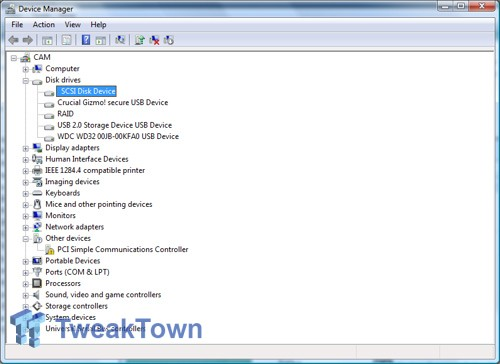
A Serial ATA hard drive is detected as a SCSI device in Windows Device Manager.

This issue could have several causes:

  • The Serial ATA controller (on the motherboard or through a PCI controller card) is assigned default Windows drivers. If Windows is unable to determine exactly what type of device the Serial ATA controller is, it will attempt to assign the closest matching device drivers. Since Serial ATA works using the same principles as SCSI, Windows will assign a Serial ATA controller a SCSI designation.
  • The Serial ATA controller’s (on the motherboard or through a PCI controller card) bus architecture is taken from a SCSI HBA (Host Bus Adaptor). Many companies that produce Serial ATA controllers also produce SCSI controllers. These companies often use an altered version of a SCSI HBA on Serial ATA controllers.
  • The Serial ATA hard drive is connected to a Serial ATA RAID controller. RAID and SCSI controllers have the same device designation in Windows therefore a Serial ATA hard drive will be detected as a SCSI device.

Since this issue is “by design” of the Windows operating system, there is no resolution implied or necessary. Any Serial ATA hard drive designated as a SCSI device will work properly at full performance and capacity. There may be device drivers for the Serial ATA controller that will list the hard drive as a Serial ATA device. Please contact your computer, motherboard, or Serial ATA controller manufacturer for any driver or BIOS updates.

2. Why is my EIDE drive displayed as a SCSI drive in Device Manager in Windows 2000/XP?
An EIDE drive is displayed as a SCSI drive in Windows 2000/XP.

It is common for Windows 2000 and XP to list EIDE drives as SCSI devices in Device Manager when they are connected to non-standard IDE controllers such as a Promise or SIIG controller card. This also occurs when the drive is connected to a specialized ATA or RAID port that is integrated into the motherboard. As long as you have the proper drivers loaded for the controller and are not experiencing any issues while using the drive, there is no cause for concern.

SATA/EIDE Hard Drive is detected as a SCSI Device? Read More »

Scroll to Top