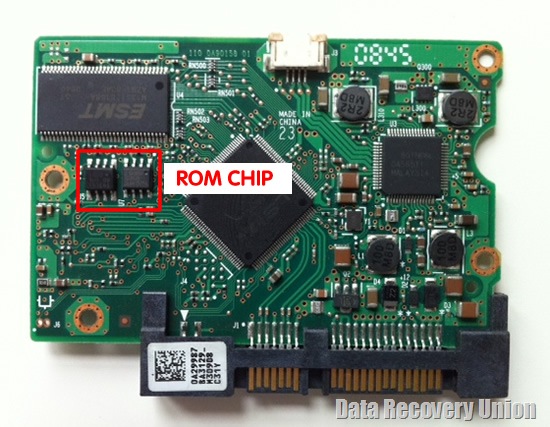
As we know: HDD can’t spin; board/chip be burnt; interface broken; etc. These problems are caused by PCB malfunction. Swap PCB of your hard drives can resolve the problems.
Which HDD’s problems are not caused by PCB:
HDD has a buzzing voice or a sound like it is trying to spin.
HDD can spin. However, it makes a lower clicking noise. It spins for a moment and then slow down.
HDD will power up normally (no ticking noises, errors etc) but will not be recognized by the computer
HDD will power up normally and be recognized correctly but will report a size of 0 bytes
HDD will power up but report SMART errors on boot
Hard Drive PCB Circuit Boards:
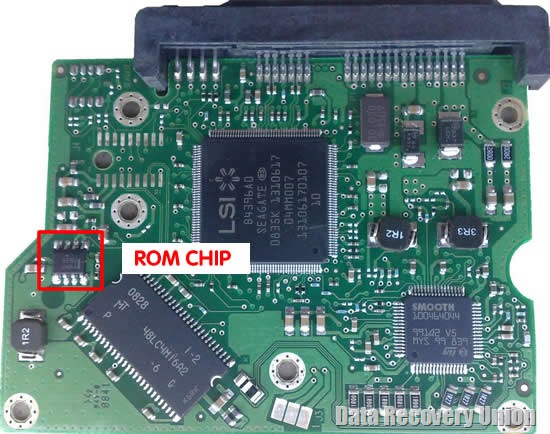
1. Seagate HDD PCB
These hard drives have 2 architectures: Barracuda (older) and F3 (new generation).
Barracuda Architecture. These hard drives have a dot (.) in the firmware version (“3.CDA”, “8.01”, “3.03”, etc.). Most PCB swaps are simple (~85%). In the other 15%, a ROM chip must be swapped.
F3 Architecture. Hard drives have no dot (.) in the firmware version (“CC44”, “0005HPM1”, “SD01”, etc.). The 8-legged firmware chip will have a number starting with 25, and must be transferred to a new circuit board.

Note: If your hard drive has a new PCB recognized by incorrect parameters (such as wrong model, different SN, or incorrect firmware), you must swap the chip.
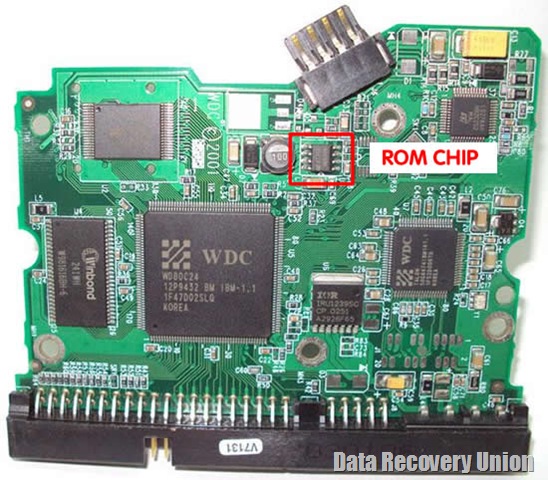
2. Western Digital HDD PCB
WD has 2 types of PCBs.
Type 1 has an 8-legged U12 ROM chip that must be swapped.
Type 2 has a missing U12 chip, and PCB firmware is stored in the big “M” Marvell Controller Chip. That chip can be transferred.

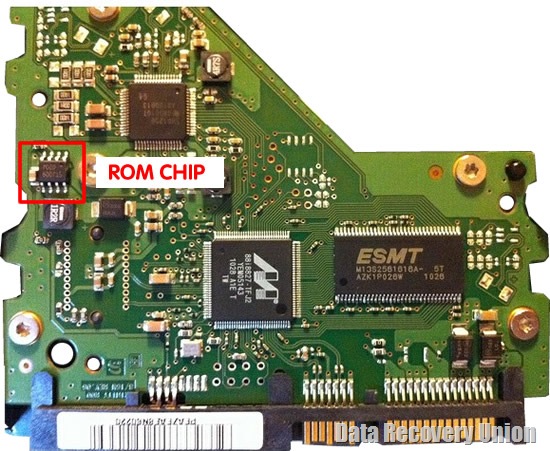
3. Samsung HDD PCB
Most of the time there is no need for adaptation service, but in some cases an 8-legged firmware chip (with a number starting with 25) must be transferred.

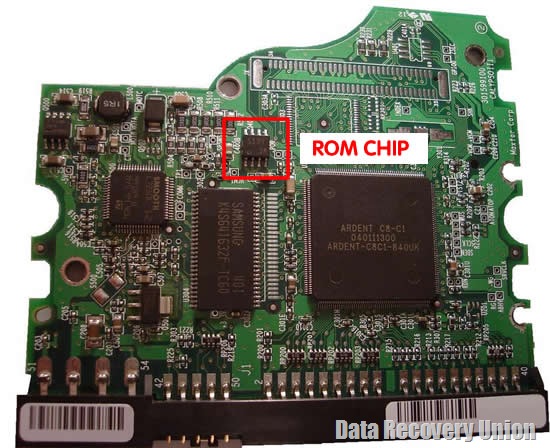
4. Maxtor HDD PCB
Adaptation service not required. A simple PCB replacement should work.

5. Toshiba HDD PCB
Most Toshiba boards have an 8-legged firmware chip that must be swapped. The chip will have a number starting with 25.
For some Toshiba families, the chip might be missing unique adaptive data stored in the large controller chip. That chip can be transferred.
6. Hitachi and IBM HDD PCB
All Hitachi and IBM circuit boards have an 8-legged firmware chip that has a number starting with 25.

7. Fujitsu HDD PCB
PCB adaptation is not required, but occasionally, a firmware chip transfer is required.
In most cases, swap PCB is not directly change the fault PCB with the donor PCB. Should confirm the donor PCB should be adapted for the HDD.
Most HDD boards have the BIOS (ROM or NVRAM chip) which includes the unique data to access the HDD system area. If the BIOS information is not compatible with your HDD, there is no way to read the HDD’s data. Because of this, we should use the original PCB’s BISO when we swap PCB.
BIOS is the 8pins (4 pins on each sides) with 25P05VP、25P10VP、25F512、25F1024、25F1024AN、SST25VF512、SST25VF010, etc.
How to change BIOS
You can move the BIOS from your original PCB by using hot-air gun, then solder it on the replacement board. Or you can find the electronics repair shop to help you.
If there is no BIOS on the PCB, it means the BIOS is integrated on the Main Controller IC
You should exchange the Main Controller IC to let the HDD be recognized. Move the Main Controller IC (the biggest chip on the board) is complex jobs which need you have certain technique. Some electronics repair shop can do it.