Articles

How To Find The Professional Data Recovery Company

When hard drives damaged, it can be difficult to decide what to do. If you want your data be recovered, you need to find the best data recovery company possible. Here are some things to consider when approaching data recovery companies.

  • The professional data recovery companies only use nondestructive methods, meaning that they never risk causing damage to a hard drive. A common misconception is that this restricts the recovery options for the engineers working on the drive, but this is untrue. No data can be recovered via a dangerous “destructive” method that a good data recovery company couldn’t recover with safer, alternative methods.
  • Good data recovery company should have a clean room. This is necessary to open your drive without further damaging it, and invasive recovery can never be attempted in anything other than a clean environment. The professional data recovery companies have certified class 100 clean room..
  • Ask about service options. Trustworthy data recovery companies will have several multiple service options to meet your needs. If you need your data as quickly as possible, you’ll want a different service than someone who doesn’t care about turnaround time.
  • How is data returned to you? Some companies use DVDs and CDs, which can be complicated and frustrating when large amounts of data is returned. The best data recovery companies offer data return on external hard drives.

image

Top 10 Data Recovery Companies

It is wise to call for price quotes and ask about methods and credentials before trusting your data to a recovery service. Once you’ve made an informed decision, you’ll know what to expect and how to proceed. The professional data recovery company will know what you need, how to help you, and how to get your data back in your hands before you know it.

How To Find The Professional Data Recovery Company Read More »

Some Considerations Before Choosing A Data Protection Solution

Many network administrators are considering an all-in-one data protection solution because it can greatly simplify data protection process. These solutions also tend to be less expensive than buying each component separately, and they provide a single point of contact for all their support needs.

In a recent survey it was found that over half of the respondents indicated that they would prefer to rely on a single vendor for their data protection solutions whenever possible.

An all-in-one Data Protection solution the purposes of this article includes the hardware components and necessary backup software to backup an organization’s critical data, maintain the backup data both on-site and at secure off-site locations, monitor the system 24X7, provide server virtualization, and data restoration so the data network can be up and running as soon as possible.

There are a few things to consider before making a decision about going with a particular data protection solution.

1. What software is included?

There is client software loaded on the server for the backup process. The resident NAS software is used for compression, encryption, bare-metal recovery, and continuous data protection.

2. What type of hardware is being used?

A network attached storage (NAS) server with internal storage capacity is attached to the network and the server hard drive is mirrored in the NAS storage.

3. Is the solution secure?

Most solutions offer encryption. Encryption is critical component in backup data protection. The solution should support AES-level encryption. The backup data should be encrypted on site and while in transit to the off-site location and at the hosted site.

4. Is offsite backup included in the solution?

Most companies today need not only onsite backup, but they also need the capability to have a redundant copy of their backup data stored off-site so the data can be recovered in the event their site was unusable. Both on-site storage and remote storage should be part of the solution.

5. Can the solution scale to data storage demands?

The data protection solution should be capable of running efficiently and scale without a lot of specialized hardware

6. How often is the data backed up?

The frequency of the data backup determines how much data will be lost. If the data is only backed up once a day then 24 hours of data will be lost. Most businesses could not accept that kind of loss. They require a shorter recovery point. Most solutions provide backups take place every 15 minutes. The best practice is to determine an acceptable recovery point and pick a solution that meets that objective.

There are a lot of all-in-one data protection solutions. Some companies prefer to purchase deploy, and maintain the solution themselves. An in-house also requires the labor and expertise to administer the system. Some solution providers bundle the data protection equipment and software into a bundle that also includes the labor to monitor the system 24X7 as well as the labor to maintain and respond to notifications and outages. The system should be flexible enough to scale as needs change and provide a one-point-of contact when there is a need for service.

Terry Mayfield is a Business Continuity expert with 19 years experience in the field. Mr. Mayfield has helped his clients evaluate potential data loss threats and formulate data protection and recovery strategies. He is available by phone (205-290-8424) or email (terrym@askbts.com). Visit http://www.gosleepez.com to download a complimentary copy of Mr. Mayfield’s whitepaper “What Every Business Must Know About Protecting And Preserving Their Critical Data”

Some Considerations Before Choosing A Data Protection Solution Read More »

How to Best Utilize a Computer Backup Program

Tips For Best Utilizing a Computer Backup Program“We needed a reliable backup program in case of unrecoverable Microsoft Windows crashes, lost laptops, damaged hard drives or virus outbreaks,” said Hans Vermaak, project lead, Xerox Corporation. “Our employees said they want a computer backup program to protect their work as it operates in the background, a program that has no effect on laptop performance and that they can retrieve backup files rapidly from any point in the past.” Now this is a reasonable favor asked questions by no less than a huge company like Xerox.
Most of today’s backup options are server-based and are bound to certain limitations and these are what should be surpassed by a computer backup to consider it valuable. Iphones, notebooks, netbooks, and laptops may not be compatible with some of these tools. Given this fact, maximum performance may not be guaranteed under some circumstances. Undoubtedly, you should have a backup system that will do the process of saving without having to interfere with your work and while maintaining the maximum protection available.

In recent surveys 73 percent of laptop users cite “intrusive backups” as a major obstacle to their productivity. One of the things you can be sure of, if your employees have issues with their laptop’s performance because of the computer backup program they will do everything they can not to use it. Find a computer backup program where backups occur as a background process, require no user intervention and have no effect on laptop performance.

Another advancement has been initiated by the data backup pioneer company, Druva, and it is called Druva inSync 4.1 Enterprise. Amazingly, this backup program features a major improvement in the industry in the form of a very quick, almost instant backup procedure for laptops in as much as 10 times the normal speed of other programs. Even more, you can easily recover your files or backup in just one click. The program even provides 100% accurate and deduplicated copies of your file data.

This backup program will also benefit the IT department of each company. Not only does it speed up backup process ten times the normal, it also makes use of just a server to store data after they have been duly deduplicated.  Because of this, there are ten times more users who can be served as compared to other options. Given this, businesses are able to save on storage costs and maximize income. Now you can avoid loss of intellectual assets in the form of files that have been saved in individual laptops because everything else is shared with the whole company.
How to Best Utilize a Computer Backup Program Read More »

Sansung Hard Disk Drive Business is Now Seagate!

Sansung Hard Disk Drive Business is Now Seagate!Seagate and Samsung announced that they have entered into a definitive agreement on April 19,2011 as following:

1. Samsung combining its hard disk drive (HDD) business into Seagate;
2. Extending and enhancing the existing patent cross-license agreement between the companies
3. A NAND flash memory supply agreement. (Samsung will provide Seagate with its market-leading semiconductor products for use in Seagate’s enterprise solid state drives (SSDs), solid state hybrid drives and other products.)
4. A disk drive supply agreement(Seagate will supply hard disk drives to Samsung for PCs, notebooks and consumer electronics.)
5. Expanded cooperation between the companies to co-develop enterprise storage solutions;
6. Samsung receiving significant equity ownership in Seagate;
7. A shareholder agreement under which an executive of Samsung will be nominated to join Seagate’s Board of Directors;

The combined value of these transactions and agreements is approximately $1.375 billion USD, which will be paid by Seagate to Samsung in the form of 50% stock and 50% cash.

These transactions and related strategic agreements will enable both companies to better align their current and future product development efforts and roadmaps, accelerate time-to-market for new products and position the companies to better address rapidly evolving opportunities in markets including, but not limited to, mobile computing, cloud computing and solid state storage. In connection with its strategic alliance with Samsung, Seagate expects also to strengthen its relationship with TDK Corporation/SAE Magnetics (H.K.) Ltd. Together, these transactions and agreements broaden a strategic relationship between Seagate and Samsung that began with a joint development agreement announced in August 2010.

“We are pleased to strengthen our strategic relationship with Samsung in a way that better aligns both companies around technologies and products, with these agreements, we expect to achieve greater scale and deliver a broader range of innovative storage products and solutions to our customers, while facilitating our long-term relationship with Samsung.” – said Steve Luczo, Seagate chairman, president and CEO.

Seagate expects these transactions and agreements to be meaningfully accretive to non-GAAP diluted earnings per share and cash flow within the first full year following the closing, and Seagate does not expect any material restructuring costs in connection with them.

“Delivering value to the market and consumers is the primary goal of the extensive agreement announced today. Samsung looks forward to extending our existing strategic ties with Seagate, to deliver creative technology solutions for a broad diversity of consumer, business and industrial applications,” – said Oh-hyun, Kwon, president of the semiconductor business of Samsung Electronics.

The transactions and agreements significantly expand Seagate’s customer access in China and Southeast Asia. In addition, the mutual supply agreements enable Seagate to secure an important source of leading-edge NAND flash supply as the company expands its SSD and solid state hybrid product offerings, and position Seagate to be a more significant supplier of disk drives to Samsung. The agreement also gives Samsung a significant ownership position in Seagate.

Under the terms of the agreement, Samsung will receive consideration consisting of 50% Seagate ordinary shares and 50% cash. Upon closing, Samsung will receive Seagate ordinary shares valued at $687.5 million (45.2 million shares, or approximately 9.6% ownership of Seagate, which is based on Seagate’s 30-day volume weighted average stock price prior to signing), plus $687.5 million in cash. Samsung will have a right to designate a nominee to j oin Seagate’s Board of Directors following closing.

The agreement has no financing contingencies, and is subject to customary closing conditions, including review by U.S. and international regulators. The transactions are expected to close by the end of calendar year 2011.

See another post: Hitachi Hard Disk Drive Business is now Western Digital

Because Hitachi recently transfered its hard disk drive business to Western Digital, the cooperation of Samsung and Seagate is almost inevitable.

Sansung Hard Disk Drive Business is Now Seagate! Read More »

WD Backup Does Not Backup Certain Office 2007 Files?

WD Backup Does Not Backup Certain Office 2007 Files?WD Backup skips or does not backup certain Office 2007 file formats. These file formats include the following file extensions:

Word: .docx/.docm/.dotx/.dotm
Excel: .xlsx/.xlsm/.xltx/.xltm/.xlsb/.xlam
PowerPoint: .pptx/.pptm/.potx/.potm/.ppam/.ppsx/.ppsm/.sldx/.sldm/.thmx

This issue is caused by the added 4th letter of the file extension. WD Backup does not have native support for its basic backup configuration to backup these types of files.

To resolve this issue, you can manually add these file formats into the WD Backup configuration profile so that WD Backup will backup these files. You cna follow the directions below to add specific file formats to the WD Backup utility’s configuration.

  1. Open WD Backup from the Start menu or Shortcut Icon on your desktop.
  2. Click on Options and then click on Options again.
  3. Click on the Advanced Backup and then click on the Add New Format… button.
  4. Insert the file extension and file description into the respective fields and then click on the OK button. Repeat this step for all desired file extensions if necessary.
    Click on the OK button to save the changes.

Important: This article applies only to the older WD Backup software, and not the WD Anywhere Backup or WD SmartWare software that comes on more modern hard drives. Please verify you have WD Backup and not WD Anywhere Backup or WD SmartWare before following these instructions.

WD Backup Does Not Backup Certain Office 2007 Files? Read More »

Tips For Choosing Remote Backup Softwares/Services

Tips For Choosing Remote Backup Softwares/ServicesThree tips for selecting a remote backup software

Do you want a do-it-yourself remote backup service instead of finding a backup provider which offers solutions? Please read on below and following these tips:

  • Is this software able to backup not only data files but also your Mysql / SQL / Exchange or other mail servers? Is it possible to run on your used server operating systems?
  • How will the remote location work? You prefer to store it on a NAS and in a smart way so that not every backup will be fully stored. You should look for software which can store it on NAS and keeps track of keypoint to files or even file blocks in its own database.
  • Which transfer types does this software uses? You don’t want to use the old FTP protocol. You want a different way, and at least it should be 100% secure. So look for way of transferring files with SFTP or with a SSL certificate.

Three tips to select a remote backup service provider

  • Search on your favorite search engine(Google is recommended) for tons of remote backup services. There are so many, first selection you should make is their website. Does it look professional enough? Is there a lot informations to be found on it? The first impression when you see the website of a backup provider could be the most important key for selecting the right remote backup service.
  • Where is the remote service located? I would suggest you look for a company located in your state or country. Reason: when something goes wrong or when you want to meet them for any reason possible, you don’t want to travel a lot. You should also find out in which country the backup data will be stored, because it is remote backup, it can be stored everywhere from Russian to England to the US. Important is that they store in a location which is not to far away from the location of the original data. Reason is that when you need to do a full data recovery you do want a possibility to pick up the data with an external hard drive or other medias instead of download many Tera bytes of data over you internet connection.
  • Ask for an real life meeting, contact by email or phone is not enough. Your backup is important and so will be the remote backup services you are going to select. Make an appointment, let them make a good impression to you.

I was working for over 10 years as an ICT engineer in several large firms. I was responsible for setting up a remote backup services for in-house usage. If you want more tips and how-to’s have a look at my website about remote backup services.

Tips For Choosing Remote Backup Softwares/Services Read More »

How To Backup Data For All Series Of Western Digital Hard Drives?

How To Backup Data For All Series Of Western Digital Hard Drives?Keep a backup of your important data at all times! Backing up your data protects you in case of a computer virus, data corruption, hardware issues, or electrical problems.

Western digital is one of the most popular hard drive manufacturers. This article will give some tips on how to backup data on all series of these hard drives.

1. My Book 3.0, My Book AV DVR Expander, and My Passport AV:
These drives do not come with any backup software. You can manually copy and paste your data to the drive, use Windows Backup or Apple Time Machine if applicable, or you can use a third party backup software of your choice.

2. My Book Live, My Book Elite, My Book For Mac, My Book Studio, My Book Studio LX, My Book Essential, My Passport Elite, My Passport Essential SE, My Passport Essential, My Passport Studio, My Passport Essential SE, My Passport For Mac and My Passport SE For Mac:
These drives can use the WD SmartWare backup software that comes on the drive to backup your data from your internal hard drive. Please see the link below for step-by-step instructions on how to backup your data.

3. My Book Essential Edition 2.0, My Passport Essential Edition, My Passport Essential Edition SE and My Book Essential (Green Ring):
These drives do not come with any backup software. You can manually copy and paste your data to the drive, use Windows Backup or Apple Time Machine if applicable, or you can use a third party backup software of your choice.

4. My Book Mirror Edition, My Book Home Edition, My Book Studio Edition, My Book Studio Edition II, My Book Office Edition, My Book World Edition (White Light), My Book World Edition II (White Light), My Passport Studio Edition, My Passport Elite Edition, My Book World Edition (Blue Rings), My Book World Edition II (Blue Rings), and WD ShareSpace, drives:
These drives can use the WD Anywhere Backup software that come with them to backup your data from your internal hard drive. Please see link below for step-by-step instructions on how to backup your data.

5. My Book Premium Edition:
This drive came with WD Backup, which you can use to backup your pictures, videos, and other documents. Please see link below for step-by-step instructions on how to backup your data.

6. WD Elements Play , WD Elements Desktop , WD Elements Portable , WD Elements SE Portable, Elements Portable and Elements Desktop:
This drive does not come with any backup software. You can manually copy and paste your data to the drive, use Windows Backup or Apple Time Machine if applicable, or you can use a third party backup software of your choice.

7. My Book Premium ES:
This drive came with Retrospect HD 2.0 software that can backup your data from the internal hard drive. This software also supports a full system backup. Please see the link below for step-by-step instructions on how to backup your data.

8. WD Dual-Option Combo , WD Dual-Option USB, and WD Dual-Option Media Center :
If you have a WD Media Center, Dual-option Combo, or Dual-option USB external hard drive, you can use the Retrospect Express 6.5 software that comes with the drive to create a backup that will backup your data from the internal drive. This software also supports a full system backup.

9. WD TV Live Hub Media Center:
If you have a WD TV Live Hub Media Center, this drive includes a Network Hard Drive (NAS). WD does not recommend using this drive for backup purposes, and does not provide backup software with this unit.

10. Other External hard drives (that did not come with backup software):
If you want to backup only your data onto a second hard drive, please see links below for how you can use your operating system to store your data on an external drive for both Mac and PC.

Note:: Always remember that “backup” means that you have your data stored in at least two (2) locations. Moving data from your system drive to an external hard drive is not a backup, unless there is already a duplicate of the file on a different drive.

How To Backup Data For All Series Of Western Digital Hard Drives? Read More »

Two Main Reasons Cause the Data Loss?

1. Logical Damage
Logical damage is primarily caused by power outages that prevent file system structures from being completely written to the storage medium, but problems with hardware (especially RAID controllers) and drivers, as well as system crashes, can have the same effect. The result is that the file system is left in an inconsistent state. This can cause a variety of problems, such as strange behavior (e.g., infinitely recursion directories, drives reporting negative amounts of free space), system crashes, or an actual loss of data. Various programs exist to correct these inconsistencies, and most operating systems come with at least a rudimentary repair tool for their native file systems. Third-party utilities are also available, and some can produce superior results by recovering data even when the disk can’t be recognized by the operating system’s repair utility.

Two main techniques are used by these repair programs.
The first, consistency checking, involves scanning the logical structure of the disk and checking to make sure that it is consistent with its specification. For instance, in most file systems, a directory must have at least two entries: a dot (.) entry that points to itself, and a dot-dot (..) entry that points to its parent. A file system repair program can read each directory and make sure that these entries exist and point to the correct directories. If they do not, an error message can be printed and the problem corrected. If the file system is sufficiently damaged, the consistency check can fail completely. In this case, the repair program may crash trying to deal with the mangled input, or it may not recognize the drive as having a valid file system at all.

The second technique for file system repair is to assume very little about the state of the file system to be analyzed and to, using any hints that any undamaged file system structures might provide, rebuild the file system from scratch. This strategy involves scanning the entire drive and making note of all file system structures and possible file boundaries, then trying to match what was located to the specifications of a working file system. However, recover data even when the logical structures are almost completely destroyed. This technique generally does not repair the underlying file system, but merely allows for data to be extracted from it to another storage device.

2. Physical Damage
A wide variety of failures can cause physical damage to storage media. Hard disks may suffer any of several mechanical failures, such as head crashes and failed motors. Physical damage always causes at least some data loss, and in many cases the logical structures of the file system are damaged as well. This causes logical damage that must be dealt with before any files can be recovered.

Most physical damage cannot be repaired by end users. For example, opening a hard disk in a normal environment can cause dust to settle on the surface, causing further damage to the platters. Furthermore, end users generally do not have the hardware or technical expertise required to make these sorts of repairs; therefore, data recovery companies are consulted. These firms use Class 100 clean room facilities to protect the media while repairs are made, and tools such as magnetometers to manually read the bits off failed magnetic media. The extracted raw bits can be used to reconstruct a disk image, which can then be mounted to have its logical damage repaired. Once that is complete, the files can be extracted from the image.

Two Main Reasons Cause the Data Loss? Read More »

How does HDD store data?

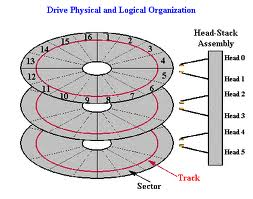
How does HDD store data?Hard disk drives store data on one or more metal oxide platters. These platters spin at a rate of 3600-10,000 revolutions/minute, hold magnetic charges. A read-write head attached to an actuator arm actually floats on a cushion of air, 1-2 micro-inches (one millionth of an inch) above the surface of the platters. Data flows to and from these heads via electrical connections. Any force alters this process may cause data loss.

Ten years ago hard drives stored 40 Megabytes (MB) of data. Today’s hard drives store data up to 2000 gigabytes (GB) on a smaller surface. Increasing storage capacities amplify the impact of data loss. As more and more data is stored in smaller and denser areas, mechanical precision becomes crucial.

As a part of this advancing technology, the drive tolerance (distance between the read/write head and the platter where data is stored) is steadily decreasing. A slight nudge, an unstable power surge or a dust introduced into the drive may cause the head to touch the platter, resulting in a head crash, PCB burnt, bad sectors, etc. In some situations, the data residing in the area touched by the head may be permanently destroyed.

The current tolerance drives is 1-2 micro-inches (millionths of an inch). Comparatively, a speck of dust is 4-8 micro-inches and human hair 10 micro-inches. These sizes contaminants can cause serious data damage.

How does HDD store data? Read More »

Data Loss

Data loss is one of Information Technology industry’s most misunderstood concepts. Very little information has been made public about data loss, and the information that does exist is inconsistent. Due to the mixed messages they receive, users find it difficult to properly evaluate their data loss situations and make educated decisions to recover from them.

Most lost data is not lost at all; it has simply become inaccessible to the user. Hundreds of thousands of gigabytes (GB) of data have been lost simply because users were not aware of their options and gave up hope of recovery.

How does a hard disk drive store data?

Hard disk drives store data on one or more metal oxide platters. These platters, which spin at a rate of 3600-10,000 revolutions per minute, hold magnetic charges. A read-write head attached to an actuator arm actually floats on a cushion of air, 1-2 micro-inches (one millionth of an inch) above the surface of the platters. Data flows to and from these heads via electrical connections. Any force that alters this process may cause data loss to occur.

More data is being stored in smaller spaces. Ten years ago hard drives stored 40 Megabytes (MB) of data. Today’s hard drives store up to 80 gigabytes (GB) on a smaller surface than the drives of a decade ago. Increasing storage capacities amplify the impact of data loss. As more and more data is stored in smaller and denser areas, mechanical precision becomes crucial.

As a part of this advancing technology, the drive tolerance (distance between the read-write head and the platter where data is stored) is steadily decreasing. A slight nudge, a power surge or a contaminant introduced into the drive may cause the head to touch the platter, resulting in a head crash. In some situations, the data residing in the area touched by the head may be permanently destroyed.

The current tolerance drives is 1-2 micro-inches (millionths of an inch). Comparatively, a speck of dust is 4-8 micro-inches and human hair 10 micro-inches. Contaminants of this size can cause serious data damage.

Data Loss Read More »

Scroll to Top