Articles

Flash Data Recovery Softwares

Flash Data Recovery SoftwaresFlash cards are the main storage devices used in digital cameras. In some situations, you may find that the photos that were stored on your memory cards have been lost. During these situations, you need photo recovery software to get your lost photos back. Now we introduce some free Flash Data Recovery Software for you:

Fast Flash Recovery 3.2

Risk free file restore tool for flash cards and other media. Fast Flash Recovery is an user friendly image recovery software developed to recover files deleted by mistake from hard disks and memory cards. Deleted files, documents, archives, images, video, music and other erased important information can be easily recovered and saved without any special skills. Now you can recover your lost or deleted data with fast, accurate and easy to use.

MjM Free Photo Recovery Software

MjM Free Photo Recovery Software will recover images that have been deleted from a memory card, or from memory cards that have been formatted. The easy-to-use interface will automatically detect the media card in the card reader and scan it, while displaying thumbnail images of the photos that are found during the scan. You can view each photos in full-size and recover them all or only save selected images. During our review, we first deleted all images from the card the via Windows – the program found and recovered all of them. We then formatted the card in the camera and restarted the search – and again it found them all (recovery results after formatting may vary depending on the formatting method used by the camera). Works with Compact Flash, SmartMedia, Memory Sticks and other media storage cards, does not work with local hard drives. Deep scanning is very slow and can take hours depending on the size of your media card.

Smart Flash Recovery 3.6

Smart Flash Recovery is a data recovery tool for the Windows operating system that supports the FAT 16/32 file system. The software easily recovers data from any type of storage media: flash drives, USB drives, digital cameras, memory sticks, PC cards, multimedia cards, secure digital cards and more. Smart Flash Recovery can recover any deleted files, including MS Office files, photos, mp3 and zip files, even if the partition table is lost! Requirements: Windows NT/2000/XP/2003 What’s New: Recovery possibility option.

Smart Flash Recovery is a completely free software. You can free download and use it as long as you like.

My Flash Recovery 2.0

Data recovery tool for flash drives and other type of USB devices from all major manufacturers under FAT 16/32 file system – find, preview and restore accidenatlly deleted data even flash drive was formatted. Deleted files, documents, archives, images, video, music and other erased important information can be effectively recovered and saved without any special skills. My Flash Recovery use two mode: quick (less then one min.) and deep scan, designed to recover data from formated flash drives. Preview of any file is possible even with the free trial version. After the program is purchased, you can restore single file as far as entire folder. My Flash Recovery will work under Windows NT,2000,XP,2003,Vista operating systems.

My Flash Recovery is a free to try software. You can free download and try it for an evaluation period.

Easy Flash Recovery 3.4

Risk free file recovery tool for flash cards and other media.

Easy Flash Recovery is an easy-to-use data recovery software designed to restore files accidentally deleted from hard disks and memory cards. Deleted files, documents, archives, images, video, music and other erased important information can be effectively recovered and saved without any special skills. Now you can recover your lost or deleted data with fast, accurate and easy to use technique. With Easy Flash Recovery you can restore digital photo files (jpg, png, psd, gif, etc), professional photo raw files (crw, nef, raf, orf, etc), audio and video files (like avi, mov, wmv, mp3, mpg, etc) and other document files (zip, xls, doc, rar, etc).

Flash Data Recovery Softwares Read More »

PC-3000 for SCSI

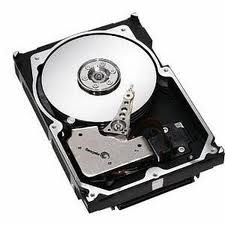
PC-3000 for SCSIPC-3000 for SCSI is a first-to-market professional hardware-software solution for testing, diagnosing the failures and recovering data from Hard Disk Drives with SCSI and SAS interfaces in tandem with Data Extractor SCSI.

  • SAS (Serial Attached SCSI) are supported.
  • SCSI-2, Ultra SCSI, Ultra2 SCSI, Ultra 160 SCSI, Ultra 320 SCSI is supported.
  • Original user-friendly interface similar to that one of PC-3000 for Windows.
  • PC-3000 for SCSI can work with 1 up to 15 Hard Disk Drives simultaneously; make tests and service operations for each of them and independently from all the other drives.
  • New PC-KEY2 (Power supplier) card can control power supply of one HDD.
  • Three external power sources of ATX standard, you can connect several HDDs to each of them. DBMS for resource storage – one of the most safe database of all existing ones.
  • PC-3000 for SCSI hardware-software product can function under these Operating systems: Microsoft Windows 98/ME, Windows 2000, Windows XP. Requirements to your PC hardware are determined by the requirements to the OS. SCSI adapter must be installed.
  • Know-how manuals with different methodologies of data recovery, recommendations on interchangeability of PCBs, succession of making hot-swap.

More about PC-3000 please refer to this post: Hard Drive Repair Tool PC3000 System

PC-3000 for SCSI Read More »

How to Install a SCSI Hard Drive?

How to Install a SCSI Hard Drive?Setting the Jumpers (see drive label for locations)

1. SCSI ID – 0 thru 15 for Wide devices. Each device must have a unique SCSI ID.
2. SE I/O – No jumper so the device can multimode (default).
3. Motor Start – Disable motor start (default).
4. Delay Motor Start – Disable Delay motor start (default).
5. Write Protect – Write Protect Off (default).
6. Parity Check – Enable Parity check (default).
7. Terminator Power – Host adapter or other device provides term power (default).

Set the SCSI ID
Each SCSI device must have a unique SCSI ID. Most SCSI drives come with no jumpers on SCSI ID (SCSI ID = 0). The SCSI host adapter usually uses SCSI ID = 7. If you are installing a drive model ending in LC (uses 80-pin SCA connector), the host normally sets the ID over the I/O interface.

Configure Termination
Only the devices at each physical end of a SCSI bus need to be terminated. The SCSI host adapter normally will provide termination for the controller end, therefore only terminate the last drive on the end of the cable. LVD drives do not have any provision for onboard termination; therefore, termination for LVD drives must come from another device or from an external terminator. Use only active SE or LVD terminators.

Configure Terminator Power
Active terminators must receive power from some source. The default configuration results in the drive not supplying termination power to the bus. Usually, the host adapter provides term power. Check the user’s manual for your host adapter. Drive models ending in LC cannot be configured to provide termination power to the bus.

1. Attach one end of the interface cable to the connector on the host adapter.
2. Attach the interface connector and a power connector to the drive.
3. Secure the drive using four 6-32 UNC mounting screws. DO NOT over-tighten the screws.

Troubleshooting
1. If the drive does not spin up, check that the power connector and the interface cable are securely attached.
2. If the drive spins, but there is no LED on/off activity, check the SCSI ID setting. Set the ID so that each device on the SCSI chain has a unique ID.
3. If the computer does not seem to recognize the drive, verify the drive is enabled by the SCSI host adapter setup utility.
4. If FDISK does not detect the drive, run the FDISK program with FDISK /STATUS to verify the drive is present

How to Install a SCSI Hard Drive? Read More »

SCSI Hard Drive Failures

SCSI Hard Drive FailuresSCSI stands for Small Computer System Interface. It is the second-most popular hard disk interface used in PCs today. Many companies use SCSI hard drives because the interface allows for much faster data transfer speeds. One of the main differences with a SCSI hard drive and an ATA hard drive is a SCSI disk must have an independent controller for it to communicate with the operating system.

Although SCSI controller has many benefits, it still adds another layer, another chance for failure and data loss. Unlike the IDE counterparts, SCSI disks operate through their own SCSI BIOS. When the computer is powered up, the SCSI BIOS sends a “Start Unit Request” command to the SCSI devices under its control. If the drive fails to start correctly, the SCSI drive will (often) power down and the error “Start Unit Request Failed” is displayed.

Which caused the SCSI drive failure?
Power down / power up
: SCSI drives are often found in machines that “never” switch off. When eventually these machines are powered down, getting the SCSI drives to restart can often be difficult

Electronic Failure: Failure of the electronic circuitry on the hard disk will prevent the drive from starting, fortunately drives with this type of failure are often recoverable

Mechanical Failure: Often characterized by a clucking sound or high pitched whine, SCSI hard disk mechanical failures are often the worst type of failure these drives can suffer. The noises, though not always apparent, are indicative of an internal mechanical failure or head crash.

All the usual failures that can be found on hard disk drives e.g. bad sectors, logical corruption etc.

SCSI Hard Drive Failures Read More »

Symptoms of HDD PCB Failure & HDD Firmware Corrupted

Most people can’t distinguish the HDD problems cause by HDD PCB failure and HDD firmware corrupted. Now we offer some advice as below, please refer:

HDD PCB Failure Symptoms:

When a hard drive fails due to PCB failure, the drive usually cannot boot up or there may be an inaccurate display in the BIOS of the hard drive’s information. Also power may not get to the hard drive and as a result it will not spin up.

HDD Firmware Corrupted Symptoms:

  • The drive will power up normally (no ticking noises, errors etc) but will not be recognized by the computer.
  • The drive will power up normally and be recognized correctly but will report a size of 0 bytes
  • The drive will power up but report SMART errors on boot

Article by Hard Drive PCB Sales: HDDZone.com

Symptoms of HDD PCB Failure & HDD Firmware Corrupted Read More »

Computer Forensic Tool: F-Response

F-Response Enterprise EditionF-Response is an easy to use, vendor neutral, patent-pending software utility that enables an investigator to conduct live forensics, Data Recovery, and eDiscovery over an IP network using their tool(s) of choice.

F-Response Main Features:

  • F-Response is a single executable (“exe”) that requires no drivers or installation components;
  • F-Response does not require a reboot, therefore mission critical servers can be reviewed with F-Response without an adverse impact on operations;
  • F-Response works with all RAID disks, physical drives, logical volumes, and physical memory (32 & 64 bit);
  • F-Response works with all Computer Forensics, eDiscovery and Data Recovery software packages, simply put, if your package reads from a hard drive, it will work with F-Response;
  • All F-Response software includes unlimited installations for a period of one (1) year from the date of purchase, software will cease to function at the end of the license duration unless renewed;
  • F-Response Enterprise Edition includes a license for F-Response Consultant and Field Kit Edition;

F-Response Enterprise Edition Mission Guides:

  • [NEW]Using the F-Response Accelerator (CE and EE Only)
  • [NEW]Leverage manual connections along with F-Response Consultant or Enterprise for a large scale collection
  • [NEW]Connect to Android (ARM) target(s) disk using F-Response Enterprise Edition
  • [NEW]Deploy F-Response Target code without the use of the F-Response Enterprise Management Console
  • Connect to a remote Linux target(s) disk using F-Response Enterprise Edition
  • Connect to a remote Apple target(s) disk using F-Response Enterprise Edition
  • Connect to a remote Windows target(s) disk using F-Response Enterprise Edition
  • Connect to the F-Response Boot CDROM using F-Response Enterprise Edition
  • Programming the F-Response Enterprise COM Object

F-Response Mission Guides were designed to simplify the process of using F-Response software in new and unfamiliar scenarios. Mission guides offer a possible solution to your task, working with you each step of the way through instruction that is direct and to the point.  Much smaller than a manual, Mission Guides give you the exact information you need to get you connected and underway as fast as possible.

Computer Forensic Tool: F-Response Read More »

Computer Forensic Tool: EnCase Forensic

Computer Forensic Tool: EnCase ForensicEnCase Forensic is for forensic practitioners who need to conduct efficient, forensically sounds data collection and investigations using a repeatable and defensible process. EnCase Forensic lets examiners acquire data from a wide variety of devices, unearth potential evidence with disk level forensic analysis, and craft comprehensive reports on their findings, all while maintaining the integrity of their evidence.

How EnCase® Forensic Works:

1) Obtain Forensically Sound Acquisitions
EnCase® Forensic produces an exact binary duplicate of the original drive or media, then verifies it by generating MD5 hash values for related image files and assigning CRC values to the data. These checks and balances reveal when evidence has been tampered with or altered, helping to keep all digital evidence forensically sound for use in court proceedings.

2) Save Valuable Time with Advanced Productivity Features
Examiners can preview data while drives or other media are being acquired. Once the image files are created, examiners can search and analyze multiple drives or other media simultaneously. EnCase Forensic also features a case indexer. This powerful tool builds a complete index in multiple languages, allowing for fast and easy queries. Indices can also be chained together to find keywords common to other investigations. This Unicode-supported index contains personal documents, deleted files, file system artifacts, file slack, swap files, unallocated space, emails and web pages. In addition, EnCase has extensive file system support, giving organizations the ability to analyze all types of data.

3) Customize EnCase® Forensic with EnScript® Programming
EnCase forensic features EnScript® programming capabilities. EnScript, an object-oriented
programming language similar to Java or C++, allows users create to custom programs to help
them automate time-consuming investigative tasks, such as searching and analyzing specific
document types or other labor-intensive processes and procedures. This power can be harnessed by any level of investigator by using one of Forensics tools, such as the “Case Developer” or one of the numerous built-in filters and conditions.

4) Provide Actionable Data, Report on it, and Move on to the Next Case
Once investigators have bookmarked relevant data, they can create a report suitable for
presentation in court, to management or to another legal authority. Data can also be exported in multiple file formats for review.

EnCase Forensic is trusted by corporations, law enforcement, and government. EnCase Forensic is fast, powerful, forensically sound, and proven in courts worldwide.

EnCase Forensic Related Links:

Website: http://www.guidancesoftware.com/forensic.htm
Resource: EnCase® Forensic for Law Enforcement (PDF)

Computer Forensic Tool: EnCase Forensic Read More »

Most Popular 2TB Internal Hard Drives on Amazon.com

Most Popular 2TB Internal Hard Drives on Amazon.comWhen was the last time you bought a new 1tb or 2tb internal hard drive? It used to be a simple decision three years back, pick the cheapest Seagate or Western digital based on the drive capacity that you need and you are all set to use and enjoy it for many years.

Not so anymore, especially if you need a high capacity internal drive. There are so many newer models and sub versions that it becomes a major pain if you buy the wrong drive. I have gone through this pain in the last few months and hence did a quick write up on the various options based on my own experience in my blog and reproduce the same below:

Some factors to consider if you need a new internal hard drive:

1. Usage: Is this a drive that is going to go into your computer and be used once in a while for data access? Or is this going to go into a enclosure that will be on many hours in a day (say for media player, FTP server or a backup server). Or do you need it as a primary boot drive in your primary computer ?

2. Heat: How much heat will the enclosure create? Is it a nice computer cabinet with plenty of fans to circulate air or is it a small NAS/USB enclosure with hardly any fan movement ?

3. OS and Raid: What operating system (Windows 7, Windows XP and Linux) will be used to access the drive ? And will you have some form of Raid ? Yes, it seems like a idiotic question, but trust me, this has a bearing on the choice of drive.

Once you have answers to the three questions above, you can pick the right drive from below:

Popular Manufacturers: Western Digital, Seagate, Hitachi

Most popular 2TB hard drives on Amazon.com:

Western Digital 2 TB RE4-GP SATA 64MB Cache Bulk/OEM Enterprise Hard Drive
(Price: $282.99 Price on Amazon.com: $242.99 Model: WD2002FYPS )

Western Digital 2 TB AV-GP SATA Intellipower 32 MB Cache Bulk/OEM AV Hard Drive
(Price: $190.99 Price on Amazon.com: $129.99 Model: WD20EVDS )

Hitachi Deskstar 3.5-Inch 2TB 7200RPM SATA II 32MB Cache Internal Hard Drive
(Price: $182.77  Price on Amazon.com: $124.99 Model: 0S02861)

Seagate Barracuda XT 2 TB 7200RPM SATA 6 Gb/s 64MB Cache 3.5 Inch Internal Bare Drive
(Price: $298.99 Price on Amazon.com: $169.99 Model: ST32000641AS)

Western Digital 2 TB Caviar Black SATA 7200 RPM 64 MB Cache Bulk/OEM Desktop Hard Drive
(Price: $320.99  Price on Amazon.com: $186.22 Model: WD2001FASS)

Seagate Barracuda LP 2 TB 5900RPM SATA 3 GB/s 32 MB Cache 3.5-Inch Internal Hard Drive ST32000542AS-Bare Drive
(Price: $202.99 Price on Amazon.com: $99.99 Model: ST32000542AS)

Western Digital 2 TB Caviar Green SATA Intellipower Bulk/OEM Desktop Hard Drive
(Price: $159.99 Price on Amazon.com: $99.99 Model: WD20EARS )

Hope this helps someone who is looking for the same information.

Most Popular 2TB Internal Hard Drives on Amazon.com Read More »

Hitachi Hard Disk Drive Business is now Western Digital

Hitachi Hard Disk Drive Business is now Western DigitalMarch 7, 2011 –  Hitachi transfers hard disk drive business to Western Digital.

Western Digital will acquire all shares of Hitachi Global Storage Technologies’s holding company, Viviti Technologies Ltd. The proposed combination will result in customer-centric storage company, with significant operating scale, strong global talent and the industry’s broadest product lineup backed by a rich technology portfolio.

Under terms of the agreement, WD will acquire Hitachi GST for $3.5 billion in cash and 25 million WD common shares valued at $750 million, based on WD closing stock price of $30.01 as of March 4, 2011. Hitachi will own approximately ten percent of WD shares and hold two seats on the WD board of directors. Steve Milligan, president and chief executive officer of Hitachi GST, will join WD’s existing senior management team as president.

The acquisition of Hitachi GST is a unique opportunity for WD to create further value for our customers, shareholders, employees, suppliers and the communities in which we operate. We believe this step will result in several key benefits-enhanced R&D capabilities, innovation and expansion of a rich product portfolio, comprehensive market coverage and scale that will enhance our cost structure and ability to compete in a dynamic marketplace. The skills and contributions of both workforces were key considerations in assessing this compelling opportunity. We will be relying on the proven integration capabilities of both companies to assure the ongoing satisfaction of our customers and to bring this combination to successful fruition.” – said John Coyne, president and chief executive officer of WD.

“This combination will bring together two industry leaders with consistent track records of strong execution and industry outperformance, together we can provide customers worldwide with the industry’s most compelling and diverse set of products and services, from innovative personal storage to Solid State Drives for the Enterprise.” – said Steve Milligan, president and chief executive officer, Hitachi GST.

Hitachi Hard Disk Drive Business is now Western Digital Read More »

New Hard Drive not detected by System

Question: If you installed a new disk but the system can’t see it.

Ten steps to solive Hard drive not detected or recognized by system.

Step One
The easiest thing to check: did you attach a data cable to an appropriate port on the motherboard and a power cable to the power supply? The power cable is sometimes forgotten.

Step Two
Just where exactly is the system not seeing it? In the OS, in the BIOS, or “What is BIOS?”

  • If “What is BIOS,” go to step three
  • If “It’s not seen in the BIOS,” go to step four
  • If “It’s seen in BIOS but not in the OS”, go to step five

Step Three
You asked, “What is BIOS?” When you first apply power to the system, or boot, it starts running a tiny little program called BIOS (it’s an acronym, do you really care what for?) that resides on the motherboard. You will start seeing text messages, and one of the earliest will say “Press <someKey> for Setup.” <someKey> may be Esc, Del, F10, or something else; don’t ask me why it wasn’t standardized.

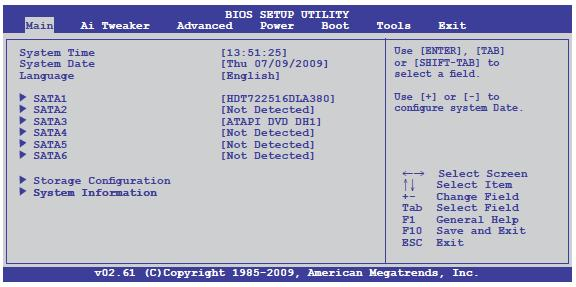
Anyway, press that key. The startup will continue for a while, and then it will send you to a really primitive-looking setup screen that depends on what your motherboard is, so I can’t give you an exact example here. Look in your Motherboard manual. Somewhere in it, you will find a list of hard drives. On my Asus P5P55D Delux, it looks like this:

New Hard Drive not detected by System

If you don’t know which of them is which of your drives, just count them. Are there enough to account for the new drive (if you had one before, do you see two now)?

If “It’s seen in the BIOS,” go to step five. Else, go to step four.

Step Four
“I don’t see it in the BIOS.” Well, that’s nasty. Some, very few, BIOSes require that the drive controller be enabled, or even the particular port be enabled. Look through your BIOS or your manual to see if this is the case. Dell systems are particularly obnoxious this way.

If you can’t get the BIOS to recognize it, exit this checklist and post a question, giving such information as your therboard make and model, disk make and model, and the fact that it is not detected in BIOS. Sorry.

If you do get the BIOS to recognize it, go to step five.

Step Five
“It’s seen in the BIOS.” But your OS does not see it. You do have an already running OS, don’t you? If not, well, I haven’t written that part yet.

Brand-new drives need to be partitioned and the partitions formatted. If you know how to do this, skip to step six. Otherwise, read on.

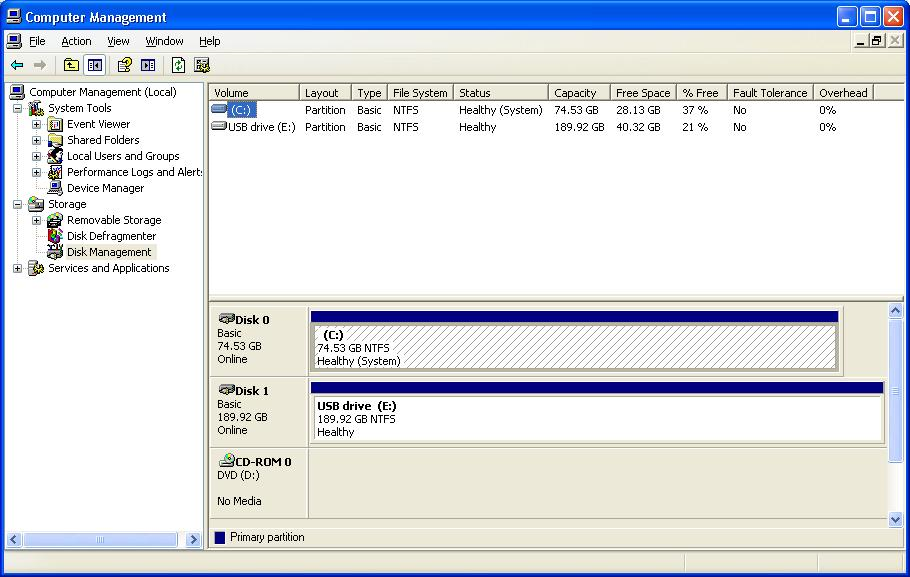
Log in to your Windows OS (yes, I’m only covering Windows) with an account with Administrator privileges and open the Control Panel. Select Administrative Tools, and from there select Computer Management. In the new window that opens up, navigate down the tree on the left to Disk Management. It should look something like this:

New Hard Drive not detected by System

See how on the bottom panel on the right there is one “stripe” for each of the hard (or solid-state) drives? Well, let’s look for your new one there. If you can’t figure out which is the new one, shut down the machine, take out the new drive, start up the machine, and open Disk Management again. Print out a copy of it. Then put the new drive back in (please, shut down first!) and re-open Disk Management. It’s the stripe that wasn’t there before.

If the new drive is not seen at all, you have a different problem. Please skip to step ten.
What you will probably see is your new drive represented as a single block of unallocated space. If not, it’s time once again to leave me and ask for more specific help. If that is what you see, because it is a brand-new disk it has to be partitioned and formatted, as I mentioned above. Here’s how you create one big partition so that all of the space on the drive shows up in one new drive letter in Windows Explorer.

** If you do these operations on the wrong disk you can erase all of the data on it. Be sure that you either have backups or have the identified the right disk. Or both. **

Right-click anywhere in the big block or Unallocated Space that represents your drive. Choose the action New Partition (or New Simple Volume in Windows 7). You want to create a Primary partition (or Simple Volume) that takes up the full amount of available space. If you are going through the Partition Wizard, at this point you will also choose to format the partition as NTFS, with the Default “Allocation Unit Size” and a Label like “New Big Disk.” Choose Quick Format if that choice is offered.

When it is through working (2 minutes to 2 hours), if you look in Windows Explorer you will now have a nice new drive letter with all of your new space. Enjoy! You are done. Leave this checklist.

Step Six
OK, you could skip all the detailed instructions on partitioning and formatting. One of two things happened. If you succeeded, you are done with this checklist. If, on the other hand, the Disk Manager did not show the new, unpartitioned drive, you have to go to the dreaded Step Ten.

Step Seven
There is no step seven. Or eight or nine, for that matter. I just used ten earlier to make sure that I had enough room.

Step Ten
On some motherboards, there is more than one controller. Some SATA ports are controlled by the Southbridge, and disks attached to them should always show up in Disk Management. There may be more that are controlled by an additional controller chip on the motherboard. As of January of 2011, that includes any SATA 3 ports.

Before the OS can see a drive attached to these ports, you have to load the driver for the controller chip. It was on the CD that came with the motherboard, or you can read your motherboard manual to find out what the controller chip is and download the most current version for whatever OS version you are using. Install that driver and reboot, and the drive will magically appear in the Disk Management pane (once you re-open that pane). You can go back to step five.

Note: This quick guide applies to internal hard drives added to an already bootable system only.

New Hard Drive not detected by System Read More »

Scroll to Top