Articles

Useful Solid State Drive Articles

Useful Solid State Drive ArticlesSolid State Drive Buyer’s Guide
Should you consider upgrading to a solid state drive? Weigh all the pros and cons and evaluate the cost and value of doing so by reading this guide.

The Ins And Outs Of Solid State Storage
The benefits introduced by solid state drives are undeniable. However, there are a few pitfalls to consider when switching to this latest storage technology. This article provides a rundown for beginners and decision makers.

17 SSDs Rounded Up
Which SSD should you buy today? Seventeen flash-based drives battle across a benchmark suite that include throughput, I/O performance, consistency, power consumption, efficiency, and the best overall bang for the buck. The time is right to upgrade.

A look at the NAND itself. How an SSD works at the lowest levels:

http://www.lostcircuits.com/mambo/ […] 9&Itemid=1
http://www.ocztechnologyforum.com/ […] hp?t=65372

Write caching, wear levelling and the importance of partition alignment:

http://www.lostcircuits.com/mambo/ […] 2&Itemid=1

A broad overview of everything SSD (including TRIM):

http://www.anandtech.com/storage/showdoc.aspx?i=3531
http://anandtech.com/storage/showdoc.aspx?i=3631 (A follow-up of the previous Anandtech article. Touches on a few more details, but it’s more of a review of OCZ drives than a good overview of SSDs. Worth reading if your SSD has an Indillinx controller.)

More links will be added here when I find them or when somebody else points me to them.

Useful Solid State Drive Articles Read More »

Data Recovery: Just Do It!

Data Recovery: Just Do It!Read the following tips on how to diagnose your hard drive crash and determine which recovery options are available to you. Differing causes of drive failure require differing solutions.

To find out if your drive is suffering from a physical crash or software problems, look at the lights on your hard drive. If there’s no light activity at all, or if you don’t hear or feel the disk spin inside or hear strange buzzing or different sounds than normal inside the casing, your disk crash is, in all probability, due to physical problems.

Option I: Hard Drive Boots

If you are still able to boot up your system, try booting from your recovery disk.

Many PC packages come with a disk recovery system. If you are able to boot from your recovery disk, click the START button on Windows and go on command line mode. Try running chkdisk or defrag to see if this fixes your hard drive. Oftentimes, formatting problems and disk fragmentation leads to drive crashes/corrupted disks.

After you have defragged your problematic drive, run your antivirus program and see if it cleans out any viruses. In many situations, viruses can corrupt your operating system or key drivers leading to system crashes. See if this takes care of the problem.

If your data is located in undamaged folders, copy them onto a CD or USB drive and make a list of all your applications. Make sure you know where to download your applications or where you stored the original copy.

If you cannot find your data, or it was stored in a corrupted location, don’t panic! To recover your data, try one of the many data recovery softwares available on the Internet today. These software packages help you restore your disk partitions, folder structure, or even recreate folders so you can find and recover your data.

If you cannot recover your data with data recovery software, skip to options III. Make sure to exhaust all your options before you go and seek professional help since professional data recovery assistance can come with a hefty price tag.

Once you have your data and your applications ready for reinstallation, “wipe” your disk and reinstall your OS. Make sure that your OS is patched with all its current updates.

Option II: Hard drive doesn’t boot but the drive still has blinking lights.

In this situation, plug in a spare working hard drive into a USB port or on a vacant controller slot on your motherboard. In the case of inserting a new master drive into your desktop PC’s chassis, make sure you rearrange the controller jumper on the main board so that it recognizes the new master / slave settings of your hard drives. Upon boot up, get into the boot settings of your computer and set up the new drive as the MASTER and the non-booting drive as the SLAVE.

Once you’ve booted, run your recovery disk and run chckdisk/fdisk and defrag on your slave disk. Follow the rest of the steps and options outlined in Option I above.

Option III: Hard drive is physically damaged!

If your drive has physically crashed, you may still be able to recover your data, even if physical damage has occurred.

Physical hard drive damage usually involves problems with the disk motor or the disk reading head is physically misaligned and fails to work. Sadly, physical damage often means that some of your data might be permanently lost. Just because your hard drive has suffered physical damage, don’t automatically assume that the only solution left is to go seek professional help. Try the tips below first before seeking professional data recovery.

Can you still boot but your PC is really slow? If this is the case, install and use data recovery software to isolate your data and load it onto a storage device like a USB stick. Once you have archived your data and make an inventory of your installed applications, take out the drive and replace it with a new drive.

Does your hard drive make a weird noise? Strange noises are indicative of hardware problems. However, if your drive still works regardless of the noise, install and use data recovery software to find and move your data before you replace your drive.

If none of the options above don’t apply, it is time to seek professional data recovery assistance. Professional data recovery services are not cheap. The cost goes up based on the amount of data you want recovered. Since this situation involves the outlay of substantial amounts of money, here’re some tips to help you select the right data recovery company.

Tips for finding the right data recovery companies:

  • Do a search for data recovery on the Internet. See if there are existing unbiased reviews of your service provider. Avoid services that have too many negative comments from many differing sources.
  • Check your online business better bureau to see if the company you are considering is a member in good standing or have some complaints against it.
  • Ask the company if they have any guarantees. Legitimate data recovery companies DO NOT give guarantees as to how much data they can recover. It is okay if they give estimates. However, it is suspicious if they give out guarantees.
  • Ask if you can pay by credit card. Credit card payments give you some measure of protection because you can chargeback your card if the data recovery service turned out to be a rip off.
  • Get a clear idea of WHEN you will get results. Many companies drag out results over several weeks. Make sure you see eye to eye with the service provider regarding deliverables and timelines.

In closing, a hard drive crash, as traumatic as it can be, is not a death sentence. Make sure you are aware of your do it yourself and professional data recovery options. Keep the options above so you can save time and money. One final note: always remember to back your data up either yourself or by using a data backup software. Do it early. Do it often. Just Do It!

Data Recovery: Just Do It! Read More »

Hard Drive PCB Parts

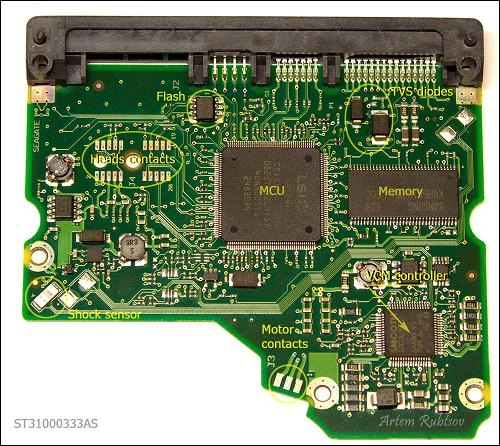
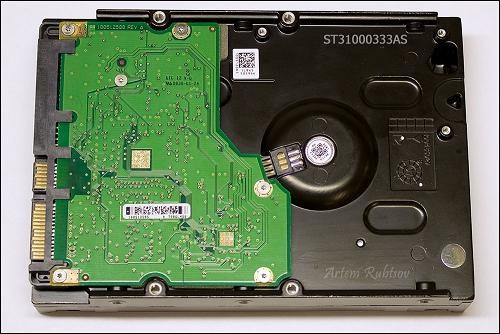
Hard Drive PCB PartsThe goal of this post is to show you how a hard drive Printed Circuit Board(PCB) built. What are its main parts, how do they look and what are these parts names and abbreviations. As an example we are going to disassemble 3.5″ SATA drive.

To make it more fun we going to tear to pieces pretty new 1TB Seagate ST31000333AS hard drive. Let’s take a look on our “Guinea pig”.

Hard Drive PCB Main Parts:

The fancy piece of green woven glass and copper with SATA and power connectors called Printed Circuit Board(PCB). PCB holds on place and wires electronic components of HDD.

Now let’s remove PCB and see electronic components on the other side.

hard-drive-pcb

Hard Drive PCB Parts:

The heart of PCB is the biggest chip in the middle called Micro Controller Unit(MCU). On modern HDDs MCU usually consists of Central Processor Unit or CPU which makes all calculations and Read/Write channel – special unit which converts analog signals from heads into digital information during read process and encodes digital information into analog signals when drive needs to write. MCU also has IO ports to control everything on PCB and transmit data through SATA interface.

The Memory chip is DDR SDRAM memory type chip. Size of the memory defines size of the cache of HDD. This PCB has Samsung 32MB DDR memory chip which theoretically means HDD has 32MB cache (and you can find such information in data sheet on this HDD) but it’s not quite true. Because memory logically divided on buffer or cache memory and firmware memory. CPU eats some memory to store some firmware modules and as far as we know only Hitachi/IBM drives show real cache size in data sheets for the other drives you can just guess how big is the real cache size.

Next chip is Voice Coil Motor controller(VCM controller). This fellow is the most power consumption chip on PCB. It controls spindle motor rotation and heads movements. The core of VCM controller can stand working temperature of 100C/212F.

Flash chip stores part of the drive’s firmware. When you apply power on a drive, MCU chip reads content of the flash chip into the memory and starts the code. Without such code drive wouldn’t even spin up. Sometimes there is no flash chip on PCB that means content of the flash located inside MCU.

Shock sensor can detect excessive shock applied on a drive and send signal to VCM controller. VCM controller immediately parks heads and sometimes spins down the drive. It theoretically should protect the driver from further damage but practically it doesn’t, so don’t drop you drive – it wouldn’t survive. On some drives shock sensors used for detection even light vibrations and signals from such sensors help VCM controller tune up heads movements. Such drives should have at least two shock sensors.

Another protection device called Transient Voltage Suppression diode(TVS diode). It protects PCB from power surges from external power supply. When TVS diode detects power surge it fries itself and creates short circuit between power connector and ground. There are two TVS diodes on this PCB for 5V and 12V protection.

Tips: Hard Drive Failures cased by PCB can be solved by replacing a new one. How to find a matching pcb please refer to: How to find a Matching PCB

Hard Drive PCB Parts Read More »

How to break the 2.1TB Barrier With Barracuda XT Hard Drives

How to break the 2.1TB Barrier With Barracuda XT Hard DrivesUntil recently, using a hard drive larger than about 2.1TB has been difficult from a technical perspective. Back in the early 1980s when many of the fundamental hardware and software designs for computers were created, no one could fathom a hard drive approaching even 1TB, so limiting the logical block address (LBA) range to 2.1TB was thought to be more than adequate. As a result, operating systems, BIOS controllers, host interface drivers and device drivers have used the same basic limitation of 2.1TB.

Newer versions of Windows (Windows Vista and Windows 7), when combined with a new BIOS called UEFI and when configured correctly, have the native capability of using hard drives larger than 2.1TB. The problem, however, is that UEFI BIOS systems are less prevalent and more expensive than legacy PC BIOS systems. Also, Windows XP systems still represent a sizable portion of the installed base. So what do you do if you want to use one of the new
high-capacity hard drives coming to market that exceeds this 2.1TB limit?

Solution to break the 2.1TB Barrier With Barracuda XT Hard Drives:

Seagate has broken the 2.1TB barrier by developing a creative solution which allows you to utilize all of your hard drive capacity over two or more partitions when the drive is larger than 2.1TB. The new Seagate® Barracuda® XT 3TB hard drive has been released(See another post: https://www.datarecoveryunion.com/seagate-barracuda-xt-3tb-desktop-hard-drive/), and it includes free access to our updated Seagate DiscWizard™ software. This newest version of the popular hard drive utility from Seagate now includes functionality that allows you to easily configure a virtual device driver to access all of your hard drive capacity.1 It’s simple, fast and free.

Step 1. Locate the Software.
If you purchase a Seagate® retail kit, DiscWizard™ software will be included on the CD that is packaged inside. Otherwise, you are welcome to download DiscWizard software from the Seagate website. You can find it easily starting here: www.seagate.com/beyond-2TB

Step 2. Prepare Your System.
Time to open up the system, mount the drive and attach the SATA cable. It’s really quite simple to do. Tens of thousands of people add new hard drives every day! If you need a few pointers, please review some of the internal drive installation tutorials and flash presentations available online at www.seagate.com/support. Remember to handle your new drive with care.

Step 3. Install DiscWizard™ Software.
Restart your Windows system. After it finishes its normal preliminary startup routine, install the DiscWizard software application. You’ll see a new icon on your Desktop that looks like this:

DiscWizard

Step 4. Think About Your Plan, Start DiscWizard Software and Follow the Prompts.
Not everyone plans to use a drive the same way. You may be adding the new drive as secondary storage, or you may be migrating your old drive (Windows, applications, data, etc.) to your new drive. You may want to split the drive into drive letters. And on and on. DiscWizard software is a very versatile disk management utility—with easy-to-follow menu choices and questions; it will handle anything your system and OS will allow.

Step 5. A Few Words About Drives >2.1TB
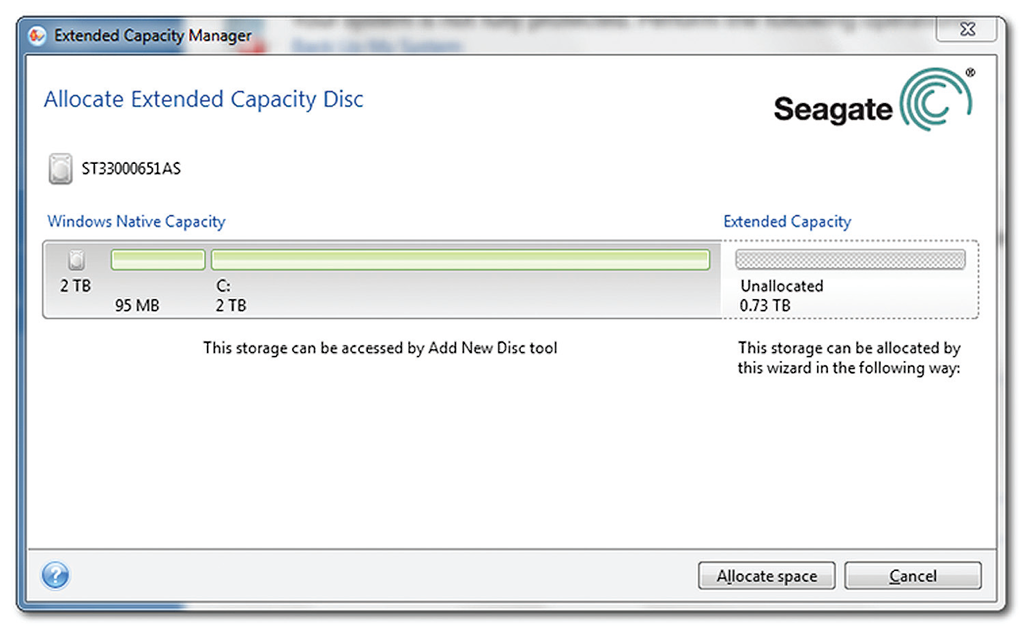
As mentioned earlier, there are several capacity limitations that appear at 2.2TB. Any systems built before 2011 and using a drive greater than 2.1TB will need a device driver to access the terabytes above 2.1TB. DiscWizard software will automatically detect and offer to install the appropriate driver for your Windows OS and hardware (Windows 7, Visa or XP, 64- or 32-bit). The driver will mount the remainder capacity above 2.1TB as a new drive letter, usually D:. This new drive is also limited to a maximum of 2.1TB, so this will be repeated as necessary. A future 6.6TB drive will have three drive letters—C: managed by native Windows drivers; D: and E: drives managed by the DiscWizard driver.

The DiscWizard™ Extended Capacity Manager is intuitive and simple to use:

DiscWizard™ Extended Capacity Manager

Step 6. Enjoy Your New Seagate Drive and Keep DiscWizard Software Installed
DiscWizard software provides continuing value during the life of your drive. In addition, you can use the software to make image backups of your computer that may be useful if problems arise with your system or data.

How to break the 2.1TB Barrier With Barracuda XT Hard Drives Read More »

Seagate Today Began Shipments of Barracuda XT 3TB Desktop Hard Drive

Barracuda XTBarracuda® XT Combines Highest Desktop Storage Capacity Ever Available with High-End Performance

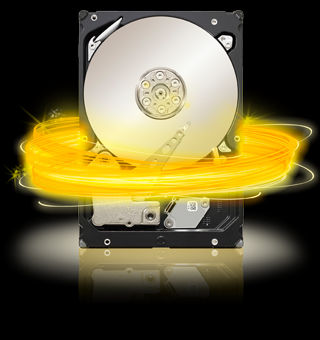
Seagate today began shipments of the industry’s most elegant, easy-to-install 3TB desktop drive(Barracuda® XT hard drive) – a product that eliminates the need to purchase extra hardware or software to overcome the 2TB barrier. The Barracuda XT hard drive delivers the highest available capacity for home servers and workstations, high-definition video editing and production systems, high-performance PC gaming systems and desktop PCs.

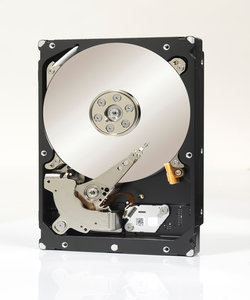
Seagate Barracuda XT 3TB hard drive for desktop PCs

Legacy PC BIOS designs and device drivers and older operating systems such as Windows XP are incapable of using hard drive capacities beyond 2.1TB. The upshot is that existing desktop drives with more than 2.1TB of storage capacity must be deployed with additional software or hardware and may also require extra device drivers to overcome this limitation.

The Barracuda XT hard drive with free Seagate DiscWizard™ software is a complete, easy-to-deploy solution. DiscWizard software makes it simple to configure the computer operating system and device drivers to access the full 3TB of capacity on legacy systems using Windows XP and PC BIOS and on personal computers equipped with newer versions of Windows or the new UEFI BIOS.

“Seagate is squarely focused on delivering the storage performance, capacity and innovation to ensure that technology transitions remain seamless for our customers, the Barracuda® XT hard drive epitomizes our commitment to providing end-user customers and PC manufacturers with the world’s most advanced storage solutions.” – said Dave Mosley, Seagate executive vice president of sales, marketing and customer service.

The Barracuda XT hard drive combines a 64MB cache that optimizes burst performance in cache-intensive applications such as PC gaming and nonlinear video editing with Serial ATA 6Gb/s – an interface that delivers the highest system throughput – to enable the highest performance available in a desktop hard drive. The 3.5-inch, 7200RPM drive’s 3TB of storage capacity gives desktop PC users the most space ever available for videos, games, photos and files.

The Barracuda XT 3TB hard drive launch comes only months after Seagate introduced the Barracuda® Green hard drive, another Seagate desktop drive that streamlines technology transitions to simplify drive installations for PC makers and consumers. The eco-friendly Barracuda Green hard drive features Seagate’s SmartAlign™ technology to enable all the benefits of the new 4K sector standard while simplifying drive installation. SmartAlign technology works by eliminating the need for utilities often required to ensure optimum drive performance.

Seagate Today Began Shipments of Barracuda XT 3TB Desktop Hard Drive Read More »

What Makes a Good Hard Disk Drive?

When looking to buy a hard drive there is a quick checklist of things to look for:

  1. Interface (PATA, SATA, SCSI or other more exotic setups)
  2. Capacity (how much space do you need/want)
  3. Spindle speed (i.e., 5400rpm, 10,000rpm, 15,000rpm etc)
  4. Cache (2MB, 8MB, 16MB)
  5. Brand (Western Digital, Seagate, Maxtor etc)

HDD Interface:

  • PATA drives are arguably the most universally compatible, are the cheapest and offer a respectable degree of performance however there is a potential inconvenience of having to set/adjust jumpers on the drive.
  • SATA (and SATA-II) drives are the next-generation drives and outperform similarly priced PATA drives (the price delta is usually no more than $10). Since there is only one drive per cable, no jumpers need to be set however the potential downside is that the destination motherboard/controller may not offer native boot-time support of the SATA drive (thus requiring a floppy/CD with the drivers in order to install an OS). Another consideration is if the drive only accepts SATA-power connectors than either the PSU needs these special connectors in order to power the drive (or adaptors must be purchased)
  • SCSI drives have the inconvenience of lack-of-boot-time support as well as the potential hassle of assigning SCSI id’s and performing termination. The upside is that many RAID options are available (much more so than with IDE drives) as well as significantly improved performance. Of the three common interfaces, SCSI is the most expensive.

HDD Capacity:
The old rule for determining how much drive space is requires is to “estimate how much you think you will need, double it and round-up to the nearest drive size”. With dropping drive prices as well as decreasing price deltas (i.e., going from a 120GB to 160GB drive is usually $10 — why? Because a 120GB drive is just a 160GB drive with a half-a-platter disabled).

HDD Spindle Speed & Cache:
Naturally, the faster the platters spin the better the overall performance however it is not always as simple as that. With SCSI drives, it’s fairly clean-cut as they tend to fall into distinct categories (10k and 15k rpm drives) with very distinct performance and price brackets. For IDE drives the three most common speeds are 5400, 7200 and 10000 rpm however the element of cache makes things interesting.

The argument for 5400rpm drives used to be “get a massive 5400rpm drive for archive — you’re not gonna be accessing it all the time so access-time performance isn’t critical” however with the advent of affordable (and massive) 7200rpm drives there isn’t much of a case for 5400rpm drives from a performance/functionality perspective (i.e., you won’t be able to get a 500GB DeskStar drive in a 5400rpm flavour). The only case really for 5400rpm (or slower) drives is for people looking to build uber-quiet systems. All 5400rpm IDE drives come with 2MB of cache.

Mainstream 7200rpm drives come in several flavours, 2MB, 8MB and 16MB of cache and with the wide variety of capacities. Buying a 2MB cache drive isn’t really a smart move anymore as the price delta to go from a 2MB to 8MB cached drive is usually ~$10. In the case of 16MB drives (currently only the Maxtor DiamondMax 10) which also offer NCQ support as well as being one of the few native SATA drives (Seagate’s barracuda 7200. 7 is another), it is obvious that the 16MB cache allow the DiamondMax10 to be the best performer for a 7200rpm drive and the NCQ and drive capacity allows for the drive to be immediately implemented in a server environment. Realistically the only competition in terms of performance for these drives are the 10k rpm drives.

Currently, two IDE drives support 10k rpm spindle speed (with 8MB of cache) and the advantages are obvious: significantly reduced access times. The downside is that (a) the drives are exceptionally expensive, (b) the highly competitive Maxtor 16MB cache drives represent a significantly improved value hands-down.

So will it be 10k@8MB ot 7.2k@16MB?
Ok let’s have a look at some numbers,

AVG Transfer rate
Maxtor DiamondMax 10 (NCQ on) — 54.5MB/s
Maxtor DiamondMax 10 (NCQ off) — 54.6MB/s
WD Raptor II — 64.9MB/s
with HDTach 3.0, it’s fairly evident that the Raptor is superior by a significant margin.

Burst Transfer
Maxtor DiamondMax 10 (NCQ on) — 131.7MB/s
Maxtor DiamondMax 10 (NCQ off) — 136.3MB/s
WD Raptor II — 118.7MB/s
here the tables are reversed however burst transfers are not as significant as average throughput.

Random Access Time
Maxtor DiamondMax 10 (NCQ on) — 13.9ms
Maxtor DiamondMax 10 (NCQ off) — 13.8ms
WD Raptor II — 7.9ms
The Raptor has a significantly reduced access time (42% advantage) however we don’t see anywhere near a 42% advantage in terms of benchmarked throughput performance … This is due to the larger cache count on the DiamondMax10: with the larger cache, the performance of the drive depends less and less on the mechanics of the drive (i.e., it reduces the effect of the rpm advantage the Raptors have)

Diskbench 2.3 – 250mb file
Maxtor DiamondMax 10 (NCQ on) — 16.2MB/s (30.7sec)
Maxtor DiamondMax 10 (NCQ off) — 15.3MB/s (33.6sec)
WD Raptor II — 13. 0MB/s (38. 2sec)
Here we can see the cache-advantage flex it’s muscles: a 17%-25% advantage in real-world performance (impressive if we consider the access-time disadvantage the Maxtors are operating with).

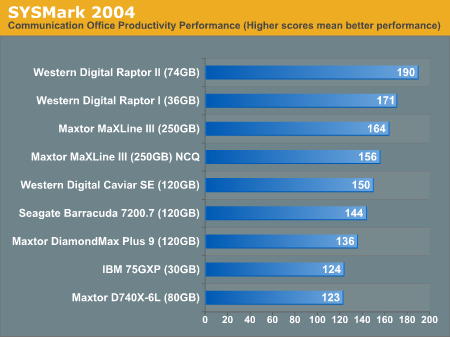
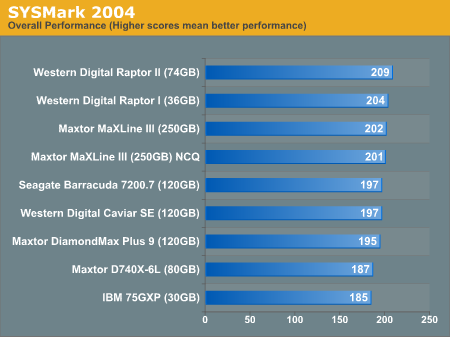
anandtech offers similar results with the Maxtor and wd trading spots back and forth with the 16MB Maxtor generally keeping up with or beating the 8MB Raptors (albeit by non-massive margins). Here is the 8MB Raptor pulling ahead by a non-insignificant margin

001

Summarizing the SYSmark scores, the Raptor comes out on top but with a very small lead

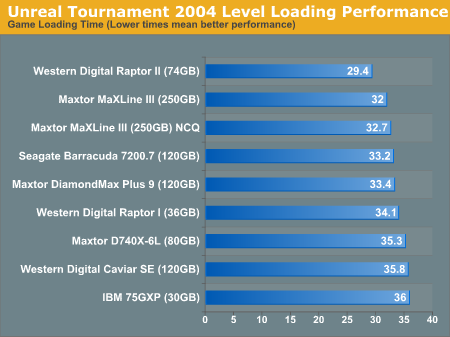
002

the Raptor pulls ahead with a small lead in UT2004 load times,

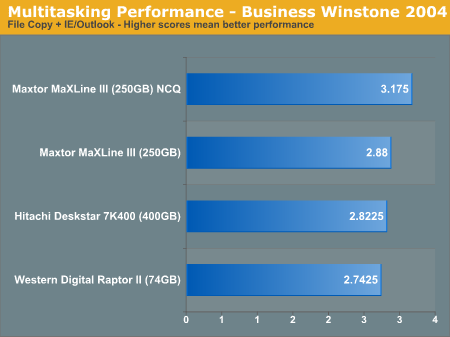
003

however the Raptor comes in last when multitasked heavy-disk access is thrown at it:

004

From a value perspective, there is almost no reason to recommend the WD 10k drives: one can get a 300GB Maxtor 16MB cache drive for the same price as a 74gb Raptor II. Now if the Raptor swept the floor it would probably be justifiable to purchase it however that was not the case. Perhaps if/when a 10k 16MB cache drive is released, the high-end drive market can be a bit more clear-cut.

HDD Brand:
Brand doesn’t matter all that much: people can tell you nightmare stores about Company X and recommend Company Y, however it’s probably equally possible to find nightmare stories about Company Y. While there may be bad drives (for instance the IBM/Hitatchi GXP75), it doesn’t mean that the entire product line will be bad.

What Makes a Good Hard Disk Drive? Read More »

Basic Knowledge of Hard Disk Drive: Definitions

Basic Knowledge of Hard Disk DriveIDE — This is simply an abbreviation for integrated-drive-electronics which is a physical attachment interface and is affiliated with the term ATA. It is often incorrectly used to describe a specific type of IDE/ATA interface known as Parallal-ATA (see PATA). See ATA.

EIDE — An extension of IDE, EIDE, or enhanced-IDE added to IDE support for larger drives (EIDE imposed a limit of 8.4GB, a vast improvement over the 528MB limit imposed by the original IDE design) as well as supporting faster throughput protocols. All modern hard drives whether labeled IDE or EIDE are in fact, EIDE devices.

ATA — An abbreviation for at attachment, (which fully expanded is advanced technology attachment). The ATA standard encompasses all aspects of interfacing with said devices: it defines physical, electrical, transport and command protocols for compliant devices. The ATA specification, introduced by the small form factor committee (SFF) is a 16bit interface which draws it’s roots from the ISA architecture.

Important: For the remainder of this guide, the term IDE will be used to define/describe the physical connections while the term ATA will be reserved for discussions revolving the electrical, transport and command protocols. Furthermore, EIDE and IDE drives will be grouped together under IDE and distinctions will be explicitly noted where required.

PATA — Parallel ATA, this refers to drives qualifying under the ATA specification (commonly this refers to non-SCSI drives) and make use of a 40-pin or 80-pin IDE connection. Also commonly (albeit vaguely/incorrectly referred to as “IDE”).

SATA — Serial ATA, this refers to drives qualifying under the ATA specification (again, essentially non-SCSI drives) and make use of a seven-pin (three ground, four signal) IDE connection. Native support for boot-time support of SATA drives is dependent on the chipset: if no support is available, boot-time drivers are required. SATA2 (aka SATA-II) is an extension of the serial ATA specification and allows for twice the throughput, connectors remain the same.

Important: For the remainder of this guide, the above terms/definitions PATA and SATA will be adhered to avoid ambiguity with the term “IDE”

PIO — Programmable I/O (input/output), this is a transfer/transport specification which falls under the larger definition of ATA. There are five different versions of PIO, Mode 0 though Mode 4 respectively. Original IDE (non-EIDE drives that is) only supported the first three modes of transfer (3.3MB/s, 5.2MB/s and 8.3MB/s respectively). The reason for this (the limited support) is because the interface was based on the ISA bus which had a limit of 8.3MB/s. Later EIDE drives added support for two more modes of transfer (11.1MB/s and 16.6MB/s respectively). Searching through Google you can find mention here and there of a last transfer specification, PIO Mode 5 which was supposed to support 22.2MB/s however it was not implemented due to the success of the DMA transfer specification. PIO is only supported on modern hardware as a fail-safe and/or troubleshooting transfer specification and should not be used in an active environment.

DMA — An acronym for direct memory access, this is often incorrectly taken to be synonymous with ATA when it is in fact a sub-component of the ATA specification (so it’s not too big a deal). There are six DMA transfer protocols: the first three are “Single-Word” and the latter are “Multi-Word” with the difference being the latter offering improved performance due to bursting operations. Single-Word modes 0-2 support transfer rates of 2.1MB/s, 4.2MB/s and 8.3MB/s respectively. Multi-Word Modes 0-2 support transfer rates of 4.2MB/s, 13.3MB/s and 16.7MB/s. On modern systems, Multi-Word Mode 2 is commonly used as the transfer specification for optical drives.

UDMA — An extension of DMA, ultra-DMA operates on the PCI bus (which, for consumer systems, provides 133MB/s of available bandwidth); one of the fundamental changes between UDMA and DMA is that, with UDMA, the device attempting to access memory negotiates with the memory-controller directly rather than via another controller card. The second fundamental change was that CRC was introduced to improve reliability. Strictly with respect to transfers, one can consider UDMA to be the “DDR-ed” version of DMA as commands were processed on both edges of the clock. UDMA supports seven (possibly eight) transfer modes. Mode 0 (16.7MB/s), Mode 1 (25.0MB/s), Mode 2 (33.3MB/s), Mode 3 (44.4MB/s), Mode 4 (66.7MB/s), Mode 5 (100.0MB/s), Mode 6 (133.0MB/s) and Mode 7 (150.0MB/s). Since I don’t have a SATA-II setup I can’t verify if SATA-II operates in Mode 8 (300.0MB/s) or not. Like DMA, UDMA is often incorrectly labeled as being synonymous with ATA however again, this is an insignificant error). All these advantages of UDMA require too much signal clarity to be supported by “DMA cables” (correctly called 40-pin IDE cables) and as such a grounding wire was added for each signal wire to improve signal quality (hence we have 80-pin IDE cables). A bit of searching suggests SATA-II will be encompassed under the ATA Mode 7 protocol.

Important: For the remainder of this guide, since DMA won’t be found on modern hard drives, any reference to “DMA” will actually be referring to UDMA.

SCSI — Small Computer System Interface, SCSI is a high performance specification which lost out (in the consumer market) to the ATA family of specifications due cost-effectiveness (or lack thereof). SCSI provides a host of advantages and features ranging from hot-swapping to native-command queuing as well as the advantage of “not having your entire computer freeze for a moment when one inserts an optical disc into the optical-drive”. SCSI is an extensively parallel interface (hence operations affecting optical drives do not interfere with those affecting hard drives and vice versa). SCSI devices (whether they be hard drives, optical drives, scanners etc) require termination (to maintain signal quality); furthermore there are many “icky” or painfully-annoying configuration operations required to prepare a SCSI system which is another reason it is not common in the consumer market. The SCSI aggregate transfer rates are:

  • SCSI-1 (aka regular SCSI) — 8bit “Narrow” interface providing 5MB/s
  • fast SCSI — 10MB/s on “Narrow”, 20MB/s on “Wide” or 16bit interface
  • fast 20 SCSI (aka ultra SCSI) — 20MB/s on “Narrow”, 40MB/s on “Wide”
  • fast 40 SCSI (aka ultra2 SCSI) — 40MB/s on “Narrow”, 80MB/s on “Wide”
  • fast 80 SCSI (aka ultra160 SCSI) — 160MB/s on “Wide” interface
  • fast 160 SCSI (aka ultra320 SCSI) — 320MB/s on “Wide” interface

SCSI connectors come in 50, 68 and 80 pin configurations; adaptors are available on the market for interfacing between these connectors. It is Important to note that looking at SCSI from the physical-layer, connections need to be done in “straight line”. What this means is that many SCSI cards come with thre connectors (two internal, one external) — you cannot use all three connectors simultaneously (if you did, the physical-layer would look like a “t” and thus parallelism would be seriously messed up). For advanced RAID configurations, SCSI is the only supported interface

Word — A term for two-bytes or 16-bits. In the context of Multi-Word DMA, this refers to the [burst] transfer of multiple words to/from the drive controller without the explicit command for those additional words being sent

Burst — An operation/transaction is said to be “bursted” or “in burst Mode” when the device being read provides more [sequential] data without explicitly being asked to do so. This is based on the principle that “if the controller wants data from location x, it’s highly likely that data from x+1, x+2, x+3 etc will also be desired”

Controller — Generically this refers to some form of chip-logic which allows a computer to interact with a given device. Controllers can be found built-into a motherboard (i.e., IDE/ATA controllers) or via add-in cards (i.e., SCSI controller). Some controllers provide additional features such as RAID.

CRCCyclic Redundancy Checking, this is a basic error checking routine whereby a mathematical calculation (binary polynomial division and remainder is used as the verification unit) to determine if data was corrupted during transmission.

Native Command Queuing (NCQ) — Configurations (both drives and controllers require support) supporting NCQ attempts to queue together a series of instructions and execute them in the most efficient manner possible (efficiency is with respect to the physical layer). As a quick example, suppose data is required from “location” 1000, 55000 and 1005; a non-NCQ drive processes requests literally, 1000->55000->1005 but a NCQ configuration will process it as 1000->1005->55000. The difference is that the time it takes for read-write heads to move from location 1000 to 1005 is miniscule however the transition to/from 5500 is significant. A single queue of operations may not yield impressive performance gains however hard drives are required to execute millions of such transactions and those gains are cumulative

Partitioning and Formatting — Straight out of the box, a hard drive’s file system is “raw” which is unusable. In order to bring the drive to a useable state, it must first be partitioned and then those partitions need to be formatted. Partitioning refers to the process of subdividing the available space on a HDD into logical units (thus making c, d, e etc “drives”). Formatting refers to converting the file system from “raw” to format recognized by the operating system such as FAT, NTFS or EXT2

Cache — Hard drives are mechanical devices: no matter how much you improve the dynamics or increase the spindle speed, a mechanical transfer will always lose out (in terms of performance) to an electrical system. To alleviate/hide the slow nature of hard drives, they [the drives] are often equipped with a small amount of high-speed memory. When a request is received, the drive checks for a match in the cache before “manually” locating the data on the various platters: if there is a cache-hit (i.e., the data required is there) then the data can be immediately transferred thus eliminating seek times. Increasing the amount of cache available on the drive noticeably improves. Hard drives usually come with 2MB, 8MB or 16MB of cache. For some fancy RAID controllers, there is also cache memory present on the controller.

Spindle Speed aka Rotation Speed — Measured in revolutions-per-minute this is literally the mechanical rotation speed of the disk platters. The faster the rotation, the sooner the drive heads can be positions underneath the desired location. Modern drives feature anywhere from 3600rpm to 15,000rpm.

[Average] Access Time — A composite measure of the seek-time and rotational-latency, access time (measured in ms) is the sum total of the time it takes to move the disk head to the appropriate track on the platter (seek time) and the time it takes to move the appropriate sector (of the platter) underneath the drive head (rotational latency). Rotational latency can be reduced by increasing the spindle speed.

Basic Knowledge of Hard Disk Drive: Definitions Read More »

Top 10 Online Storage Services

imageWith online storage services, you won’t have to worry about constantly using up all the free space on your hard drive anymore. These services take this struggle online and allow you to store your data securely and get more storage space if you need it.

Top 10 Online Storage Services:

www.opendrive.com

OpenDrive offers three different plans (Home, Office and Pro), each based on a monthly fee. The Home plan gives you 100GB storage, 1GB max file size, 25GB per day of bandwidth, and access for 5 computers and 5 users. For 500GB storage, 2GB max file size, file versioning and access for 50 computers and users, upgrade to the Office plan.

www.sugarsync.com

Sugarsyn offers 30, 60, 100 and 250 GB plans supporting 3,000 to 25,000 documents, 6,000 to 40,000 photos and 6,000 to 30,000 songs. A 500 GB plan is available for users who need more storage. You have the option to pay monthly or yearly fees for these plans.

mozy.com

Mozy offers 2GB of storage space to anybody free of charge. This is a great option for most people because they are only looking to store a few files, pictures or documents so they can be accessed from anywhere. Unless you need a lot more than 2GB, this service is a great way to store your files for free.

If you need more than that, Mozy only charges $4.95 per month for unlimited storage space. Obviously that’s a nice deal because you don’t have to worry about going over your allotted space. Another great thing about this plan is that you don’t have to pick and choose between backing up files or having critical files available for download anywhere. You have enough space to backup everything on your computer as well as keep all the documents you need at your disposal wherever you go.

www.box.net

Box.net offers for different plans. The Lite plan gives you 1 GB of web storage space with a 25 MB size limit at no cost to you. For $9.95 per month, you can get 10 GB of web storage space with a 1 GB file size limit on the Individual plan. Businesses can take advantage of the Business plan, which allows them to give each employee 15 GB of web storage space with a 2 GB file size limit for $15 per user per month. If you want an even bigger plan than that, you can remove web storage space limitations and be able to upload files that are at least 2 GB. You have to call Box.net so they can make sure your plan is going to fit your needs.

www.adrive.com

The free account offers 50GB storage, which is just fine for the average person that just needs some personal storage. But if you need to store large or private files, the basic free account isn’t going to be enough. That’s where the other pricing plans come in.

Here’s the breakdown: 50GB storage for free if you don’t care about security or extra features, 50GB for $6.95/month if you’d like the extra features and security.

www.elephantdrive.com

All accounts have automatic backups, web access and sharing capabilities. The cheapest, at $4.95/month will probably be good enough for most users. It covers one computer, maintains a version history for the last 30 days and has a maximum upload limit of 1GB per file. Next, you can get coverage for 4 computers, unlimited version history and a 2GB per file upload limit for $9.95/month.

www.flipdrive.com

FlipDrive doesn’t offer a free account; however, you can set up a trial account that gives you 20 GB of storage for 30 days. This is a good way to try the service before you buy it. FlipDrive’s accounts start at $4.95 a month for 20 GB. The largest account is 100GB for $19.90 a month.

www.carbonite.com

This storage service is very well priced at only $54.95 per year, which averages out to less than five dollars per month for unlimited storage. If you opt for the three year plan it averages to only about $3.60 per month, which is a great deal and can save you tons of stress should your hard drive crash.

www.storegate.com

The biggest reason why Storegate didn’t rank higher is the pricing plan. Frankly, Storegate offers very little storage space at a considerably higher price when compared to higher ranked services.

Obviously this doesn’t sound like a good deal when there are services in this review offering lower prices. Until Storegate starts offering a better space/price ratio, it will never be able to compete with the high-ranking services in this review.

www.iomega.com

The iStorage plans start at $5.99 a month for 1 GB of space; the largest plan is $49.99 a month for 15 GB of storage. Though this is a good service, it is more expensive than some of the other online storage services in this review.

Tips: There are many online storage services on the Internet so it’s wise to evaluate your storage needs and the quality of the service before creating an account. Some services offer a free membership so you are able to test drive the service before purchasing an account.

Top 10 Online Storage Services Read More »

Maxtor DiamondMax Plus 10 PCB

maxtor-diamondmax-plus-10-pcbBuy Maxtor DiamondMax Plus 10 PCB on HDDZone.com with low price, fast shipping and top-rated customer service! All kinds of Maxtor hard drive PCB board for Data Recovery and HDD Repair Needs!

Maxtor DiamondMax Plus 10 PCB Swap Guide:

For swapping Maxtor PCB, there are only two steps to find the matching pcb.

Step 1: Find the Main Controller IC. The biggest chip (show above). Make sure the information says ARDENT C8-C1, 040111300 which is the Main Controller IC.

Step 2: Verify the Motor Combo IC. L7250E 1.2

Step 3: Send these info to your PCB seller. Such as HDDZone.com

Note: In most cases, you should exchange the BIOS chip before you swap the PCB. You should have certain technique. Hard drive failures are NOT always caused by circuit board failure. We cannot guarantee your drive to be repaired by replacing the board.

maxtor-diamondmax-plus-10-pcbMaxtor DiamondMax Plus 10 PCB 040103500

Main Controller IC:SEAGLET 040103500
HDD Motor Combo IC: SH6770C

maxtor-diamondmax-plus-10-pcb-2Maxtor DiamondMax Plus 10 PCB 040103700

Main Controller IC:SEAGLET 040103700
HDD Motor Combo IC: SH6770C

maxtor-diamondmax-plus-10-pcb-3Maxtor DiamondMax Plus 10 PCB agereBEAGLE D4-D4 040116600

Main Controller IC: agereBEAGLE D4-D4 040116600
HDD Motor Combo IC: L7250E 1.2

maxtor-diamondmax-plus-10-pcb-4Maxtor DiamondMax Plus 10 PCB agereBEAGLE D4-D4 040121400

Main Controller IC: agereBEAGLE D4-D4 040121400
HDD Motor Combo IC: L7250E 1.2

maxtor-diamondmax-plus-10-pcb-5Maxtor DiamondMax Plus 10 PCB agereBEAGLE E5-D4 040125100

Main Controller IC: agereBEAGLE E5-D4 040125100
HDD Motor Combo IC: L7250E 1.2

maxtor-diamondmax-plus-10-pcb-6Maxtor DiamondMax Plus 10 SATA PCB 040115400

Main Controller IC: 040115400
HDD Motor Combo IC: L7250E 1.2

maxtor-diamondmax-plus-10-pcb-7Maxtor DiamondMax Plus 10 SATA PCB OSCAR E5-D4 040121300

Main Controller IC: OSCAR E5-D4 040121300
HDD Motor Combo IC: L7250E 1.2

maxtor-diamondmax-plus-10-pcb-8Maxtor DiamondMax Plus 10 SATA PCB OSCAR F7-D4 040125400

Main Controller IC: OSCAR F7-D4 040125400
HDD Motor Combo IC: L7250E 1.2

maxtor-diamondmax-plus-10-pcb-9Maxtor DiamondMax Plus 10 SATA PCB SEAGLET C3-D4 040123900

Main Controller IC: SEAGLET C3-D4 040123900
HDD Motor Combo IC: SH6790

maxtor-diamondmax-plus-10-pcb-10Maxtor DiamondMax Plus 10 SATA PCB SEAGLET D4-D4 040128000

Main Controller IC:SEAGLET D4-D4 040128000
HDD Motor Combo IC: SH6790A

Hard Drive PCB Swap Guide: For Seagate, Maxtor, WD, IBM/Hitachi Hard Drives.

More Maxtor DiamondMax 10 PCB Circuit Board on HDDZone.com

Maxtor DiamondMax Plus 10 PCB Read More »

UK Data Recovery: Data Clinic

UK Data Recovery: Data ClinicData Clinic Ltd is one of the largest data recovery companies in UK.

Data Clinic Ltd provide you with a professional, cost effective and prompt data retrieval and recovery service from crashed hard disks and other computer based media. Data Clinic perform data recovery from RAID Arrays, desktop / laptop / notebook computers, external hard disk drives, DVDs, CDs, USB sticks & flash memory. They are specialists in data recovery from all versions of Windows, Macintosh (Mac OS) and Linux operating systems.

Since 2002, Data Clinic have successfully recovered data from tens of thousands of damaged and faulty hard disk drives where others have failed.

Data Clinic Data Recovery Services:

  • General Hard Drive problems Data Recovery
  • RAID Data Recovery
  • Microsoft Exchange server / SQL server, and Email data recovery
  • Data recovery on laptop and notebook computers
  • Data recovery from external Firewire and USB hard disk drives
  • Mac Data Recovery
  • Data Recovery from SSD hard disk drives (Solid State)
  • Data Recovery from USB flash pen drives & Photo Media
  • Data Recovery of Digital Photos / Pictures / Movies
  • Recovery of CCTV footage
  • Data recovery from tape
  • Data recovery from UNIX & Linux systems

Contact Data Clinic Ltd:

Website: www.dataclinic.co.uk
Telephone: 0871 977 2525/+44-161-761-0620
Address: The Pavilions, Bridge Hall Lane, Bury, Gtr Manchester BL9 7NX

Data Clinic Data Recovery Centers:

Data Clinic Ltd operates a Same Day data recovery courier collection service covering London (& all south east areas), Manchester (& all north west areas [Cheshire, Lancashire, Yorkshire]), Birmingham (& all central areas), all north east and south west areas, Scotland, Wales and Northern Ireland.

UK Data Recovery: Data Clinic Read More »

Scroll to Top