Test a WD hard drive using a Data Lifeguard Diagnostics CD/Floppy disk

Data Lifeguard Diagnostics CD or Floppy disk How do I create a Data Lifeguard Diagnostic disk (Floppy or CD)?

You will need a blank, formatted floppy disk or a blank CD to create the diagnostic disk. To create a diagnostic disk, you can follow one of the procedures below:

OPTION 1: Creating a diagnostic CD.

  1. Download the Diag504fCD.zip or Diag504fCD.iso file DLG Diagnostics for DOS (CD) download.
  2. Extract the Diag504cCD.zip file to your desktop with a file extraction utility. (Alternately, you have the option to download the ISO version of the file which does not require extraction with a zip utility).
  3. You must use a CD burning program (such as Nero Burning Rom or EZ-CD Creator) to burn a CD from the .ISO image.
  4. You can now boot the computer to the diagnostics CD. Make sure your boot order in your BIOS is set to boot to the CD-ROM drive first.

OPTION 2: Creating a diagnostic floppy disk.

  1. Download the DlgDiagv504f.zip file or DlgDiagv504f.exe file DLG Diagnostics for DOS (Floppy) download. Save this file to your desktop.
  2. Extract and run the DlgDiagv504f.exe file. (Alternately you have the option to download the exe version of the file which does not require extraction with a zip utility).
  3. You will see a Diskette Creator icon on your desktop.
  4. Insert an empty formatted floppy diskette into the floppy diskette drive.
  5. Double-click on the Diskette Creator icon, follow the prompts and create your diagnostic diskette.
  6. You can now boot to this diskette. Make sure that your boot order in your Bios is set to boot from the floppy drive first.

How do I test a WD Serial ATA or EIDE hard drive for errors using a Data Lifeguard Diagnostics CD or Floppy disk?

To test a Western Digital Serial ATA or EIDE hard drive for errors using the diagnostic disk, you can follow these steps:

  1. Boot your computer and set your system BIOS to boot to a CD or Floppy disk first. If you do not know how to enter or adjust your system BIOS please refer to your computer/motherboard user manual or contact the manufacturer.
  2. Save the new BIOS setting (F10) and insert the Data LifeGuard diagnostic disk into your disk drive.
  3. You will be brought to the License Agreement screen, read the agreement and hit the Esc button.
  4. Press the Y key to accept the license agreement.
  5. You will be at the main menu for the Diagnostic Utility. Use the down arrow button to highlight Extended Test and press the Enter key.
  6. The software will tell you that a Quick Test will be run first. Press R to continue.
  7. After the Quick Test is run you should receive a four-digit error code that will indicate the status of your drive.
  8. If you receive an error code of 0000, this indicates that the hard drive does not contain any defects or errors and is working properly.
Read More

How To Purchase Super Talent Storage Device At The Lowest Price?

Super Talent Storage Device If you are the user of Super Talent Storage Device, or you want to know the products of Super Talent, please keep reading. If you have no idea of the product and don’t want to know it, please focus on my next blog article. I write this article just want to provide the valued information. If you purchased and used the Super Talent Products, do you want to kwon how to  get them cheaper?

After compared several electronic products’ B2C websites, I found the Super Talent Products on ewiz.com always had pleasant prices. You can try to browse on: ewiz.com which has the lower price than other B2C websites. And also it seems that this B2C has more kinds of Super Talent products than others. I think there is a value rule.

Who is Super Talent?

Super Talent Technology Corporation, headquartered in San Jose, California, designs and manufactures a full range of DDR, DDR2, and DDR3 memory modules and Flash based storage solutions for Enterprise Servers, Workstations, Personal Computers and Consumer Electronics.

Super Talent Products Including:

Flash Products: SSD,STT USB Drives,Custom USB Drives,Flash Media Cards
Memory Products: Over Clocking Memory, Desktop Memory, Laptop Memory, Server Memory.

What’s your opinion on Super Talent products? Please share your opinion here.

Super Talent Website: www.supertalent.com

Read More

Solve Disk Imaging Problems (Part 2)

Disabling Auto-Relocation and SMART Attribute Processing

While the methods outlined in the previous section go a long way to obtaining an image of the data, other problems remain.

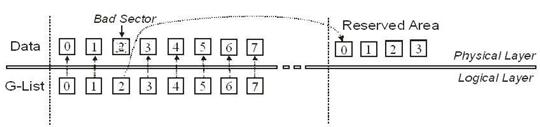
When drive firmware identifies a bad sector, it may remap the sector to a reserved area on the disk that is hidden from the user (Figure 3). This remapping is recorded in the drive defects table (G-list). Since the bad sector could not be read, the data residing in the substitute sector in the reserved area is not the original data. It might be null data or some other data in accordance with the vendor-specific firmware policy, or even previously remapped data in the case where the G-list was modified due to corruption.

Moreover, system software is unaware of the remapping process. When the drive is asked to retrieve data from a sector identified as bad, the drive firmware may automatically redirect the request to the alternate sector in the reserved area, without notifying the system before the error is returned. This redirection occurs despite the fact that the bad sector is likely still readable and only contains a small number of bytes with errors.

disk imaging
Figure 3: G-List Remapping
This process performed by drive firmware is known as bad sector auto-relocation. This process can and should be turned off before the imaging process begins. Auto-relocation on a drive with read instability not only obscures instances when non-original data is being read, it is also time-consuming and increases drive wear, possibly leading to increased read instability.

Effective imaging software should be able to turn off auto-relocation so that it can identify problem sectors for itself and take appropriate action, which ensures that the original data is being read.

Unfortunately, the ATA specification does not have a command to turn off auto-relocation. Therefore imaging software should use vendor-specific ATA commands to do this.

A similar problem exists with Self-Monitoring Analysis and Reporting Technology (SMART) attributes. The drive firmware constantly recalculates SMART attributes and this processing creates a large amount of overhead that increases imaging time and the possibility of further drive degradation. Imaging software should be able to disable SMART attribute processing.

Other drive preconfiguration issues exist, but auto-relocation and SMART attributes are among the most important that imaging software should address.

Increasing Transfer Speed with UDMA Mode

Modern computers are equipped with drives and ATA controllers that are capable of the Ultra Direct Memory Access (UDMA) mode of data transfer. With Direct Memory Access (DMA), the processor is freed from the task of data transfers to and from memory. UDMA can be thought of as an advanced DMA mode, and is defined as data transfer occurring on both the rise and fall of the clock pulse, thus doubling the transfer speed compared to ordinary DMA.

Both DMA and UDMA modes are in contrast to the earlier Programmed Input Output (PIO) mode in which the processor must perform the data transfer itself. Faster UDMA modes also require an 80-pin connector, instead of the 40-pin connector required for slower UDMA and DMA.

The advantages are obvious. Not only does UDMA speed up data transfer, but the processor is free to perform other tasks.

While modern system software is capable of using UDMA, imaging software should be able to use this data transfer mode on a hardware-level (bypassing system software) as well. If the source and destination drives are on separate IDE channels, read and write transfers can occur simultaneously, doubling the speed of the imaging process. Also, with the computer processor free, imaged data can be processed on the fly. These two advantages can only be achieved if the imaging software handles DMA/UDMA modes, bypassing system software. Most imaging tools currently available on the market use system software to access the drive and so don’t have these advantages.


Read More

Recover Deleted Files From Recycle Bin

If you deleted an important file from recycle bin that you really needed, do you have any way to get it back? Some people hit the fan and begin to drastically panic if the file they deleted was very important. In fact, you can recover deleted files from the Recycle Bin. The file you deleted from the recycle bin hasn’t actually been permanently erased yet, it is still hidden deep within your computer’s hard drive. All you need to do is know how to find it, and with the aid of new advanced software’s, finding and recovering that deleted file can be as simple as a few clicks of your mouse.

A common misconception is that once you delete a file from the Recycling Bin it has been erased forever, and it is no longer present on the Hard Drive. Luckily for you this is not true, you see when you click empty recycle bin, windows does not actually delete the files, Those commands just generally delete a file’s name from the directory so it won’t show up when the files are listed. But the information itself can live on until it is overwritten by new files. Therefore the file has not actually been deleted; instead the space that it occupied has been freed up and listed as re-use space. Now until that file is overwritten by new data your file is still there and can be retrieved.

The first thing you should do if you want to get your files back is to stop downloading or installing any new data on the hard drive. The reason being, that once you install new programs or download new data onto the Drive it could use up the space created by your deleted file and it will be a lot harder to recover. Having more available space on your hard drive will increase your chances of recovery, as Windows avoids using up space that has recently been freed; therefore if you have plenty of room on your hard drive it will use that before it touches the space from the deleted file. Although I still strongly recommend you act as soon as possible and do not download any new material to your hard drive, that way you will most certainly have your deleted files back.

Therefore in order to recover deleted files from the recycle bin you must obtain a good Undelete Software, these software’s can recover data from almost any data drive like hard disks, USB drives, Zip drives, SD Cards etc.. The software’s can also recover data from data cards in digital cameras and cell phones. The good news is that most Undelete Programs offer a Free Download, so you can try out their software at no cost to see if you are able to recover your deleted files from recycle bin.

Read More

Free Computer File Management Utilities

Attribute changer
This application is designed to automate mass changes to file and folder attributes. It add’s itself to the context menus for folders and drives. You can establish filters and exceptions to fine tune the search process.

Fast File Renamer
A free program which can help you with the tedious task of renaming large numbers of files. It can be used by anyone who needs to keep large collections of files organized (such as mp3 files, image and graphics files, web-site-related files, system files).

FreeCommander
Free dual-pane Windows-Explorer replacement.

Media Convert
Free online media-file converter. Converts sound, video and text files to other formats.

ShellGem
A small free program that makes moving and copying files in Windows 95/98 easily. Once you install it, just right-click-drag any file, and ShellGEM opens a list of the drives on your system. You can then move through an unfolding tree of your system’s folders (no clicking required), and move or copy the file wherever you want.

The Rename
Program that allows you to rename a batch of files simply and quickly with many options.

Total Commander
Not free. A highly recommended shareware Explorer replacement program for Windows. Improved access to your local files through a two-pane interface, convenient access to remote FTP sites, access Zip files as directories, enhanced search, quick view, etc. Much better than the standard Windows explorer.

UnLock IT
Freeware program which enables you to unlock the files that are locked by some processes in your system. For Windows.

xplorer2 lite
Free file manager for Windows.

XXCopy
XXCOPY is a powerful superset of XCOPY using the same syntax. Command-line program for DOS and Windows.

Read More