Articles

Hard Drive Storage Vs Magnetic Tape

Hard drive storage is quite different from magnetic tape, though both of them are usually used for backup solutions. Both technologies operate on the same basic principles, which have been in use for over 60 years. The benefits and pitfalls of each make them best suited to different situations, however.

Basics of Magnetic Storage

On any magnetic storage medium, information is encoded into binary, then recorded by setting the polarity of many tiny regions on the media. This pattern of positives and negatives is a relatively resilient form of non-volatile memory and forms the basis for the majority of digital information storage. The size of the regions are only limited by the technology of the read and write mechanisms, and they have become much smaller in recent years. This allows more data to fit in the same space, which means more storage on hard drives and tapes without changing their physical dimensions.

Hard Drives

A hard drive operates like a group of record players stacked on top of each other. Several platters spin on a common spindle, and an arm moves to place read/write devices–the heads, analogous to turntable cartridges–over specific parts of each platter to read or change polarities of portions (sectors) of the platter.

The platter is typically made of glass or a non-magnetic alloy, coated with a thin layer of a ferromagnetic material. The platter is spun at very high speeds (up to 10,000 rpm), and the common arm moves to give the heads access to almost every part of the platter.
Unfortunately, the mechanical nature of hard drives makes them prone to failure, and data loss is not uncommon.

Tape Drives

Digital tape has been in use for over 50 years, and it remains a very common storage solution. Modern tape solutions use interchangeable tape cartridges in a fixed tape drive and often use a mechanical loader to automate cartridge switching.

Like a hard drive, positive and negative charges are written to a magnetized medium. In a digital ape, that medium is a half-inch wide magnetized ribbon. Blocks of data are stored in contiguous regions on the tape, but finding the desired region to read data back can take a lot of winding. Tape drives wind backward and forward automatically to find the requested data, but wait times can still be upward of 60 seconds. Modern tape drives can deliver 80 megabytes per second once transfer begins, however.

Digital tape is the most inexpensive mass storage medium, and for this reason it is still in widespread use for mass data operations. It is also less prone to mechanical failure and data loss than hard drives, but the extreme access time is a major issue with many implementations.

Common Uses: Hard Drives

Hard drives have the advantage of fast data seek times, and though the cost per byte is not as low as that of digital tapes, it is low enough for many purposes. Hard disks are most commonly used as the primary storage for computers, but they are also often used as backup media. The failure rate of hard drives is too high however, for a single drive to serve as an adequate failsafe. Many organizations connect multiple hard drives together in a RAID array for redundancy, or simply keep a second hard drive as a backup of their backup.
Modern hard drives are available as large as 2 terabytes, enough for many backup needs. This is an economical data storage solution for most users, but not necessarily a good long term one.

Common Uses: Tape Drives

Tape drives are the most inexpensive way to store massive amounts of data. Though individual tapes do not reach beyond the 2 terabytes offered by hard drive storage, they are significantly less expensive, more durable and often support spanning data across multiple tapes for extremely large files. Tapes still offer the most failure-resistant long-term backup solution available, particularly for large quantities of data.

Hard Drive Storage Vs Magnetic Tape Read More »

Types of Laptop Hard Drives

Your laptop computer’s hard drive is where it stores all of your data. Everything from your pictures from last year’s vacation and favorite MP3s to last year’s tax returns are all stored on some sort of hard drive. If you have a laptop computer, there are a few different hard drive options for you to choose from, each offering its own unique benefits.

1.8″ Hard Drives

The 1.8″ hard drives are designed much like 2.5″ drives, only smaller. The compact drives are typically used in smaller notebook computers or netbooks. Some companies also use the drives for storage in MP3 players and PDAs. Due to their small size, 1.8″ drives are typically not found with storage capacities over 80GB.

2.5″ Hard Drives

The 2.5″ hard drives are the type of hard drives typically used in most laptop computers. The hard drives come in varying storage capacity sizes and come built into most computers, including popular companies such as Apple, Dell, HP and Toshiba. The 2.5″ hard drives have a motor, which determines how fast you are able to read and write data to them. The fastest 2.5″ drives available run 7200 RPM (revolutions per minute). Other options include 5400 RPM and 4200 RPM drives.

Firewire Hard Drive

A firewire hard drive is an external hard drive that connects to your computer through its firewire port. External firewire drives can be purchased in sizes ranging from just a few GB to several TB and can be used to transfer data from your laptop computer to any other computers you may have in your home or office.

USB Hard Drive

USB hard drives are external hard drives created much like firewire drives that are designed to give you portable storage for your laptop as well as any other computers that you may have. USB hard drives connect to your computer through its USB port and can be used to save data much like you would save data to your traditional hard drive.

Soild-State Hard Drives (SSD)

Solid state drives are one of the newest types of drives used in laptop computers. Unlike other hard drives that have moving parts, solid state drives don’t have any parts that move. Since they have no moving parts, SSD laptops typically run much cooler than laptops using traditional drives. SSD drives are also better able to handle wear and tear (and dropping) than their traditional counterparts. SSD drives are typically used in netbooks and other smaller laptops. Laptops using SSD drives are typically much more expensive than traditional laptops due to the high cost of creating a drive. A 16GB SSD drive on the market is roughly the same cost as a 160GB traditional drive.

Types of Laptop Hard Drives Read More »

Solid-State Hard Drive

What is Solid-State Hard Drive?

A solid-state hard drive (SSD) is a data storage device that uses solid-state memory to store persistent data. An SSD emulates a hard disk drive interface, thus easily replacing it in most applications. An SSD using SRAM or DRAM (instead of flash memory) is often called a RAM-drive, not to be confused with a RAM disk.

The original usage of the term solid-state (from solid-state physics) refers to the use of semiconductor devices rather than electron tubes, but in this context, has been adopted to distinguish solid-state electronics from electromechanical devices as well. With no moving parts, solid-state drives are less fragile than hard disks and are also silent (unless a cooling fan is used); as there are no mechanical delays, they usually enjoy low access time and latency.

Features

A solid-state hard drive (SSD) is a drive that has no moving parts and is therefore virtually silent in operation. SSDs can achieve this by using semiconductors to store memory instead of a magnetic surface like traditional hard drives. Although commonly recognizable as thumb drives or travel drives, there are also larger-capacity SSDs that can be used as main boot drives. Solid-state drives also allow for accelerated access to files and applications, allowing for increased overall performance for a computer.

Comparison to Hard Disk Drives

Hard disk drives (HDD) are bulkier and slower than SSDs. This is because the HDDs have moving parts that need to start spinning to access information. Although the time it takes for access may not be long at all, a SSD provides nearly instant data access. The time difference can be especially notable during startup.
Hard disk drives are more prone to failure than SSDs. Dust can get into the drive, or the spinning part can become faulty. Because SSDs can be designed to be airtight and because there are no moving parts, SSDs are not prone to these problems.
As of 2009, the cost of solid-state drives was high. HDDs with 10 times the capacity of solid-state drives could be purchased for a fraction of the cost.

Benefits to Laptops

One of the main benefits for SSDs is its application in laptops. The physical size of SSDs is smaller than HDDs. Also, the SSD’s faster memory access means faster overall performance. The result is a more portable, compact laptop that does not necessarily sacrifice performance.

Misconceptions

Because of the SSD’s nearly instant data access, there is a conception that the drive would cause the computer to be more efficient not only in terms of data access, but also in terms of energy consumption. Although the drive itself may be more efficient than a hard disk drive, the bottleneck that a computer experiences when pulling or writing to a HDD is removed with a SSD. The result is that the computer is able to process information quicker, causing other components such as the processor to be more active. Thus, although drive efficiency may improve in the future, in 2009, there is not a clear result as to whether the drives produce energy savings.

Speculation

Although in 2009 solid-state drives are expensive and limited by capacity, as with other drives, that will change. Hard disk drives used to be about $1 for every gigabyte of capacity. Currently, there are some 1 terabyte drives for less than $100. In the same way, as production costs drop and sales rise, the cost of a SSD will start to fall. Likewise, as manufacturers make better drives, capacity will increase. In the future, most computers may be using SSDs.

How Do Solid-State Hard Drives Work?

  1. Unlike magnetic hard drives, solid state hard drives have no moving parts and do not rely on magnetic fields to store data. Because they use electrical current, rather than motors and magnets, to store data, they can access data noiselessly and with less power consumption. Solid state drives are also not subject to the same physical damage from impacts or large magnetic forces, making them suitable for mobile computers.
  2. Solid state hard drives use a series of transistors, pieces of silicone and semiconductors to transfer the electrical current. Each piece is microscopic and can be affected by the transfer of a few electrons. Like all data storage, solid state drives use binary, a series of 1s and 0s, to represent data. A 0 is represented by a transistor that cannot accept an electrical current, while a 1 is represented by one that allows the flow of electricity.
  3. A blank drive, or a blank section of the drive, is denoted by all 1s. All transistors in this section will allow the free flow of current. When data is recorded, voltage is applied to one piece of silicone, known as the control gate. This process transfers electrons to another piece, the floating gate. When the floating gate is filled with electrons, current will not pass through it and the drive reads it as a 0.
  4. As you write or delete data from the drive, the information is converted by the program to binary data. This is sent to the drive’s writing center, where it is converted to electrical currents and used to realign the transistors. To read data, the read center of the drive sends a current through the portion that holds the data to be read and returns the sequence of 1s and 0s. This sequence is sent to the program and presented as information you can read.
  5. The writing process of solid state drives offers several benefits, such as the ability to use the drive while in motion, but the technology is subject to limitations. Most notably, each transistor can only be written to a certain number of times before it will no longer function. Each drive employs advanced methods, known as wear leveling, to prevent a particular section of the drive from premature wear. Even with wear leveling, solid state drives eventually need to be replaced as sections become unwritable.

Solid-State Hard Drive Read More »

Samsung Auto Backup FAQS

Q.Samsung Auto Backup FAQS What is Samsung Auto Backup?
A.
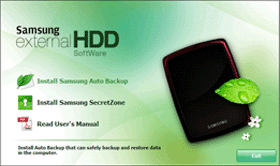
Samsung Auto Backup is Bundled software that performs a backup of the PC data to Samsung External Hard Drive. Through the Real-Time Backup or Scheduled Backup, the data can be backed up safely to Samsung External Hard Drive.

When the backed up data are damaged due to a system error or user’s mistake, they can be checked/recovered through the Integrity Check. Also the original data that was stored in the PC can be conveniently recovered when damaged or lost.

Q. Cannot install Samsung Auto Backup.
A.
Check the system you want to install Samsung Auto Backup on meets the minimum system requirements specified in this manual.

Q. How do I perform a manual backup?
A.
Select the backup source and click the “Backup” button on the icon bar. If you are in real-time mode (Auto Run), select “Setup” “Real-Time Backup” from the menu and deselect “Auto Run”.

Q. When I open a backed up file on the backup device, a message is displayed saying the file format is incorrect, or a jumbled file is displayed.
A. The “Compress files” option has been checked in the Backup Settings. The files were backed up using compression. Therefore, the files on the backup device have been compressed/password-protected. Accordingly, when you open the compressed/password-protected file, a message appears saying that the file has an error or the file format is incorrect. To open a compressed/password-protected file, first you need to restore the file using Samsung Auto Backup. For details about how to restore files, refer to “Restoring Backed up Data” in the “Using Samsung Auto Backup” section.

Q. Can I specify more than one destinations as Backup Device and back up the data to these destinations at the same time?
A.
Samsung Auto Backup does not support simultaneous backup to multiple backup devices.

Q. I selected the “Compress files during backup” option and performed a backup. However, only selected files are compressed instead of all files.
A.
Check if some files in the backup source were already backed up. Only files backed up after setting the “Compress” option are compressed. Therefore, the backup data may contain both compressed files as well as uncompressed files.

Q. I’d like to change the backup device. What should I do?
A.
Select “Change backup device” from the “Backup device” submenu of the “Setup” menu, and specify the new backup device.

Q. I formatted the computer and reinstalled Windows. How can I restore backed up data stored on another device?
A. First, you need to reinstall Samsung Auto Backup. Then, run Samsung Auto Backup and select the device that contains the backed up data as the backup device. By doing so, you should be able to use the backup data as before.

Q. Can I connect the Samsung external hard disc containing the backup data to other computers and restore the data? What should I do?
A. Connect the Samsung external hard disc to the computer, and install Samsung Auto Backup. Then run Samsung Auto Backup and select the backup folder of the Samsung external hard disc as the backup destination. In this way you should be able to use and restore the backup data

Q. How do I set a scheduled backup?
A.
There are two different ways to perform scheduled backups. Select “Backup Schedule” in the “Settings Information” window in the lower part of the Samsung Auto Backup window and add a new backup schedule. You can also add your backup schedule in the “Set Schedule” window of the “Set task options” menu.

Q. How do I check the results of a backup, restore, or delete operation?
A. After the backup, restore, or delete operation completes, you can check its results in the task log under “Settings Information” in the lower part of the Samsung Auto Backup window.

Q. I selected the C drive as the backup source. But the backup has failed and the backup log indicates that the program has failed to back up several files.
A. System files in the Windows operating system cannot be accessed for backup. Therefore, these files are not backed up.

Q. I installed and backed up an application. After deleting the application due to a problem, I restored the application from the backup file. But I cannot run the application for some reason. What’s the problem?
A.
Every application has a specific environment for it to be executed in. Samsung Auto Backup is a program that backs up data files. Accordingly, though the files of the application were backed up, the environment for running the application was not backed up. This is why you can’t run the application.

Samsung Auto Backup Free Download (Size : 38.2 MB)

Note: The Samsung Auto Backup program operates only with a Samsung External Hard Drive

Samsung Auto Backup FAQS Read More »

Tips For Start A Computer Repair Business

Tips For Start A Computer Repair Business Have you spent countless hours learning how to work on computers? If you have, maybe starting a computer repair business is your destiny. Computer repair businesses can be started with a small amount of capital. While the thought of a low cost business start – up is appealing, computer repair business owners must be experts at troubleshooting software issues, managing business affairs, delivering exceptional customer service and time management.

Step 1: Get certified. Certification is not a requirement to perform computer repairs. However, being certified adds to business credibility. Many customers that come into your computer repair business will not inquire about the certification of you or your staff. However, business clients will often want proof that your small business is competent.

Step 2: Pick a name for the business. The name should state what you do. For example, business names like Computer Doctor or McKinley Computer Repair Shop inform potential customers about your services.

Step 3: Determine your target market. A target market consists of people who are potential customers. Knowing this information allows you to market your services directly to the people that need them. You may choose to pursue business clients or you may decide to market services to the general public.

Step 4: Select business location. Consider your target market. If your customers will be primarily businesses, a location in the city around other businesses would be an ideal location for your computer repair business. However, if your customer base will be homeowners, you may decide to operate out of your home and make service calls when customers contact you.

Step 5: Set repair rates. Determine the hourly labor rates that will be charged for repairs. Shop rates are charged when customers bring hardware to the business location. Field rates are charged when computer repair technicians go to businesses or homes to make repairs. In general, shop rates are lower than field rates.

Step 6: Get business license. Go to your local city hall or courthouse and complete the necessary paper work. You may be charged a small fee.

Step 7: Open the business and begin promoting your computer repair services. Advertise in the local newspaper, on the radio and in any other media that reaches your target market.

Step 8: Treat customers well. Address any customer concerns quickly. Be honest with customers. Do not avoid them when unforeseen problems occur. Doing so will cause you to get a bad reputation.

Prior to setting repair rates, check competitors price list. 🙂

Charging customers for an entire hour of service when only a few minutes are spent repairing minor issues will result in developing a bad reputation and losing customers. 🙂

Tips For Start A Computer Repair Business Read More »

Free Backup Software: EASEUS Todo Backup 1.0

Free Backup Software: Easeus Todo Backup 1.0 File Name: EASEUS Todo Backup 1.0
Version: 1.0
Publisher: Chengdu Yiwo Tech Development
OS: Windows 2000/XP/2003/Vista/Server 2008

Back up and restore data on your system, partition, or hard disk. EASEUS Todo Backup is a freeware. You can use this freeware to backup the system or important data to a safe place. With it you can create mirror image, clone disk, upgrade small disk to bigger one. You can also backup your data into hard drive or CD/DVD.

Main Features:

  • Backup system partition to image:
    Backup the entire system partition, including the system state and all files to an image file. Easy to store and restore.
  • Backup partition or disk:
    Backup the whole disk including the operating system and all data to an image file. Easy to restore or migrate to other disks.
  • Restore hard drive and operating system in Windows:
    all the previous backed up disk and system image can be restored within minutes.
  • Restore the system partition by bootable CD.
  • Create a bootable CD and restore when there is a boot failure.
  • WinPE bootable CD: If you fail to restore with Linux based bootable CD, we recommend you to use WinPE CD which is more powerful.
  • Compress image file: The image file will be smaller if the compress level is higher, so it will save more space and it is more convenient to store and transfer.
  • Image file splitting: There are different upper limits for different storage, so it is necessary to split the image and fit different storage devices.
  • Backup priority: It will be faster to complete the operations if the priority is higher.

EASEUS Todo Backup is a backup and restore solution for a good reason: with detailed instruction wizards, your computer will be in a safe condition within minutes without the help of an IT specialist to backup your system state, partition and disk. EASEUS Todo Backup can backup your system partition to quickly get the system up and running in the event of a system crash or hardware failure. It allows you to backup and restore disk or partition after viruses attack, unstable software download, hard drive failure. Meanwhile, EASEUS Todo Backup is useful if you want to upgrade the older smaller hard disk without reinstalling the operating system and applications once again.

Free Download EASEUS Todo Backup 1.0

Free Backup Software: EASEUS Todo Backup 1.0 Read More »

Tips For Choosing Hard Drive Backup Software

Hard Drive Backup Software Hard drives fail. Operating systems crash. And then there are all those spammers and hackers. As a computer user, you need backup software. Backup software is a kind of insurance policy for your important data. If you back up your files on a regular basis, you won’t have to worry about losing all of your hard work and precious data if your hard drive fails.

Data backup is more critical than ever before, especially for small businesses where data losses can damage the bottom line. The best backup software is both reliable and customizable, allowing you to customize and automate the data backup process.

Before You Buy Hard Drive Backup Software

1. Match the Software
Different users (home user, home office, small business, large business) have different needs. Backup software that’s a perfect fit for one user may be totally wrong for another. If it’s too difficult to use, you’ll find too many reasons not to use it.

Businesses may need to back up data from multiple operating systems, and from users and computers that are spread across a number of locations. Home and home office users usually only have one or a few computers to worry about, so they can choose backup software that has a fairly straightforward set of features.

2. Try It Before You Buy It
Many software developers offer trial versions of their software. In many cases, these are fully-functioning versions of the software that stop working after a specified period of time, usually 15 to 30 days.

When you find a program that sounds interesting, download the demo and put it through its paces. You should be able to install the program easily, create a simple backup, and restore from the backup, without spending a lot of time reading manuals or help files. Don’t overlook the manual or help files, though; they explain important features, such as backup types, schedules, compression, and restoration.

3. Backup Media
The three most popular types of backup media for home and home office users are hard drives, optical media (such as CDs or DVDs), and online file storage services. Hard drives have fallen so much in price in recent years that they have become both the easiest and the most economical method of storage.

Online file storage is an attractive option, because you can access your files from anywhere. But it can take a long time to back up data to or restore data from a remote location, and most services charge a monthly fee. In addition, you never know whether the service might suddenly go out of business.

4. Backup Types: Full and Incremental
The first time you back up your data you perform a full backup. Full backups can take a long time to perform, because of the amount of data being backed up.

Incremental backups only back up the data that is new or has changed since the last time you performed a backup of the same data. Incremental backups are faster to perform, but can be slower when it comes time to restore files, because you may need to restore the full backup and all subsequent incremental backups, before you get to the data you need. For this reason, it’s a good idea to perform a new, full backup once a week, and incremental backups daily.

5. Backup Types: Archival
An archival backup is different than a normal backup, because the data is permanent and doesn’t change. An archive is a snapshot of data at a specific moment in time. Optical media (CDs and DVDs) are the most popular media for archival backups, because they’re inexpensive, easy to use, and easy to catalog and store.

Home office users use optical media to store monthly or yearly backups of their business data, for easy retrieval at tax time. Home users might store family photos or other important files on optical media.

You can use backup software to archive data or archive the data manually, as needed.

6. Shopping Tips
If you plan to use backup software with optical media, make sure the software can handle it on its own. Some software requires other software to burn the data to a CD or DVD; this is fine if you already have that other software.

Most backup software can compress data while it writes to the backup media. This helps reduce the size of the backup, so it takes up less space. It’s best if the software uses a standard compression format (or no compression at all, if you don’t need it). If it uses a proprietary compression scheme, you may need to reinstall your OS and the backup software before you can restore your data.

Top Hard Drive Backup Software

  • 2BrightSparks SyncBackSE Backup Software
  • EMC Dantz Retrospect Professional Backup Software
  • Norton Ghost Backup Software
  • Acronis True Image Backup Software
  • BounceBack Professional Backup Software

These are selection of top backup softwares for small business users that meets the criteria and will give you the data backup protection you need.

Tips For Choosing Hard Drive Backup Software Read More »

10 Tips For Choosing Hard Drive Data Recovery Software

10 TIps For Choosing Hard Drive Data Recovery Software Hard drive damage primarily results in data corruption. The damage can be caused due to various logical factors like improper system shutdown, file system corruption, software bugs, metadata structure damage, and operating system malfunctioning.

Most computer users wind up needing to recover lost data at one time or other. Luckily, you can choose hard drive recovery software to help retrieve your lost files. There are many options available, so you need to know what to look for before you buy hard drive data recovery software.

  • Check to make sure the software you buy will support the file type you need restored before you buy hard drive recovery software. Not all hard disk recovery utilities are the same.
  • The recovery software should recover your data after all the logical corruption scenarios like virus attack, boot sector corruption, accidental deletion, partition damage, and file system corruption.
  • The software should use high end scanning algorithms to completely scan and recover lost, missing, or inaccessible data from your hard drive.
  • The application should support recovery from all kinds of storage media like hard drives, CD, DVD, USB flash drives, and more.
  • The recovery utility should recover all kinds of different file formats like .DOT, .DOTX, .XLT, .XLW, .XLB, .XLTX, .POT, and .POTX.
  • The recovery tool should be embedded with all the latest features like disk imaging, disk cloning, Find file option, S.M.A.R.T and more.
  • The tool should provide a preview of all the files and folders, and provide an option to the user to select and recover files as per his/her requirements.
  • Use price as your guide when you buy hard drive recovery software. There are a lot of different programs on the market, which can be overwhelming. The price generally ranges from 75 dollars for an undelete program up to 400 dollars for more powerful programs used by professionals. If you stay within 80 to 120 dollars, you will have a good utility that can accomplish a lot.
  • Choose hard drive data recovery software that is user friendly. The directions should be easy enough for you to run the program on your own.
  • The software should be completely non destructive.

See my another post: Best Data Recovery Softwares 2009

10 Tips For Choosing Hard Drive Data Recovery Software Read More »

HP Recovery Partition

HP Recovery Partition Many HP computers are shipped with a recovery partition on the hard drive. This separate and dedicated partition is used for backup and recovery of system files and drivers in case the system becomes unstable. Using the recovery partition allows you to restore the HP to its original state.

Note: Backup your data often using HP Recovery Manager or other backup software to multiple sets of drives to avoid losing important files in the event of a system crash.

How to Boot an HP Recovery Partition?

  1. Press the power button to start the HP. Press and hold the F11 key to launch the HP Recovery Manager from the recovery partition.
  2. Backup any files you want to save. Follow the HP Recovery Manager instructions to save any important files before continuing with the recovery process.
  3. Continue the recovery process. After backing up files to an external device or CD/DVDs, select the option to perform a system recovery.
  4. Obtain and install updates for the HP. After your system reboots, use HP update manager as well as Windows update to restore all critical updates to your HP computer.
  5. Make a set of recovery disks. Use HP Recovery Manager and select “Advanced Options” to create a set of recovery disks that can be used in the event that your HP cannot access the hard drive.

How to Repair an HP Recovery Partition?

Many newer Hewlett Packard (HP) computers can be recovered from data stored on a partition on the hard drive. If this partition or the data stored within it becomes damaged, you will not be able to restore your computer’s files in the event of data loss. Fortunately, the HP recovery partition can be repaired without too much difficulty. However, it’s important to back up your files because you will have to format your hard drive and reinstall your operating system to repair the damaged partition.

  1. Navigate to the Hewlett Packard website. Search on the model name and number of your computer. Under “Select a product,” choose the model computer that matches the one you own. Under “Product Quick Links,” click “Software and driver downloads.”
  2. Select your operating system. Scroll down to “CD-ROM order page: Recovery Disks” and click on the link. If the recovery disks for your model computer are no longer available on that page of the HP website, search for your computer model in the HP Parts and Accessories store area. If HP doesn’t have the recovery CDs in the store, order them from an auction site such as eBay or check a reputable computer parts retailer. Back up all of your data to removable media while you are waiting for the CDs to arrive.
  3. Disconnect all peripheral devices from your computer when you get the recovery CDs. Leave only the power cable, monitor, mouse and keyboard connected. Place the first recovery CD in the optical drive you use to boot your computer. Restart your computer.
  4. Select “Advanced Options” from the recovery CD menu. Select “Exit to DOS.”
  5. Type “FDISK” at the command prompt. Press “Enter.” Press “Y” and press “Enter” again.
  6. Press “1” to create the DOS partition and make it active. Press “Y” and then “Enter” to continue. Ensure that the first CD from your recovery disk set is still in the optical drive you use to boot the computer. Press the “Esc” button to restart your computer.
  7. Follow the instructions on the screen to restore the recovery files from the CDs to the recovery partition. Remain near the computer so that you can supply the additional CDs when prompted to do so. After the files have been rewritten to the recovery partition, the HP software will begin to recover your computer’s files from the partition.

If necessary, enter your computer system’s BIOS setup program to change the boot priority so that the computer boots from the CD drive, then restart the computer again.

HP Recovery Partition Read More »

Purchasing A Hard Drive Recovery Disk Rather Than Requesting A Data Recovery Service

Hard Drive Recovery Disk/Disc If you experience hard drive data loss, there may be a number of effective solutions available to you. One of these solutions may be to purchase special software directly from your hard drive’s manufacturer. Depending on the cause of your data loss and other circumstances of your situation, recovery disks may or may not work. There are many types of hard drive failure that make it impossible to recover all or some of the data. However, if data is able to be recovered, purchasing a recovery disk can be much more affordable than requesting data recovery services from a technician.

  1. Determine if your hard drive or computer is currently covered by a warranty by reading through the documentation that came with either or both. If your hard drive is currently covered, read the warranty details to find out if data loss is also covered and how you should act upon the warranty in cases of data loss. This may save you the expense of ordering a recovery disk in the first place.
  2. Verify the manufacturer of the hard drive. If your hard drive was pre-installed in your computer when you bought it, you should be able to find the manufacturer identified in the documentation that came with the computer. If you purchased the hard drive separately, any saved packaging or documentation will identify the manufacturer. If you can’t find any helpful documentation, you may have to open your computer case and look at the label on the hard drive. This usually isn’t difficult and may only require a small screwdriver or no tools at all. Specific instructions for opening a computer case vary by manufacturer and model, however, so you will have to refer to instructions provided by the actual computer manufacturer.
  3. Visit the hard drive manufacturer’s website using a working computer. Explore the site to find the section covering data recovery options. If there is no such specific section, find the support section.
  4. Carefully review all of the data recovery options if they are listed. Typically, this will consist of software-based solutions like recovery disks as well as technician-based solutions like live recovery services. If you see specific information about recovery disks, read that section carefully.5. Contact the manufacturer’s live support staff if you have questions about the recovery disks offered through the site or if you cannot find information on recovery disks. You should be able to find a toll-free support hotline or a live Web chat feature through which you can contact a support representative. Work directly with the representative to make sure the recovery disk they offer is appropriate for your situation and needs, but keep in mind that there is no guarantee that your manufacturer offers recovery disks.

    6. Purchase a recovery disk either from the site or directly from the support representative if you determine that this is still the best course of action. You will likely need a major credit card to do this.

Note: Make sure you understand the difference between a hard drive recovery disk and an operating system recovery disk. An operating system recovery disk, which typically ships with new computers or operating system software, will not help you recover hard drive data. A hard drive recovery disk, which does not always ship with new hard drives or computers, is designed to help you restore data in the event of accidental data loss. It may not be possible to know if your hard drive data is recoverable until after you purchase and attempt to use the recovery disks. If you are concerned about this, check with your hard drive manufacturer’s support staff to find out if you can get a refund if the disk does not help.

Purchasing A Hard Drive Recovery Disk Rather Than Requesting A Data Recovery Service Read More »

Scroll to Top