How to Best Utilize a Computer Backup Program

Tips For Best Utilizing a Computer Backup Program“We needed a reliable backup program in case of unrecoverable Microsoft Windows crashes, lost laptops, damaged hard drives or virus outbreaks,” said Hans Vermaak, project lead, Xerox Corporation. “Our employees said they want a computer backup program to protect their work as it operates in the background, a program that has no effect on laptop performance and that they can retrieve backup files rapidly from any point in the past.” Now this is a reasonable favor asked questions by no less than a huge company like Xerox.
Most of today’s backup options are server-based and are bound to certain limitations and these are what should be surpassed by a computer backup to consider it valuable. Iphones, notebooks, netbooks, and laptops may not be compatible with some of these tools. Given this fact, maximum performance may not be guaranteed under some circumstances. Undoubtedly, you should have a backup system that will do the process of saving without having to interfere with your work and while maintaining the maximum protection available.

In recent surveys 73 percent of laptop users cite “intrusive backups” as a major obstacle to their productivity. One of the things you can be sure of, if your employees have issues with their laptop’s performance because of the computer backup program they will do everything they can not to use it. Find a computer backup program where backups occur as a background process, require no user intervention and have no effect on laptop performance.

Another advancement has been initiated by the data backup pioneer company, Druva, and it is called Druva inSync 4.1 Enterprise. Amazingly, this backup program features a major improvement in the industry in the form of a very quick, almost instant backup procedure for laptops in as much as 10 times the normal speed of other programs. Even more, you can easily recover your files or backup in just one click. The program even provides 100% accurate and deduplicated copies of your file data.

This backup program will also benefit the IT department of each company. Not only does it speed up backup process ten times the normal, it also makes use of just a server to store data after they have been duly deduplicated.  Because of this, there are ten times more users who can be served as compared to other options. Given this, businesses are able to save on storage costs and maximize income. Now you can avoid loss of intellectual assets in the form of files that have been saved in individual laptops because everything else is shared with the whole company.

Read More

Locating & Correcting Disk Space Problems on NTFS Volumes in Windows 2000/XP/Vista

NTFS Volumes Problem:
At times, Windows 2000, XP, and Vista misreport the amount of Free Disk Space on a hard drive – whether it is an internal drive or external drive.

Cause:
There are several causes for this:

  • The cluster size of the NTFS volume is too large for the average-sized files that are being stored.
  • File attributes or NTFS permissions prevent files or folders from being either displayed or accessed when you use either Microsoft Windows Explorer or a Windows command prompt.
  • The folder path exceed 255 characters.
  • Folders or files contain invalid or reserved file names.
  • NTFS metafiles (such as the Master File Table [MFT]) have grown and cannot be unallocated.
  • Files or folders contain alternate data streams.
  • NTFS corruption causes Windows to report free space as being in use.
  • Other NTFS features cause file-allocation confusion.

Solution:
Microsoft provides various solutions for symptom identified. Reference Microsoft Knowledge Base Articles 315688 (for Windows XP) and 303079 (for Windows 2000) for more information.

Read More

Glossary of Samsung Hard Disk Drive (Letter E, F)

Samsung Hard Disk DriveE Block
component that connects the actuator to the head/slider assemblies

ECC
Error Correction Code, detects and correct errors in a data field

Effective Seek Time
The time it takes to seek data, when all/part of the data needed is already stored in the buffer of the drive (speeds up the process)

EIDE (also ATA)
Enhanced Integrated Device Electronics, interface

Embedded Servo
Servo data that is embedded on the media. Allows the actuator to fine-tune the position of the head(s). It is a positioning signal that keeps the read/write heads positioned over the data. The advantage of an embedded servo is that the data can flow without interruptions making the drive suitable for multimedia and AV applications

ESD
Electro-static discharge

FAT
File Allocation Table

FCI
Flux Changes per Inch of data track, equals BPI

Firmware
permanent instructions and data programmed directly into the circuitry of read-only memory (cannot be erased) for controlling the operation of the computer or disk drive

Flux change
reflects the point where the direction of magnetisation reverses in order to define a binary digit (0 or 1)

Format
The arrangement of a magnetic track pattern on the media. This enables the drive to store user data, and is never altered (see also low level formatting)

Form factor
industry standard that defines the dimensions of a particular device (e.g. 5.25″, 3.5″, 2.5″)

Flying Height
the height at which the head moves over the media, a lower height, equals larger areal density

Read More

Test a WD hard drive using a Data Lifeguard Diagnostics CD/Floppy disk

Data Lifeguard Diagnostics CD or Floppy disk How do I create a Data Lifeguard Diagnostic disk (Floppy or CD)?

You will need a blank, formatted floppy disk or a blank CD to create the diagnostic disk. To create a diagnostic disk, you can follow one of the procedures below:

OPTION 1: Creating a diagnostic CD.

  1. Download the Diag504fCD.zip or Diag504fCD.iso file DLG Diagnostics for DOS (CD) download.
  2. Extract the Diag504cCD.zip file to your desktop with a file extraction utility. (Alternately, you have the option to download the ISO version of the file which does not require extraction with a zip utility).
  3. You must use a CD burning program (such as Nero Burning Rom or EZ-CD Creator) to burn a CD from the .ISO image.
  4. You can now boot the computer to the diagnostics CD. Make sure your boot order in your BIOS is set to boot to the CD-ROM drive first.

OPTION 2: Creating a diagnostic floppy disk.

  1. Download the DlgDiagv504f.zip file or DlgDiagv504f.exe file DLG Diagnostics for DOS (Floppy) download. Save this file to your desktop.
  2. Extract and run the DlgDiagv504f.exe file. (Alternately you have the option to download the exe version of the file which does not require extraction with a zip utility).
  3. You will see a Diskette Creator icon on your desktop.
  4. Insert an empty formatted floppy diskette into the floppy diskette drive.
  5. Double-click on the Diskette Creator icon, follow the prompts and create your diagnostic diskette.
  6. You can now boot to this diskette. Make sure that your boot order in your Bios is set to boot from the floppy drive first.

How do I test a WD Serial ATA or EIDE hard drive for errors using a Data Lifeguard Diagnostics CD or Floppy disk?

To test a Western Digital Serial ATA or EIDE hard drive for errors using the diagnostic disk, you can follow these steps:

  1. Boot your computer and set your system BIOS to boot to a CD or Floppy disk first. If you do not know how to enter or adjust your system BIOS please refer to your computer/motherboard user manual or contact the manufacturer.
  2. Save the new BIOS setting (F10) and insert the Data LifeGuard diagnostic disk into your disk drive.
  3. You will be brought to the License Agreement screen, read the agreement and hit the Esc button.
  4. Press the Y key to accept the license agreement.
  5. You will be at the main menu for the Diagnostic Utility. Use the down arrow button to highlight Extended Test and press the Enter key.
  6. The software will tell you that a Quick Test will be run first. Press R to continue.
  7. After the Quick Test is run you should receive a four-digit error code that will indicate the status of your drive.
  8. If you receive an error code of 0000, this indicates that the hard drive does not contain any defects or errors and is working properly.
Read More

How to restore the backup data using Samsung Auto Backup?

The restoration function of the Samsung Auto Backup is useful when original data is
damaged/lost due to system malfunction or reinstallation of OS or when copying the
same data to a new system.

Perform the restoration in the following order.

1. Running the AutoBackup Restore Setting Wizard (Download Now)

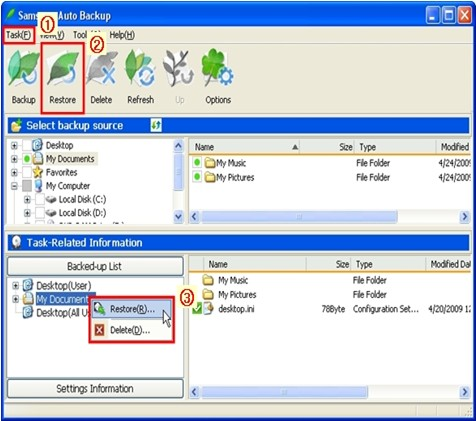
Click TaskRestore or the ‘Restore’ button or select folders or files to restore.
Right click the mouse as seen in the figure then select ‘Restore’ in the pop up menu displayed.

(After selecting folders or files to restore in the Backed-up List, the ‘Restore’ menu becomes activated.)

Samsung Auto Backup

2. On the displayed window, select the Restore location then click Next.

Select the ‘Original Location’ or ‘New Location’.

3. After setting the Restore time and process options of Restore duplicate files, click Next.

a) Set Restore time
Select ‘Most recent time of backup’ or ‘Time of backup most close to a specific time’.

b) Restore duplication files
Select ‘Restore only files that are different from source files’ or ‘Restore all files’.

4. After selecting the type of file to restore, click Complete.

Assign File grouping and Extension to either restore or exclude from the restoration.

When ‘Finish’ is clicked without any setting, all types of selected files are restored.

5. The restoration is complete.

(At the beginning of the restoration, the ‘Backup Engine’ window appears then
continues the  restoration. If the same files are in the folder to restore, they are
excluded from the restoration.)

Read More

List of 22 Data Recovery Softwares

List of 22 Data Recovery SoftwaresThese are the five common reasons of data loss(Hardware Failure,Firmware Corruption,Logical Error,Accidental Deletion,Operating System Failure.). You should be aware of these things to avoid your data from loss. If you have experienced data loss due to any of the reason, you need for data recovery to recover your valuable data. There are two options of data recovery you have- one is software method and second is hardware.

If your data is lost due to the software problem like logical error, operating system corruption or accidental deletion, then you should use data recovery software to recover and restore your data. Here is a collection of 22 data recovery softwares for you:

1. Pandora Recovery
Version:2.1.1,Free, www.pandorarecovery.com

2. Easeus Data Recovery Wizard Free Edition
Version: 5.5.1,Free, www.easeus.com

3. MiniTool Power Data Recovery Free Edition
Version: 6.5,Free,www.minitool.ca

4. NextBreed Data Recovery
Version: 1.0, Free to try; $64.99 to buy, www.nextbreed.com

5. VirtualLab Data Recovery
Version: 6.0.2.8,Free to try (10MB of recovered data); $39.95 to buy,www.binarybiz.com

6. EasyRecovery Professional
Version: 6.10, $499.00 to buy,www.ontrack.com

7. Recover Files
Version: 3.27,Price: Free to try(Limited functionality); $29.95 to buy.www.UndeleteUnerase.com

8. File Recovery Assist
Version: 3.0.0.38,Price: Free to try(Some features disabled); $29.95 to buy. www.sondle.com

9. Data Recovery
Version: 2.3.1,Free,tokiwa.qee.jp)

10. Recover My Files
Version: 4.6.8.1012,Price: Free to try (Save-disabled); $69.95 to buy,www.getdata.com

11. GetDataBack Data Recovery
Version: 3.3, Free to try (Copy-disabled); $79.00 to buy,www.runtime.org

12. PC Inspector File Recovery
Version: 4,Free,www.convar.com

13. File Scavenger Data Recovery Utility
Version: 3.2,Free to try (64KB file size recovery trial); $49.00 to buy,www.quetek.com

14. Pen Drive Data Recovery Software
Version: 3.0.1.5,$45.00 to buy,www.p-dd.biz

15. Moleskinsoft File Recovery
Version: 2.1.1,Free to try (Restores files with size of up to 100kB); $49.90 to buy,www.moleskinsoft.com

16. Easeus Deleted File Recovery
Version: 3.0.1,Free,www.easeus.com

17. R-Studio Data Recovery
Version: 5.3 build 133533,Free to try (64K-file undelete/recovery trial); $79.99 to buy,www.r-tt.com

17. Easeus Data Recovery Wizard
Version: 5.5.1,Free to try (1-mb size file recovery trial); $69.95 to buy,www.easeus.com

18. GetDataBack for NTFS
Version: 4.21,Free to try (Full file recovery disabled); $79.00 to buy,www.runtime.org

19. Memory Card Pictures Recovery Restore
Version: 3.0.1.5,Free to try (Limited file saving); $69.00 to buy,www.DataDoctor.biz

20. USB Drive Data Recovery
Version: 3.0.1.5,Free to try (File saving feature is disabled); $45.00 to buy,prodatadoctor.com

21. Stellar Phoenix Windows Data Recovery – Professional
Version: 4.2,Free to try (Recovery-disabled); $99.00 to buy,www.stellarinfo.com

22. R-Undelete
Version: 4.1 build 133533,Free to try (64KB-file trial); $54.99 to buy,www.r-tt.com

Data recovery cannot always be done on a running system. As a result, a boot disk, Live CD, Live USB, or any other type of Live Distro containing a minimal operating system and a set of repair tools is needed.

Knoppix: The original Linux Live CD. It contains many useful utilities for data recovery. SystemRescueCD: A Gentoo based Live CD, useful for repairing unbootable computer systems and retrieving data after a system crash.

Read More