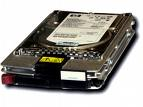
2060-701622-000 WD PCB Circuit Board

HDD Printed circuit board (PCB) with board number 2060-701622-000 is usually used on these Western Digital hard disk drives: WD1001FALS-00J7B1, DCM HANNNT2CB, Western Digital 1TB SATA 3.5 Hard Drive; WD1001FALS-00J7B1, DCM HBNNHV2CA, Western Digital 1TB SATA 3.5 Hard Drive; WD1001FALS-00J7B1, DCM HBNNHV2AB, Western Digital 1TB SATA 3.5 Hard Drive; WD1001FALS-00J7B1, DCM HARNHV2CB, Western Digital 1TB…

Read More

How to Troubleshoot SCSI/ATA hard drive combinations?

SCSI Hard Drive When SCSI drives are connected to the SCSI host adapter, with an ATA drive installed, you are unable to boot from the ATA drive.

The SCSI host adapter and the ATA port on the motherboard could be set for the same IRQ or address or both. Check the following:

  • For the primary port, the ATA ports on the motherboard will likely be set to IRQ 14, and the I/O address will likely be set to 1F0-1F7.
  • For the secondary port, the ATA ports on the motherboard will likely be set to IRQ 15, and the I/O address will likely be set to 170-177.
  • The SCSI host adapter’s IRQ and I/O address should not conflict with the above settings.
  • If using a plug-in controller or host adapter with a BIOS, make sure the BIOS address does not conflict with the address settings of other cards or devices.
  • Check the documentation for the motherboard or SCSI host adapter for detailed information on how to change these settings. If unavailable, contact the vendor of the ATA or SCSI host adapter.

Once these setting are properly implemented, your computer should be able to recognize available ATA and SCSI drives with no problem.

You are unable (or there is a long delay when trying) to boot from the SCSI drive.

 The motherboard’s BIOS might be “pinging” the ATA bus looking for an ATA drive. When using a SCSI drive as a boot device, there should not be an ATA drive physically attached as the Primary 0 (master) drive, and the CMOS settings for the Primary 0 drive should be set to “none” or “not installed”. In addition, check the CMOS settings for the Primary 1, Secondary 0, and Secondary 1 drives. If any of those drives are not physically present, the corresponding settings should be set to “none” or “not installed” as well.

If you are still unable to boot from the drive, make sure it has been properly prepared as a bootable drive – make sure it has been formatted and has active partitioning set.

The SCSI drive is not recognized at full capacity.

Make sure the SCSI host adapter’s setting for “above 1GB support” is enabled. For drives larger than 8.4 Gbytes, enable the BIOS’ INT13 Extensions.

If the drive is reporting less than its full factory capacity to the controller BIOS, it is possible that the drive may have been programmed to a smaller capacity (Seagate SCSI drives support a change capacity feature).

If this is the case, standard drives may be returned to full capacity (or reprogrammed to any capacity up to full capacity) using Seagate’s SeaTools utility.

The SCSI drive is not performing optimally.
Try the following:

  • Make sure your card and motherboard’s BIOS are optimally configured for performance. You might need to contact the manufacturer of the card for assistance with these options.
  • Check your SCSI cable and the drives’ ID, termination, and termination power settings.
  • Make sure the cable is of good quality and is not coiled up inside the computer.
  • Try to route SCSI ribbon cabling away from the power supply.
  • If this is the only device attached internally, set the ID to 0 and terminate the drive.
  • If there are 2 or more devices internally attached to the SCSI cable, set the boot drive to ID 0, set the other devices to any other unassigned SCSI ID (except 7, which is usually reserved for the SCSI host adapter), and terminate the drive that is physically at the end of the cable. Termination power should be set on both drives to match the requirements of the SCSI host adapter.

The following recommendation is DATA DESTRUCTIVE. Proceeding will ERASE ALL DATA FROM THE DRIVE.

    We recommend that you use the SCSI host adapter’s utility to low-level format (or initialize) the SCSI drive. This will help ensure that the drive is properly communicating and optimally synchronized to the host adapter. If possible, BACKUP the drive(s) before following this procedure.
  1. If this is not possible, and the data is needed, please consult a data recovery service to assist you in recovering your data.
  2. A low-level format typically takes 45 – 60 minutes per gigabyte. The larger the drive, the longer the time required for completion.
  3. DO NOT TERMINATE OR ABORT THE LOW-LEVEL FORMAT! The drive(s) can become permanently damaged.

After the low-level formats are completed, reboot the computer from a bootable system or recovery diskette and proceed to prepare the drive for use. In a DOS or Windows 95/98 environment:

1. Use FDISK to partition the drives as desired. Ensure that the C: partition is a “PRI-DOS, ACTIVE” partition.

2. After partitioning the drives, reboot the computer.

3. Use FORMAT to high-level format each partition on the SCSI drives.

a) Type format X:, where X is the drive letter of the drive you wish to format.

b) If you want to make the C: partition bootable, add the “/S” parameter to the end of the command to transfer the system files. (At the command prompt, type FORMAT C: /S)

Each partition should now be formatted to its full capacity, ready to store data.

Read More

Free Hard Drive Tools (Part I)

1. Hard Drive Capacity Restore Tool

License: Freeware
Author: Atola Technology
Operating System: MS Windows 2000/2003/XP
Hard Drives Supported: All hard drives
Version: 1.2

HDD Capacity Restore Tool allows you to restore factory capacity of all hard drives.
Sometimes you can use HDD Capacity Restore Tool to actually increase the capacity of a hard drive (if it was limited by the distributor; for example, Hewlett-Packard sometimes sells 80-GB hard drives but sets a 40-GB limit. You can restore the full 80-GB capacity in this case).

Download HDD Capacity Restore v1.2
Capacity restore guide

2. Partition Find and Mount

License: Freeware
Author: Atola Technology
Operating System: MS Windows 2000/2003/XP
File Systems Supported: NTFS all versions, FAT12 (floppy), FAT16, FAT32

Partition Find and Mount allows you to recover deleted partitions.
What’s special in Partition Find and Mount is that it allows you to mount lost partitions right into the system, so the operating system sees that lost partition like a good one. It also has the possibility to create and mount images of the entire hard drive or separate partitions.

Download Partition Find and Mount

3. Wipe Hard Drive Tool
License: Freeware
Author: HDDGURU.COM
Operating System: MS Windows 2000SP4/2003/XP
Hard Drives Supported: All hard drives
Version: 2.35 build 1178

HDD Wipe Tool is a freeware utility for low-level hard drive erasing.
•    Supported interfaces: S-ATA (SATA), IDE (E-IDE), SCSI, USB, FIREWIRE. Big drives (LBA-48) are supported.
•    The program also supports low-level erasing of FLASH cards using a card-reader.

HDD Wipe utility will erase and re-certify a SATA, IDE or SCSI hard disk drive with any size of up to 281 474 976 710 655 bytes. Work with USB and FIREWIRE external drive enclosures. Low-level erasing of Flash Cards is supported too.
HDD Wipe Tool will clear partitions, MBR, and every bit of user data. The data cannot be recovered after using this utility. The program utilizes Ultra-DMA transfers when possible.
WARNING: After running this free wipe tool, the whole disk surface will be fully erased. Therefore, data restoration will be impossible after using this utility!

Download HDDGURU HDD Wipe Tool ver.2.35 build 1178

4. Hard drive firmware update utility (Bootable CD ISO)
This utility, on the bootable CD, will then examine your system, detect all 2.5/1.8 inch hard drives installed, and then check the firmware revision of the drive. If required, it will prompt you to run the appropriate firmware update program for your drive.
Supported drives:
IBM DARA-2x, IBM DJSA-2x, IBM IC25NxATDA04, IBM IC25TxATDA05
IBM IC25NxATCS04, IBM IC25TxATCS05, IBM IC25NxATCS05

HITACHI DK2x7A-x, HITACHI DK2x8A-x, HITACHI DK2x9A-x
HITACHI DK23AA-x, HITACHI DK23BA-x,HITACHI DK23CA-x
HITACHI DK23DA-x, HITACHI DK23EA-x, HITACHI DK23FB-x
IBM/HITACHI IC25NxATMR04, HITACHI HTS54xM9AT, HITACHI HTS72xM9AT
HITACHI HTS42xM9AT, HITACHI HTS54xG9AT,HITACHI HTS7210xxG9AT00
HITACHI DK1xFA

TOSHIBA MKx09MAT, TOSHIBA MKx19GAX, TOSHIBA MKx26GAX
FUJITSU MHN2xAT, FUJITSU MHR2xAT, FUJITSU MHT2xAT
FUJITSU MHT2xAH

This package is compiled into an ISO format, which is compatible with CD writing software and writable to a CD-R or a CD-RW disc.
Any hard drive password must be removed prior to running this utility.

A written CD-R or CD-RW disc will be bootable. It will boot from your ThinkPad optical disc drive and run the update utility program.

Download Hard drive firmware update utility release FWHD41 (ISO image to burn a CD)

Read More

Top 10 Data Disasters Stories for 2011 (Kroll Ontrack)

Think you have the worst data disaster story? Let’s find out! Submit your top data disaster for the chance to win an iPad2. – Ontrackdatarecovery.co.uk

data-disasters-2011

Top 10 Data Disasters Stories for 2011:

1. Triple whammy
When a lightning strike caused a fire that sent a famous Caribbean island home up in smoke, the computer servers were burned and then doused with water by the firemen. The media then corroded while the building sat idle until it was safe to re-enter. In the end, the triple whammy of a lightning strike, fire and water damage was overcome in the Ontrack Data Recovery cleanroom.

2. Doggy eat dog world
A man encouraged his girlfriend to back up her photo library, which contained thousands of high-resolution photos from her photo studio. She diligently moved the data from her laptop to an external hard drive, but unfortunately that represented the only good copy. A friend then pulled into the driveway and the couple went out to meet her, but not before the hyperactive family dog heard someone at the door and came tearing out from underneath the table where the drive was sitting. The drive went crashing to the floor, causing much damage to the data.

3. A little piece of history
A freelance photographer happened to have his camera with him in the midst of the recent London riots. Some rioters saw they were being filmed and opted to smash the camera in order to destroy the potentially incriminating evidence. The camera made its way to Kroll Ontrack where 100 percent of the data and the video footage was recovered and supplied to the police.

4. In the safe not on the safe
To avoid arriving late to a business meeting, an IT person opted to put a tape drive on top of the waterproof safe instead of inside it. Within an hour of doing so, the city was struck by a powerful earthquake and the tape was knocked to the ground. Then, the premise was engulfed by mud, water and sand. The tape looked irrecoverable.

5. Smoking kills
A newly hired security guard was doing his first evening security check in a chemical ingredients warehouse. While he was informed that smoking is forbidden, he pondered who could possibly spot him enjoying a cigarette after company hours. After it was lit, the fire alarm sounded and prompted the anti-fire sprinkler system. All the electronic equipment, including 44 desktops and two servers, were flooded.

6. Sunken business deal
Two businessmen met in a pub to discuss a future deal over a beer. The waitress accidently knocked over one of the glasses she was delivering, soaking the laptop which contained the business plans. A paper towel was not enough to save the laptop and its important deal files.

7. End of month disaster
A corporate accounting department stayed late to reconcile the books for the month. While rejuvenating on a coffee break, a power outage occurred. All of the computers shut down including the financial server. Luckily the department’s computers were connected to a UPS. However, the continued brewing of their cups of Java drained the UPS battery, resulting in a crashed server.

8. Magnetic attraction
A laptop was set down on a desk near some rare earth magnets. The earth magnets came into contact with the laptop and when the user went to turn on the machine, it did not fully boot up and started clicking. Physical damage was caused to the platters.

9. Virtual reality
To increase system performance, an IT administrator split the C and D partition of his virtual server across two different systems. Running out of space, the admin needed to rush and consolidate C and D onto the same system. Not knowing that the same naming convention already existed on the target system, he copied over the important data set.

10. Bad image
An actor deleted her entire portfolio including her model card samples and recent pictures by accidently selecting the wrong externally attached USB drive using the MAC disk utility program.

Note: Submit your worst data disaster story by January 31, 2012. Include how the data disaster occurred, how it impacted you or your business and if you were able to recover your data (if so, how much you recovered). The winner will be selected on February 1, 2012. Join Now

Read More