WD Hard Drive Circuit Boards Swap Guide

As we know:  Western Digital HDD can’t spin; board/chip be burnt; interface broken; etc. These problems are caused by PCB malfunction. Swap PCB of your WD hard drives can resolve the problems. (See also Noise related to PCB in Western Digital hard Drives)

1. WD Hard Drives PCB Swap Guide:

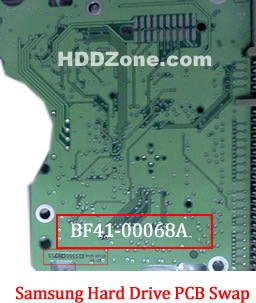
For Western Digital HDDs, just need the donor PCB has the same board number as yours.

western-digital-hard-drive-pcb-swap

2. Before WD PCB Swap you should know:

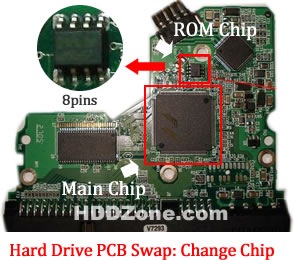
1. Most PCB’s BIOS chip(ROM Chip) store the unique information. We need change the BIOS form original PCB to replacement PCB, in order to make the replacement PCB compatible with the HDD.  The 8pins (4 pins on each sides) with 25P05VP、25P10VP、25F512、25F1024、25F1024AN、SST25VF512、SST25VF010, etc. are the BIOS Chip.

Tips: Most of the TV/Phone Repair Shop can offer these services for just $5-%20

2. Some PCB don’t have separate BIOS. The BIOS be integrated on the Main Controller IC(The biggest chip on the board, also named Main Chip). We should exchange the Main Controller IC to let the HDD be recognized.

3. Where to buy WD Hard Drive Circuit Boards?

WD 2.5″ Laptop Hard Drives PCB:

WD 2060-771692-002 PCB
WD 2060-771692-005 PCB
WD 2060-771737-000 PCB
WD 2060-771814-001 PCB
WD 2060-771820-000 PCB
WD 2060-771823-000 PCB
WD 2060-771714-002 PCB
WD 2060-771754-000 PCB
WD 2060-701675-004 PCB
WD 2060-701572-002 PCB
WD 2060-771672-004 PCB
WD 2060-771672-001 PCB
WD 2060-701675-001 PCB
WD 2060-701499-005 REV A PCB
WD 2060-701402-002 PCB
WD 2060-701401-002 PCB
WD 2060-701578-001 PCB
WD 2060-701499-000 REV A PCB
WD 2060-701450-011 REV A PCB
WD 2060-701424-007 REV A PCB
WD 2060-701510-000 PCB

WD Hard Drives PCB(SATA)

Western Digital PCB 2060-771702-001
Western Digital PCB 2060-771590-001
Western Digital PCB 2060-701477-001
Western Digital PCB 2060-771640-002
Western Digital PCB 2060-771577-001
Western Digital PCB 2060-771698-002
Western Digital PCB 2060-701640-006
Western Digital PCB 2060-771640-003
Western Digital PCB 2060-701640-005
Western Digital PCB 2060-771668-000
Western Digital PCB 2060-771642-000
Western Digital PCB 2060-701640-007
Western Digital PCB 2060-701567-000
Western Digital PCB 2060-701640-000
Western Digital PCB 2060-701640-001
Western Digital PCB 2060-701640-002
Western Digital PCB 2060-771642-001
Western Digital PCB 2060-701590-001
Western Digital PCB 2060-701563-000
Western Digital PCB 2060-701520-000
Western Digital PCB 2060-701310-004
Western Digital PCB 2060-701537-004
Western Digital PCB 2060-701383-001
Western Digital PCB 2060-701384-002
Western Digital PCB 2060-701453-000
Western Digital PCB 2060-701293-001
Western Digital PCB 2060-701393-002
Western Digital PCB 2060-701444-003
Western Digital PCB 2060-701444-004
Western Digital PCB 2060-701477-002
Western Digital PCB 2060-701537-003
Western Digital PCB 2060-701552-003
Western Digital PCB 2060-701577-001
Western Digital PCB 2060-701590-000
Western Digital PCB 2060-701335-003
Western Digital PCB 2060-701335-005
Western Digital PCB 2060-701310-003
Western Digital PCB 2060-001293-000
Western Digital PCB 2060-001252-000
Western Digital PCB 2060-701537-002
Western Digital PCB 2060-001293-001
Western Digital PCB 2060-701335-002

Western Digital Hard Drives PCB(IDE)

Western Digital PCB 2060-701596-001
Western Digital PCB 2060-001113-001
Western Digital PCB 2060-001092-007
Western Digital PCB 2060-001092-006
Western Digital PCB 2060-001127-003
Western Digital PCB 2060-001076-002
Western Digital PCB 2060-001062-004
Western Digital PCB 2060-001047-001
Western Digital PCB 2060-001100-003
Western Digital PCB 2060-701494-001
Western Digital PCB 2060-701552-002
Western Digital PCB 2060-001068-001
Western Digital PCB 2060-001092-006
Western Digital PCB 2060-001113-001
Western Digital PCB 2060-001129-001
Western Digital PCB 2060-001179-003
Western Digital PCB 2060-701265-001
Western Digital PCB 2060-701292-000
Western Digital PCB 2060-701292-001
Western Digital PCB 2060-701292-002
Western Digital PCB 2060-001130-012
Western Digital PCB 2060-701508-001
Western Digital PCB 2060-701494-002
Western Digital PCB 2060-001130-010
Western Digital PCB 2060-001128-005
Western Digital PCB 2060-001266-001
Western Digital PCB 2060-001266-000
Western Digital PCB 2060-001265-001
Western Digital PCB 2060-001189-003
Western Digital PCB 2060-001177-000
Western Digital PCB 2060-001175-000
Western Digital PCB 2060-001173-004
Western Digital PCB 2060-001159-006
Western Digital PCB 2060-001292-000

Note: These are just PCB (Printed Circuit Boards), not the whole HDD (Hard Disk Drive). More other pcb(Seagate, Maxtor, Samsung, Hitachi) swap guide please refer to this post: hard Drive PCB Swap

Read More

Western Digital HDDs’ Noise related to PCB

Causes & Solutions of Two Main types of Noise Which is occured in Western Digital HDDs (Especially Related To L-shape PCBs)

Clicking Noise and Continuous Noise

1- The Clicking Noise
when u power on the hard drive u will hear a noise like (click,click….click,click…click,click)
this noise may be related to the head stack or PCB, the first thing you have to do is to check the PCB By The following steps:

  1. first you have to clean the Whole PCB With a Solvent & Toothbruch then wipe it with a piece of smooth handkerchief to remove the dust & dirt from it.
    Caution: Cleaning of the PCB must be done carefully to avoid removal of any small electronic components.
  2. Check the Resistor (R120) , [ the right value of this Resistor is (0.12 Ohm) ] ,u may adjust ur multimeter to Resistor Measuring Mode to Determine its Value ,if it’s Damaged u have to replace it. but before that, u have to check Transistor Q3 , it’s a 6 pins transistor , for measuring this transistor u may adjust ur multimeter to Diode Mode,[ the right Value will be: (first two pins = 0.000 , second two pins =0.000 , Third two pins = nearly over 600)]
    if Q3 is Damaged it will burn ur R120 after u replace it , so be sure that Q3 is ok before replacing R120 & u may also Check Transistor Q6 by the previous method to be completely sure it’s safe to replace R120.
    Note: ( to be sure of The right values of these electronic components u may compare the values u have measured with the values of a working PCB’s Components)
  3. Check The Coils (such as L2 & L7) – adjust ur multimeter to diode mode then the right value must be ( 0.000 ) for any coil as u all know.
  4. inspect the whole PCB for any removed component ( such as small capacitors or Resistors ) … the removal of these small components may occured while forced cleaning of the PCB …. so becareful while cleaning it.
  5. in rare cases the firmware microchip may be damaged.

western-digital-pcb

Resolution image which shows all the Western Digital PCB Electronic Components I have mentioned above.

2- The Continuous Noise

sometimes there is a continuous noise come from WD HDDs mainly with L-shape PCBs
with motor ICs ( Smooth 1.3) , (L6278 1.7) & (L6278 1.2).
the noise is like : Trrrrrrrrrrrrrr or Trrrr….Trrrr…Trrrrr

so all we have to do for fixing this problem is:

  1. 1- clean the connection points which connect the head stack pins with the PCB using a pencil Rubber …carefully.
  2. 2- clean the motor IC pins thoroughly using a solvent & Toothbrush then wipe it with a piece of smooth handkerchief to remove the dust & dirt from it.
    -Note- the two steps mentioned above solve the problem in few cases.
  3. 3- if the two steps mentioned above didn’t fix the problem , you have to replace the motor IC cause it’s damaged.

Note: in case of Motor ICs (L6278 1.7) & (L6278 1.2) first try to desolder them then resolder them again before u decide to replace them with a new ones … this sometimes work , but if it didn’t work … replace them directly.

In case of Motor IC (Smooth 1.3) you must replace it directly. Image below Shows you where to clean.

WD-PCB

Useful Resources:

Read More

General Data-Loss Prevention Tips

data-loss The cost of a data loss event is directly related to the value of the data and the length of time that it is needed, but unavailable. Consider:

  • The cost of continuing without the data
  • The cost of recreating the data
  • The cost of notifying users in the event of a compromise

General Data-Loss Prevention Tips

Software and Hardware

  • Document your systems and archive original copies of your software in a safe place.
  • Backup your files on a regular basis, then test and verify that your backup is a complete copy of the original. External drives are an excellent choice for this task.
  • Never upgrade software or hardware without a complete, verified backup available in case you need to restore data.
  • If you are using Microsoft Windows XP, establish System Restore Points before making any significant changes to your system.
  • Write a contingency plan and practice restoring your data in case of problems. Your contingency plan should require, as a minimum:
    • Locating all available backups, including dates and types of backup.
    • Listing and locating all original software packages, detailing updates since the original installation.
    • Locating and making ready an alternate computer.
  • Deploy firewalls and virus protection.
  • Delete unused files and applications. Use a disc defragmenter, which is a program that is usually part of the operating system utilities.

Environment

  1. Ensure proper environmental conditions (stable temperature, humidity and cleanliness) and proper handling to avoid static discharge and accidental dropping.
  2. Physically secure systems from intruders.
  3. Prepare for physical disasters, including use of off-site storage for backup.

The following sections describe types of data recovery and supported formats and manufacturers. RAID data recovery, digital photo recovery, and VMWare workstation data loss are covered in separate articles under “Related Links.”

Laptop Data Recovery

As they are often carried about and exposed to different environmental factors such as heat, water and dust, laptop and notebook computers are far more likely to experience data loss than their office desktop counterparts. Their portability makes these sophisticated and essential in-the-field devices prime candidates for data loss.

Mechanical and electrical failure, software corruption and human error all play a role in data loss. Here are some of the most often noted data loss symptoms and data accessibility problems:

  • Dropped notebook – no longer turns on
  • Inaccessible drives and partitions
  • Applications that are unable to run or load data
  • Corrupted data
  • Virus attacks
  • Hard disk component failure
  • Hard disk crashes
  • Damage due to fire or liquids
  • Media surface contamination and damage
  • Accidental reformatting of partitions
  • Accidental deletion of data

Laptop Disk Drives Supported
You may not know this, but the hard disk drive embedded in your laptop is not necessarily by the same manufacturer as the laptop. Seagate Recovery Services recovers data from all notebook and laptop brands, models and interfaces – that is, from all types of hard disk drives from all manufacturers including Western Digital, Seagate, Toshiba, Fujitsu, Hitachi and Samsung.

Database Recovery

Mission-critical data is often stored in SQL Server, Oracle, Sybase, Exchange Server, Access and other databases that are maintained on networked fileservers. Relational and object-oriented database management technologies are fundamental to modern IT systems, often underpinning the lifeblood applications run by the entire corporation.

Individual media in database servers suffer from the same failure points as disk drives in personal computers and workstations. Experienced system administrators and database administrators know that a relational or object-oriented database environment is fragile unless supported by a comprehensive and well-tested backup plan.

Unfortunately, it is all too common for devices to become corrupt beyond the scope of routine recovery methods:

  • Backup files not recognizable by database engine
  • Database locked as ‘suspect’ preventing access
  • Deleted or dropped tables
  • Accidentally deleted records
  • Corrupted database files and devices
  • Damaged individual data pages
  • Accidentally overwritten database files and devices

Seagate Recovery Services specializes in making inaccessible data accessible again, recovering data from the most complex database configurations.

Database Types Supported

  • Microsoft SQL Server 6.5, 7.0, 2000, 2005, 2008
  • Oracle Lite, 8.x & 9.x, 10x, 11x
  • Sybase SQL Server
  • Sybase SQL Anywhere
  • Interbase
  • MySQL
  • PostgreSQL Standard Databases
  • Microsoft Access

SRS can also make inaccessible data accessible again for all xbase products such as dBase, FoxPro Productivity Applications Microsoft Office (including all versions of Word, Excel and Powerpoint Mail Server and Client Applications), Microsoft Exchange and Outlook Applications, and email systems conforming to the UNIX mbox format, such as Eudora and Netscape.

Server Data Recovery

Fileservers, application servers, mail servers, web servers, NAS devices and custom-built servers form the backbone of corporations’ business records storage systems. Windows servers–the most popular operating systems for servers today–along with Apple OSX, Solaris, HPUX, IAX, and Linux servers, form a significant portion of servers in businesses.

Naturally, the individual media in servers suffer from the same failure points as do drives in personal computers and workstations. However, the increased complexity of many server operating systems results in additional data loss situations:

  • Server registry configuration lost
  • Intermittent drive failure resulting in configuration corruption
  • Multiple drive failure
  • Accidental replacement of media components

Because servers are often utilized for mission-critical operations, customers need to get their data back quickly and securely. SRS services includes options for on-site data recovery, critical 24/7 options, as well as remote data recovery and special options.

Operating Systems and Platforms Supported
SRS technicians are trained on platform-specific configurations, enabling us to recover data from server hardware spanning the most popular brands, such as IBM, Dell, Hewlett-Packard, Sun and others, including:

  • Intel-based platforms for UNIX Operating systems including
    • Solaris, Linux with ext 2,3,4, xfs, reiserfs & jfs filesystems on standalone & RAID volumes in LVM (Logic Volume Management) configuration or without it
    • BSD-based systems such as FreeBSD, OpenBSD and NetBSD, BSDI
    • Apple Mac OSX
    • Legacy OS like QNX, SCO OpenServer, Xenix, UnixWare, LynxOS and so on
  • Intel-based platforms for Non-Unix Operating systems including:
    • Windows NT, 2000, 2003, 2008 servers
  • UNIX and non-UNIX Platforms such as
    • Solaris on Sun/SPARC equipment, with ufs and Veritas VxFS .zfs filesystems
    • HPUX on Hewlett-Packard workstations with hfs and Veritas
    • VxFS file systems on standalone
    • IRIX on SGI workstations with efs and xfs filesystems
    • Legacy VMS & OpenVMS running on Compaq & DEC equipment using ODS file systems
    • AIX on IBM RS/6000 with jfs file systems on LVM volumes

Tape Data Recovery

Server and personal-computer tape backup systems utilizing mm DAT, Travan, Exabyte 8mm, LTO and the various QIC formats are popular and necessary to safeguard your data. However, when these tapes fail, the situation is normally catastrophic, as these tapes were often the only remaining repository of the data. Quite often customers may no longer posses original tape hardware or software to restore from legacy environments.

Fire, smoke, water and even dropping the tape cartridge may damage the media, resulting in data loss. Internal mechanism failure and exposure to extreme temperatures, as well as logical read/write errors on a tape’s file may also result in data loss. Due to the nature of the tape solution, they are designed to withstand time to store archives. Some media if stored incorrectly or stored longer than the life span of the media may degrade causing data loss.

Here are some typical causes of tape failure:

  • Tape drive failure has corrupted tape headers
  • Tape media stretched or snapped
  • Fire & water damage Media surface contamination and damage
  • Accidental reformatting or erasure of tape
  • Accidental overwriting of headers
  • Tape backup software corruption
  • Media degradation due to the age or improper storage
  • Legacy tapes where tape drive or software no longer available

Formats and Manufacturers Supported
Popular backup software–such as EMC, Networker, CA BrightStore (ArcServe) plus the UNIX tar and cpio utilities (and many more)–all use different internal formats. SRS programmers are expertly trained to understand and extract data any type of tape media, regardless of format. SRS recovers data from these tape media formats and manufacturers, among others:

  • DLT III, DLT IV, DLT-1, VS80, VS160 and Super DLT tape
  • LTO 1, 2 , 3, 4, 5
  • 4mm DAT format DDS, DDS-2, DDS-3 and DDS- DAT-72, DAT-160, DAT-320
  • Exabyte 8mm 112m and 160m tapes & Mammoth 1 (Exabyte 8900), Mammoth 2
  • Sony IT and AIT-2, AIT-3 AIT-4, AIT-5 and SAIT
  • Travan TR-1, TR-3, TR-4 and TR-5 tapes
  • QIC tapes
  • QIC Mini-Cartridges
  • Tandberg SLR tapes
  • ADR and ADR2 tapes
  • 9 track 800/1600/6250 bpi
  • Next track
  • IBM 3480/3490/3592 tapes

Tape Backup and File Formats

  • Microsoft Tape Format (MTF) applications such as NT Backup and Symantec (Seagate/Veritas), BackupExec for Window, Backup Exec for NetWare
  • System Independent Data Format (SIDF) applications such as Novell’s Sbackup and Palindrome’s Backup Director
  • IBM Tivoli TSM
  • Computer Associates, Brightstore (Arcserve)
  • Previos/Stac Replica Backup for NT, NetWare
  • EMC (Legato) NetWorker (all platforms)
  • Symantec (Veritas) NetBackup, unix tar, cpio, fbackup, fsdump and ufsdump archives
  • Compaq/DEC VMS Backup
  • Commvault Galaxy/Simpana

For more information, please go to Seagate Recovery Services

Read More

What Is Data Loss?

Data loss is generally characterized by one or more of the following:

  • The inability to access any data from a previously functioning computer system or backup
  • The accidental deletion of files or the overwriting of data control structures
  • Corrupted or inaccessible files due to abnormal device operation or damage

Among other causes, data loss can be attributed to system or human error, adverse environmental conditions and device failure:

  • Human causes of data loss include intentional or accidental deletion or overwriting of files.
  • Virus damage, operating system or application software bugs, or failed upgrades may also cause data loss.
  • Common physical causes of data loss include power loss or power surge, overheating, electrostatic (“static”) discharge and any kind of physical damage to the storage device or medium.
Read More

Seagate Barracuda 7200.10 PCB Buying Guide

As we know:  Seagate Barracuda 7200.10 HDD can’t spin; board/chip be burnt; interface broken; etc. These problems are caused by PCB malfunction. Swap PCB of your Seagate Barracuda 7200.11 hard drives can resolve the problems.

1. Seagate Barracuda 7200.10 Hard Drives PCB Buying Guide:

For Seagate HDD, just need the donor PCB has the same board number as yours.

seagate-hard-drive-pcb-swap

* Seagate Hard Drive PCB Swap

2. Before Seagate Barracuda 7200.10 HDD PCB Swap you should know:

1. Most PCB’s BIOS chip(ROM Chip) store the unique information. We need change the BIOS form original PCB to replacement PCB, in order to make the replacement PCB compatible with the HDD.  The 8pins (4 pins on each sides) with 25P05VP、25P10VP、25F512、25F1024、25F1024AN、SST25VF512、SST25VF010, etc. are the BIOS Chip.

Tips: Most of the TV/Phone Repair Shop can offer these services for just $5-%20

hard-drive-pcb-swap-change-chip

* Hard Drive PCB Swap: Change BIOS Chip, Main Chip

2. Some PCB don’t have separate BIOS. The BIOS be integrated on the Main Controller IC(The biggest chip on the board, also named Main Chip). We should exchange the Main Controller IC to let the HDD be recognized.

3. Where to buy Seagate Barracuda 7200.10 PCB Circuit Boards?

Seagate 100468303 PCB
Seagate 100395316 PCB
Seagate 100422559 PCB
Seagate 100473090 PCB
Seagate 100470387 PCB
Seagate 100390920 PCB
Seagate 100428473 PCB
Seagate 100406538 PCB
Seagate 100428473 PCB
Seagate 100427286 PCB
Seagate 100406538 PCB
Seagate 100406533 PCB
Seagate 100431066 PCB
Seagate 100431065 REV C PCB
Seagate 100468303 PCB
Seagate 100435196 PCB

Note: Seagate Barracuda 7200.10 PCB sells on HDDZone.com are fully tested before shipment(worldwide free shipping now!); These are just PCB (Printed Circuit Boards), not the whole HDD (Hard Disk Drive).

More other pcb swap guide please refer to this post: hard Drive PCB Swap

Read More

Seagate Barracuda 7200.11 PCB Buying Guide

As we know:  Seagate Barracuda 7200.11 HDD can’t spin; board/chip be burnt; interface broken; etc. These problems are caused by PCB malfunction. Swap PCB of your Seagate Barracuda 7200.11 hard drives can resolve the problems.

1. Seagate Barracuda 7200.11 Hard Drives PCB Buying Guide:

For Seagate HDD, just need the donor PCB has the same board number as yours.

seagate-hard-drive-pcb-swap

* Seagate Hard Drive PCB Swap

2. Before Seagate Barracuda 7200.11 HDD PCB Swap you should know:

1. Most PCB’s BIOS chip(ROM Chip) store the unique information. We need change the BIOS form original PCB to replacement PCB, in order to make the replacement PCB compatible with the HDD.  The 8pins (4 pins on each sides) with 25P05VP、25P10VP、25F512、25F1024、25F1024AN、SST25VF512、SST25VF010, etc. are the BIOS Chip.

Tips: Most of the TV/Phone Repair Shop can offer these services for just $5-%20

hard-drive-pcb-swap-change-chip

* Hard Drive PCB Swap: Change BIOS Chip, Main Chip

2. Some PCB don’t have separate BIOS. The BIOS be integrated on the Main Controller IC(The biggest chip on the board, also named Main Chip). We should exchange the Main Controller IC to let the HDD be recognized.

3. Where to buy Seagate Barracuda 7200.11 PCB Circuit Boards?

Seagate 100565308 PCB
Seagate 100512588 REV A PCB
Seagate 100466725 PCB
Seagate 100498535 PCB
Seagate 100475720 PCB
Seagate 100442000 REV A PCB
Seagate 100512588 REV A PCB
Seagate 100475720 PCB
Seagate 100466725 PCB
Seagate 100530756 REV A PCB
Seagate 100496208 PCB
Seagate 100466824 PCB
Seagate 100498535 PCB

Note: Seagate Barracuda 7200.11 PCB sells on HDDZone.com are fully tested before shipment(worldwide free shipping now!); These are just PCB (Printed Circuit Boards), not the whole HDD (Hard Disk Drive).

More other pcb swap guide please refer to this post: hard Drive PCB Swap

Read More

Western Digital 2.5″ Laptop PCB Buying Guide

As we know:  Western Digital 2.5” Laptop HDD can’t spin; board/chip be burnt; interface broken; etc. These problems are caused by PCB malfunction. Swap PCB of your Western Digital 2.5” Laptop hard drives can resolve the problems.

1. Western Digital 2.5” Laptop Hard Drives PCB Buying Guide:

For Western Digital 2.5” Laptop HDD, just need the donor PCB has the same board number as yours.

western-digital-hard-drive-pcb-swap

2. Before Western Digital 2.5” Laptop PCB Swap you should know:

1. Most PCB’s BIOS chip(ROM Chip) store the unique information. We need change the BIOS form original PCB to replacement PCB, in order to make the replacement PCB compatible with the HDD.  The 8pins (4 pins on each sides) with 25P05VP、25P10VP、25F512、25F1024、25F1024AN、SST25VF512、SST25VF010, etc. are the BIOS Chip.

Tips: Most of the TV/Phone Repair Shop can offer these services for just $5-%20

2. Some PCB don’t have separate BIOS. The BIOS be integrated on the Main Controller IC(The biggest chip on the board, also named Main Chip). We should exchange the Main Controller IC to let the HDD be recognized.

3. Where to buy Western Digital 2.5” Laptop PCB Circuit Boards?

WD 2060-771692-002 PCB
WD 2060-771692-005 PCB
WD 2060-771737-000 PCB
WD 2060-771814-001 PCB
WD 2060-771820-000 PCB
WD 2060-771823-000 PCB
WD 2060-771714-002 PCB
WD 2060-771754-000 PCB
WD 2060-701675-004 PCB
WD 2060-701572-002 PCB
WD 2060-771672-004 PCB
WD 2060-771672-001 PCB
WD 2060-701675-001 PCB
WD 2060-701499-005 REV A PCB
WD 2060-701402-002 PCB
WD 2060-701401-002 PCB
WD 2060-701578-001 PCB
WD 2060-701499-000 REV A PCB
WD 2060-701450-011 REV A PCB
WD 2060-701424-007 REV A PCB
WD 2060-701510-000 PCB

Note: Western Digital 2.5″ Laptop PCB sells on HDDZone.com are fully tested before shipment(worldwide free shipping now!); These are just PCB (Printed Circuit Boards), not the whole HDD (Hard Disk Drive).

More other pcb swap guide please refer to this post: hard Drive PCB Swap

Read More

WD Designs First Hard Drives for SOHO NAS Systems

WESTERN DIGITAL TECHNOLOGIESNew WD Red™ Drives Optimized for Compatibility in Always-on 1- to 5-Bay NAS Systems; Provide Buyers More Choices Tailored to Their Needs.

WD®, a storage industry leader, today announced the debut of  WD Red™ NAS hard drives, an innovative line of SATA hard drives specifically designed for home and small office NAS (network attached storage) systems with one to five drive bays. Compatibility-tested with top NAS box manufacturers and optimized for power and performance, WD Red hard drives are now shipping in 3.5-inch 1 TB, 2 TB and 3 TB capacities.

The WD Red line features NASware™ technology, designed to improve reliability and system performance, reduce customer downtime and to simplify the integration process. This new product line addresses the unique environment of NAS and the growing demand for affordable, reliable and compatible storage that reduces customer total cost of ownership. WD Red hard drives also feature 3D Active Balance Plus, an enhanced balance control technology, which significantly improves the overall drive performance and reliability. In an exclusive for WD Red customers, WD is offering free premium 24×7 dedicated support and a three-year limited warranty.

The addition of WD Red expands WD’s “Power of Choice” client hard drive solutions. WD recognizes that customers and their applications are diverse and they should be empowered to choose the drives that best suit their specific storage needs. With distinguishable colors, the “Power of Choice” storage solutions are clear and easy to identify: WD Blue™ (solid performance and reliability for everyday computing) WD Green™ (cool, quiet, eco-friendly), WD Black™ (maximum performance for power computing), and WD Red (home and small office NAS). The four colors enable quick selection of the best WD drive for customers’ application or usage requirements.

The network attached entry level storage market is poised to grow at an 86.2 percent 2011-2016 CAGR1,” according to John Rydning, IDC’s research vice president for hard disk drives. “WD’s new WD Red hard disk drives offer a unique combination of product features and customer support for users seeking to expand the capacity of their entry-level network attached storage solutions.

Until now, customers had to choose between using desktop or high-end server drives for their home or small office NAS systems – neither of which were both cost effective for consumer solutions and fully NAS compatible, WD saw this challenge as a perfect opportunity to design a better solution so we developed WD Red drives, an optimized product for this rapidly growing segment. said Melyssa Banda, senior director of product marketing for WD.

WD Red hard drives integrate seamlessly with WD NAS solutions and are qualified to work with a wide array of WD OEM partners. An updated list of WD Red-qualified products and manufacturers is available on the WD website at: http://www.wdc.com/en/products/products.aspx?id=810

Availability and Pricing
WD Red hard drives are available now at select resellers and distributors. Manufacturer’s suggested retail price (MSRP) for the WD Red 1 TB drive (model #: WD10EFRX) is $109.00 USD, the 2 TB drive (model #: WD20EFRX) is $139.00 USD and the 3 TB drive (model #: WD30EFRX) is $189.00 USD. More information about WD Red hard drives including terms of the limited warranty may be found on the company website at: http://www.wdc.com/en/products/products.aspx?id=810

WD Red NAS Hard Drive Launch Partners

WD Branded Products
     “The My Book Live family has received strong reception from consumers and the WD Red drive offers attributes ideal for small NAS systems,” said Scott Vouri, vice president and general manager of WD’s connected home solutions group. “My Book Live customers will benefit from WD Red’s NASware features in the future.”

QNAP Systems, Inc.
     “The rapid growth of the global NAS market has led to hard drives optimized specifically for entry-level NAS use,” said Richard Lee, CEO of QNAP Systems, Inc. “The launch of WD Red NAS hard drives offer QNAP® four-bay NAS products a reliable solution for 24×7 operations. QNAP also provides a broad range of high-end business level NAS solutions well matched with WD RAID level hard drives.”

Synology Inc.
     “Synology® is thrilled to be teaming up with WD to offer customers a reliable storage solution featuring WD Red NAS hard drives, which are optimized for consumer NAS systems,” said Vic Hsu, CEO of Synology Inc. “The award-winning Synology DiskStation makes it easy for users to build secure private clouds that operate at maximum uptime. By delivering our unique technologies together, Synology and WD will provide users with greater reliability, cooler operation and a higher quality of user experience.”

Thecus Tech., Corp.
   “The compatibility of Thecus® NAS with the new and dynamic WD Red HDDs is excellent news for all,” said Florence Shih, general manager of Thecus. “To realize this vision, users can experience firsthand true power and performance. Ultimately, the congruency among WD Red hard drives with Thecus NAS brings great opportunities to the storage industry.”

Read More

The Risks of Using Portable Drives

Portable storage devices are pretty important in today’s day and age. You can hardly go anywhere without seeing someone or the other with a flashy hot pink one or sporting  a USB braided in between funky strings around their neck. Perhaps that’s going a bit too far but you might as well always have one in your wallet or your car dashboard. That is just how essential they have become for us that at any given time, we may feel the need for more storage.  But of course, like all things that give us some technological advantage, there are drawbacks.

Easy to Store, Easier to Lose
In the case, of portable drives, the major disadvantage comes with the concerns of privacy and security. In short, these drives are almost a sure fire way to get yourself upped with a keylogger app or some computer monitoring software or the other. And then what happens. Not only do you compromise your security with risks of losing data but also risk all your personal information falling into malicious hands.

So you should be aware of the risks that come with using these cheap and easy tools. Starting with the basics, they are pretty flimsy and can get damaged very easily. This means you need to be extra careful with them so you don’t damage them to the point of no return…which means you losing all your saved data which is usually comprised of your entire backup. But that is the obvious and physical aspect of it which you probably already know. The solution to that is to use the software backup option that most USBs come with. This way if the USB is damaged, you still have the information stored somewhere on cloud. And if not, opt for cloud data storage.

What Organizations Dread
Let us come to the more sinister side, the side that is susceptible to all sorts of dangers including malware, spyware such as computer monitoring software, bugs, Trojans and the never ending list of cyber calamities goes on. People have horror stories about free keyloggers, and even paid ones that were used to infiltrate their privacy. Just like other hard drives, CD ROMS, and floppy disks, USBs and other portable hard drives are just as targetable by virus and similar spyware risks. So for organizations, the fear that their workers can lose and mishandle information they store on portable drives in order to change work environments (for e.g, from work to home or to a remote system), is more real than any other malicious malware threat around.

To secure themselves from a nightmare scenario where things get ported out too fast and without warning, most organizations make sure they have complete virus and spyware protection solutions in place. But that’s the thing with these portable drives; threats can go completely and thoroughly undetected.   So again, what is the solution?

What Is Available
Well really no easy solution. At best, for organizations they can attempt to disable USB usage altogether. So instead of restricting USBs on premises (which is really a fallible plan), companies can use special computer monitoring software to block any one storing and transferring data via the portable device. Of course, for this, a lot of investment needs to be done on the part of the IT Department. But as the menace of data and security breach continues, it seems to be worth looking into. However, the question that raises itself is whether the future of technology can find a cheap and reasonable solution to this problem.

Author Bio
Jane Andrew is a writer and guest blogger of mobistealth with years of experience in tech industry. She loves to write about computer monitoring software and keylogger. You can also follow her on Twitter @janeandrew01 to get tip and news about cell phone.

Read More