MAC Data Recovery Issues

MAC Laptop’s present a special set of problems. One is how to get the hard disk drive out of the computer to perform a File Recovery Service or Computer Data Recovery Service.

A perfect example of these challenges can be found in Apple’s PowerBook G4 series of notebook computer. Attempted removal of the hard disk drive should only be done by an experienced professional. It is quite easy to damage the computer by taking it apart. The area above the DVD player where you right palm sits is very sensitive to damage. Also the hinges on the MAC Titanium are known to break easily.

MAC Data Recovery is different than NTFS or Windows Data Recovery and requires a completely different set of technical skills and for that matter Data Recovery Tools. It is not advised you even use the Data Recovery Company that the Apple store will recommend because they are way too expensive for most end users.
Read More

Ultimate Boot CD

You need the Ultimate Boot CD if you want to:

  • Run floppy-based diagnostic tools from CDROM drives. More and more PCs are shipped without floppy drives these days, and it is such a royal pain when you need to run diagnostic tools on them.
  • Free yourself from the slow loading speed of the floppy drive. Even if you do have a floppy drive, it is still much much faster to run your diagnostic tools from the CDROM drive, rather than wait for the tool to load from the floppy drive.
  • Consolidate as many diagnostic tools as possible into one bootable CD. Wouldn’t you like to avoid digging into the dusty box to look for the right floppy disk, but simply run them all from a single CD? Then the Ultimate Boot CD is for you!
  • New! Run Ultimate Boot CD from your USB memory stick. A script on the CD prepares your USB memory stick so that it can be used on newer machines that supports booting from USB devices. You can access the same tools as you would from the CD version.

Ultimate Boot CD is completely free for the download, or could be obtained for a small fee. If you had somehow paid a ridiculous amount of money for it, you have most likely been fleeced. The least you could do is to make as many copies of the offical UBCD and pass it to your friends, relatives, colleagues or even complete strangers to minimize the per unit cost of your loss!

When you boot up from the CD, a text-based menu will be displayed, and you will be able to select the tool you want to run. The selected tool actually boots off a virtual floppy disk created in memory.

Read More

Can I recover data myself?

Whether you can recover data yourself largely depends on the nature of the data loss and your level of technical expertise. Here are some common scenarios and considerations: 1. **Accidentally deleted files**: If you’ve accidentally deleted files from your computer or storage device, there are various software tools available that you can use to attempt…

Read More

6 Reasons BIOS will not detect or recognize your drive (4)

Reason 4: Faulty or Unplugged Data Cable

Always inspect the motherboard and hard disc connections for bent or misaligned pins. Folding, crimping, pinching, or creasing data cables can cause the wires to break inside the insulation, leaving the exterior of the cable looking normal. When in doubt of data cable condition, replace it.

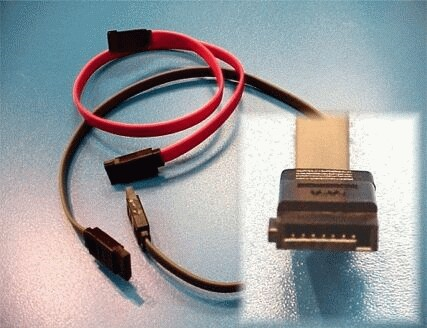
For SATA cables, Seagate recommends using cables shorter than 39.37 inches (1 meter).

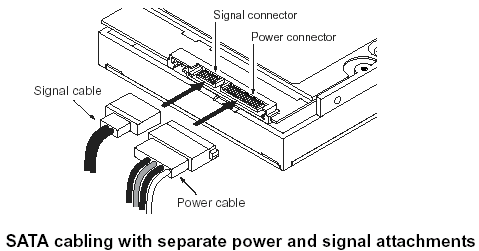
Here are some images of Serial ATA cables.

Faulty or Unplugged Data Cable

Faulty or Unplugged Data Cable

The BIOS will not detect a hard disc if the data cable is damaged or the connection is incorrect.
Serial ATA cables, in particular, can sometimes fall out of their connection. Be sure to check your SATA cables are tightly connected to the SATA port connection.

The easiest way to test a cable is to replace it with another cable.  If the problem persists, then the cable was not the cause of the problem.

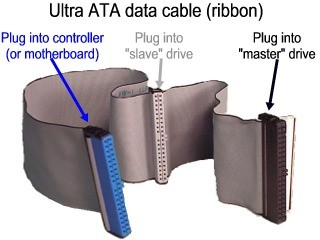
For ATA drives, Seagate recommends using UDMA cabling with a maximum length of 18 inches. UDMA cables have color coded connections which require proper orientation when connecting.

  • Blue connector – always connects to the motherboard.
  • Grey (middle) connector – is used for slave devices on the cable.
  • Black connector – is used for master device connection.

See this image:

Faulty or Unplugged Data Cable

Read More

Windows – What files are in local settings/temp and can I delete them?

I just found that I have 4 GB of space in /Documents and Settings/<user name>/Local Settings/temp. Is there any reason why I shouldn’t go and delete these? Solution: The location you mentioned is the default location for System Environment Variable “TEMP” or “TMP”.Applications use the TEMP for storing temporary data, data that will be needed for…

Read More